
Use your admin account to log in to your School ERP site, ensuring you have the necessary permissions.
To create an employee profile
Steps to Archive an Employee:
- Open the Human Resources Module
- Log into your ERP dashboard and select the Human Resources module. This module is designed to manage all aspects related to your employees and their interactions within the company.
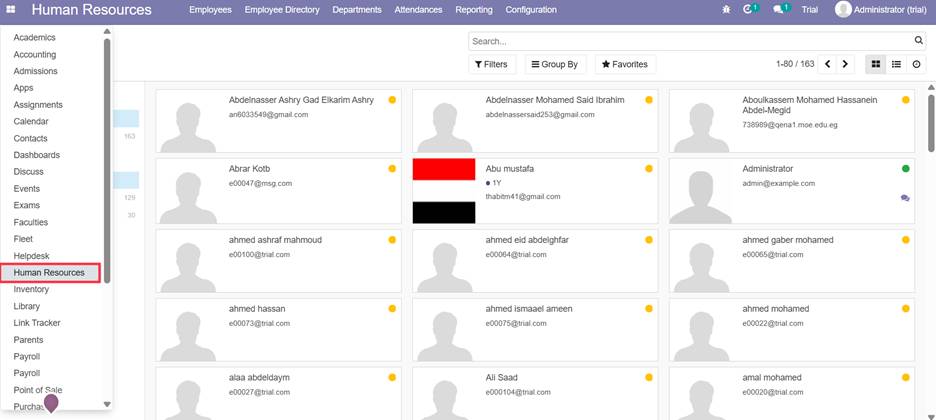
- Log into your ERP dashboard and select the Human Resources module. This module is designed to manage all aspects related to your employees and their interactions within the company.
- Locate the Employee
Use the search bar to find the employee by name, ID, or any other available filter.
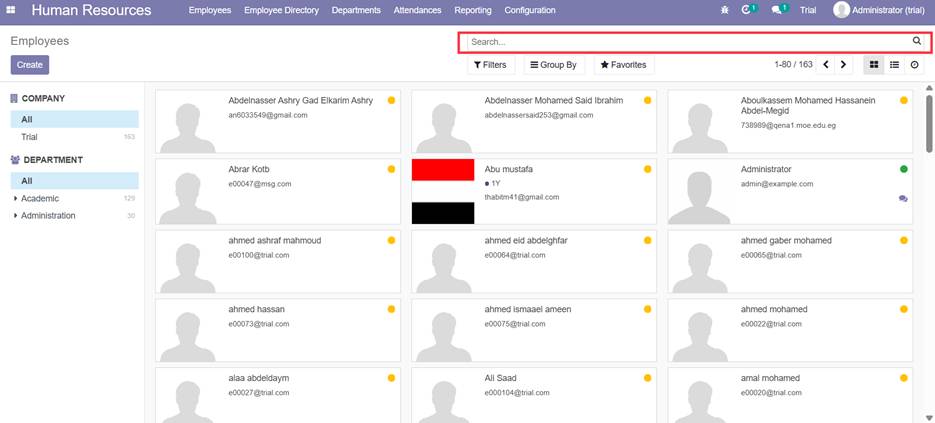
- Open the Employee Profile
Click on the employee’s name to open their profile page. - Use the Action Menu
On the top right corner of the employee profile, click on the “Action” button.
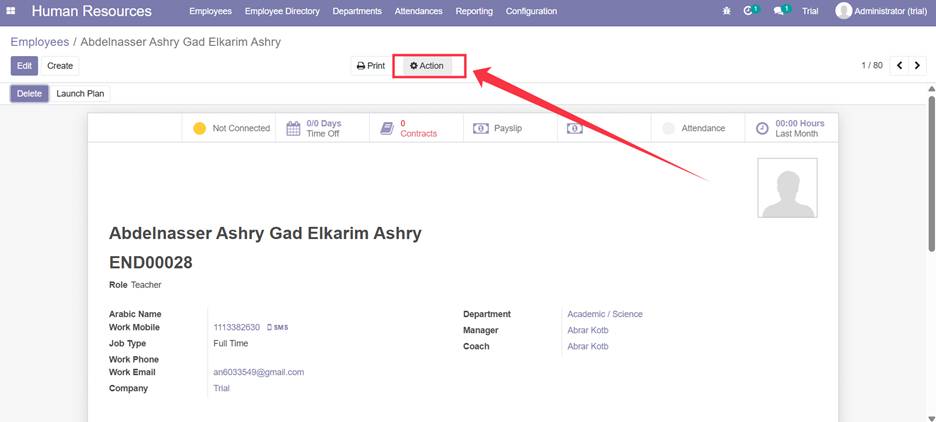
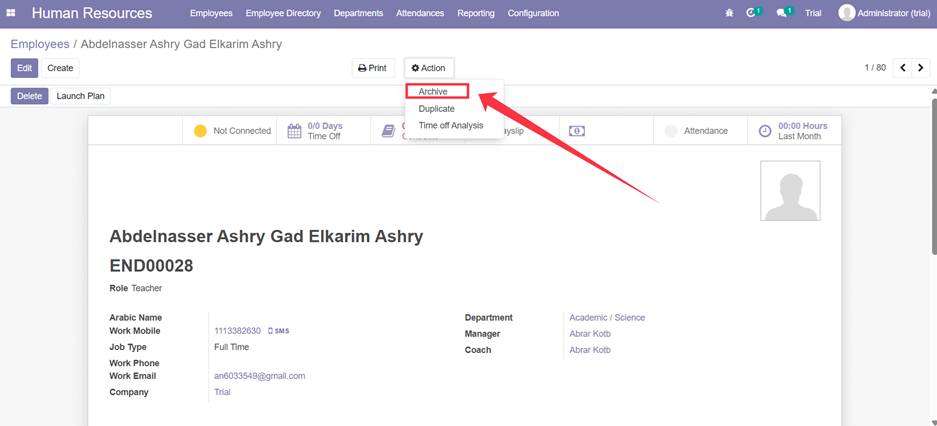
- Select “Archive”
From the dropdown list, click “Archive”.
This will deactivate the employee while keeping all their data intact in the system.
To View Archived Employees:
- Go back to the Employees list.
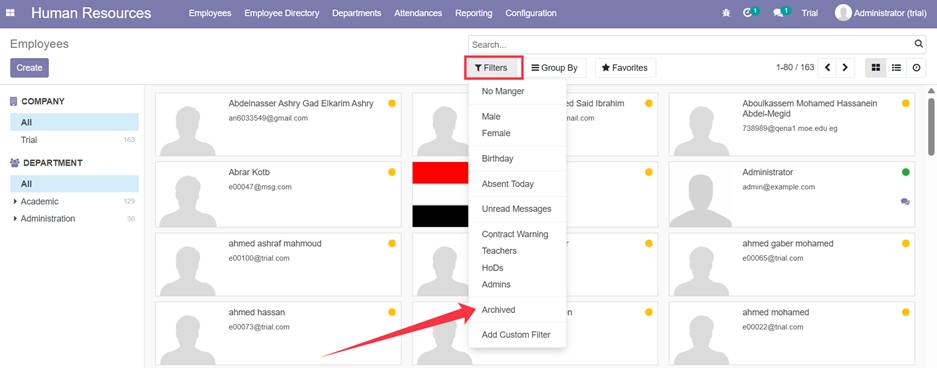
- Click on the Filters button.
- Check the “Archived” filter to show archived profiles.
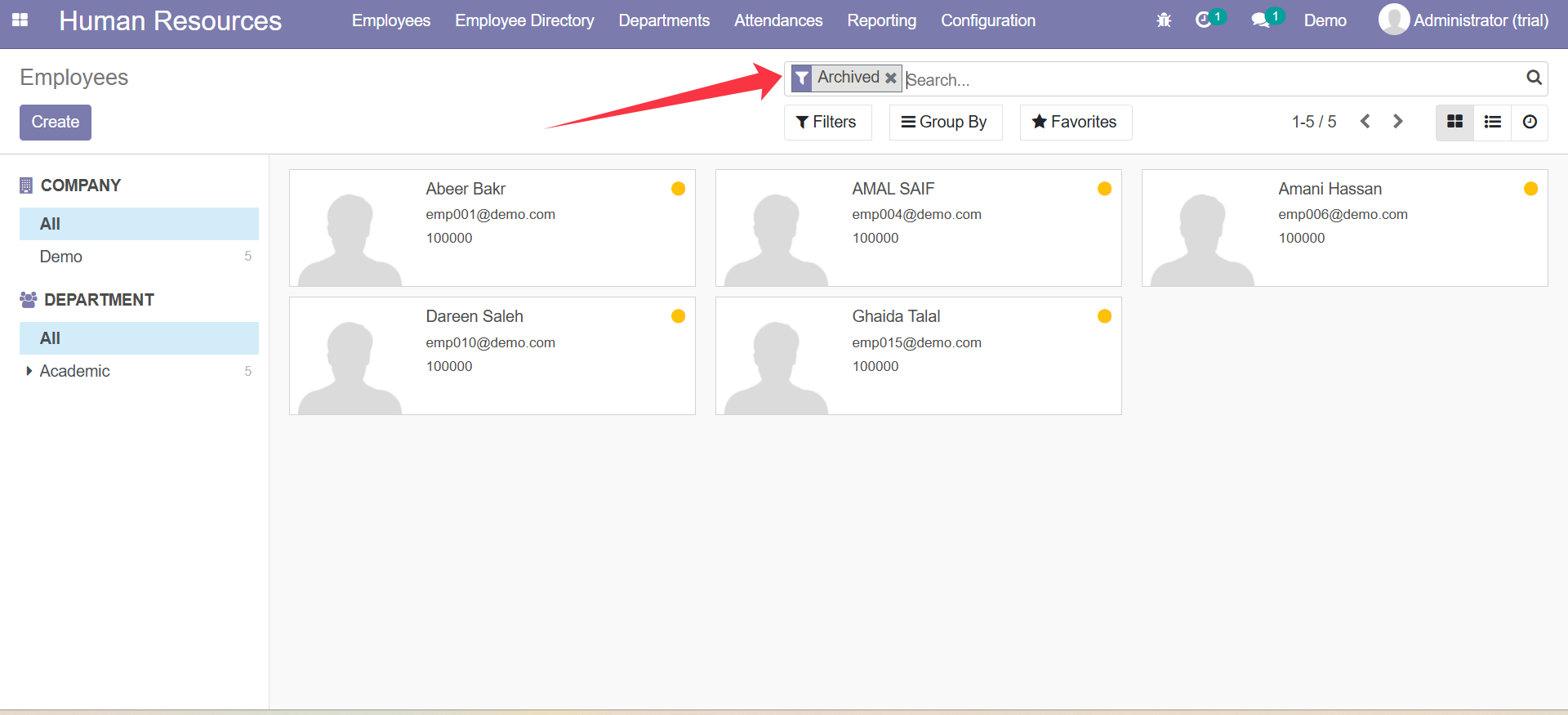
- To restore an archived employee, open the profile and click “Unarchive” from the Action menu.
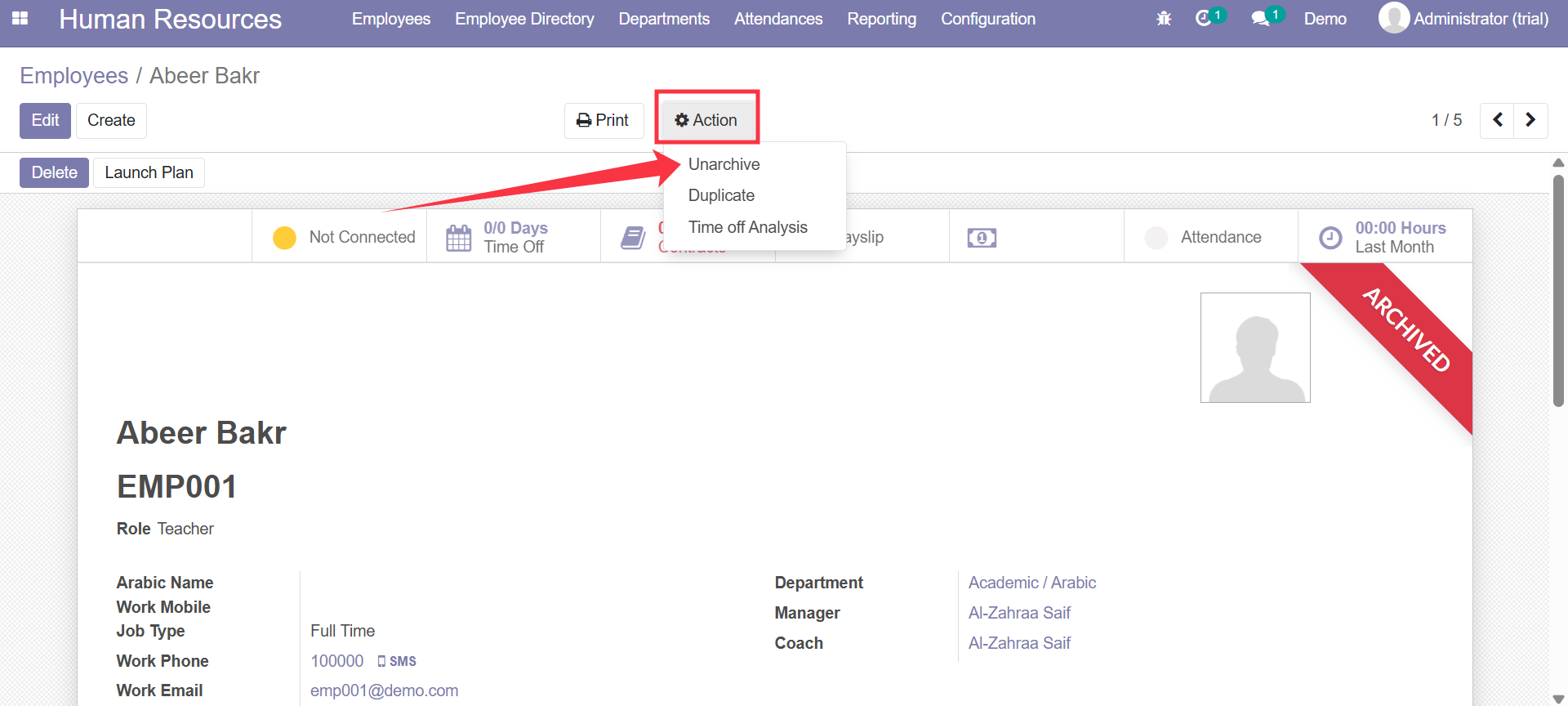
Can you please add screenshot for un archive