
Improved Grade Book Navigation!
Skolera has introduced a new and enhanced Grade Book interface designed to make grading smoother, faster, and more organized for teachers. With this upgrade, you can now easily manage student grades in a structured, responsive layout that supports efficiency and clarity.
Steps to Access the Improved Grade Book:
- Log in to your Skolera account
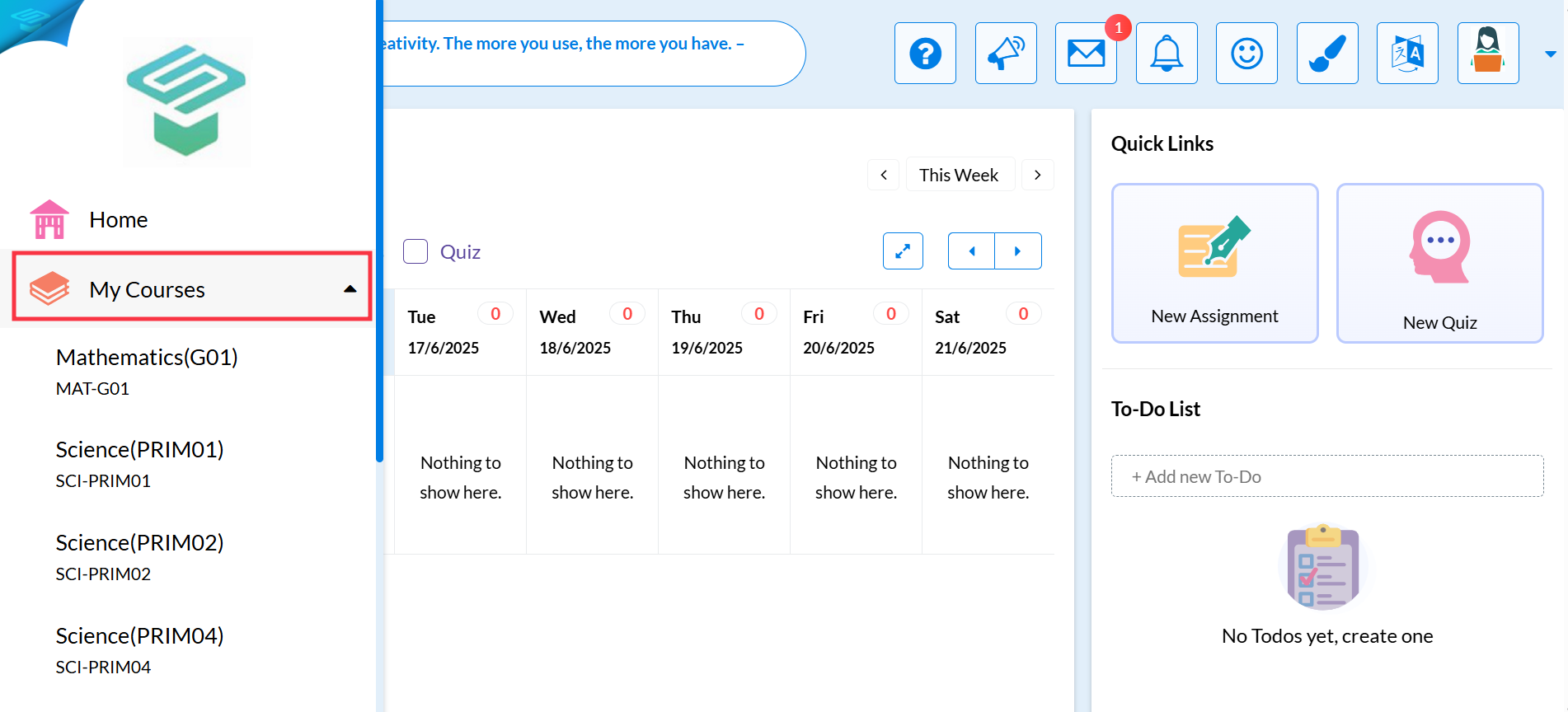
Use your teacher credentials through the web or mobile platform. - Click on the “MY Courses” icon
From the top navigation bar, select the My Courses icon and select the course you want to access the Grade Book dashboard.
- Click on the Grades icon
from the top course toolbar.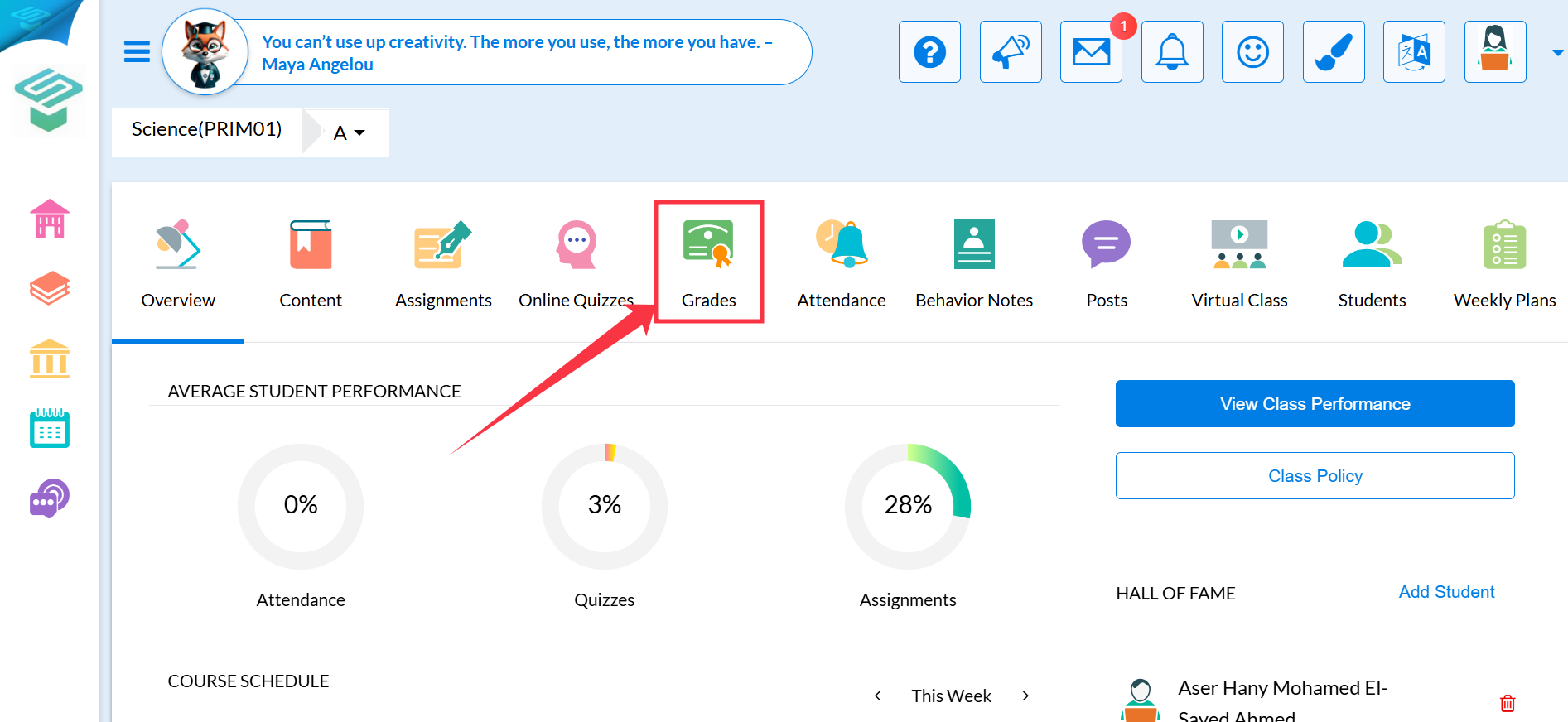
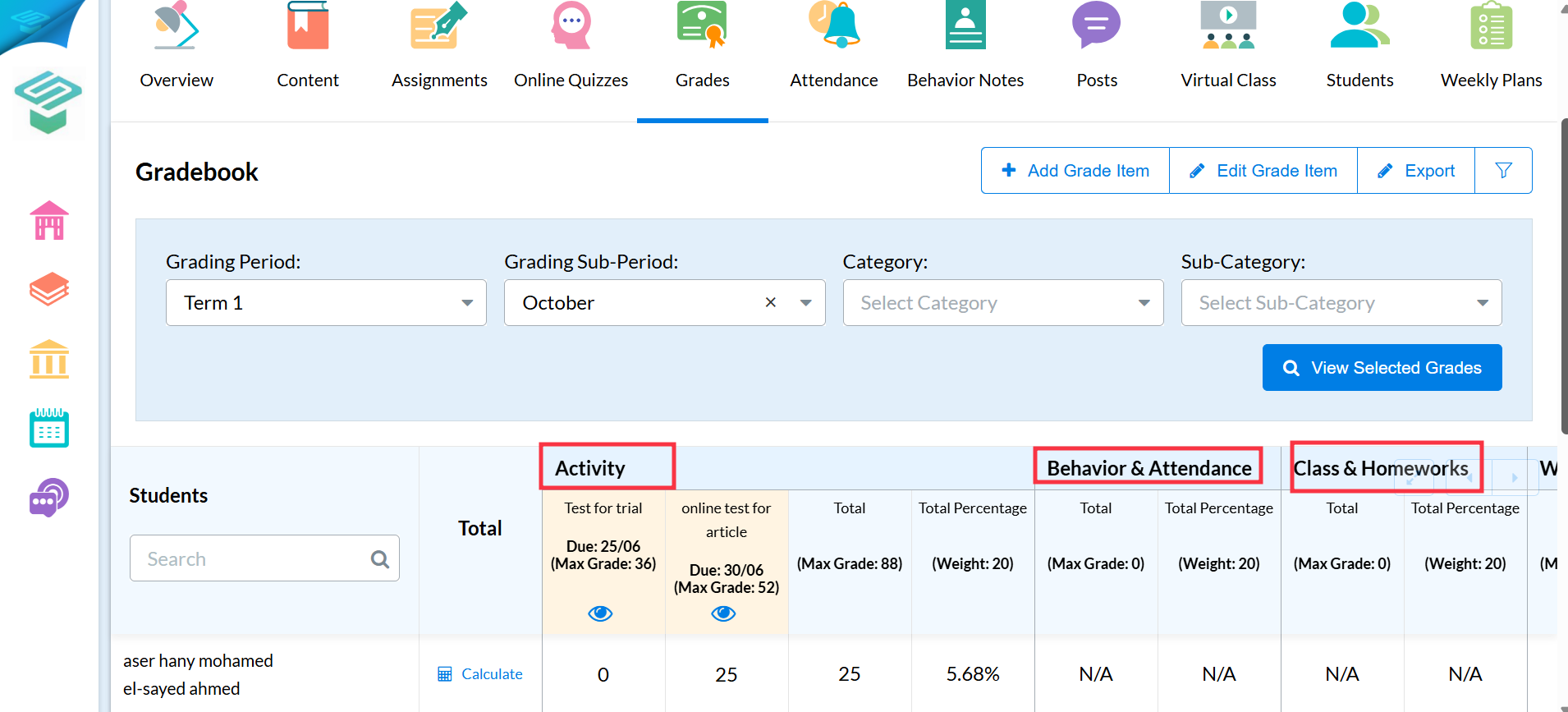
- Choose the grading category
Grades are now organized under clear tabs, such as:- Activity
- Behavior & Attendance
- Class & Homeworks
What’s New in the Grade Book Interface:
? Auto-Save & Smart Navigation:
Grades are now saved automatically, and the cursor moves down to the next cell so you can keep typing without clicking.
? Sticky Headers:
Student names and category titles stay fixed at the top while scrolling, making it easier to follow.
? Horizontal Scrolling with Fixed Names:
You can scroll sideways to enter grades, and student names stay visible on the left.
Additional Features:
- Export Grades:
Download your Grade Book as an Excel sheet for offline use or reporting. - Hover for More Info:
Hover over any grade to see submission details or student feedback. - Auto Save:
All changes are saved in real-time, no need to refresh or submit manually.