
Log onto Skolera from the web or mobile app.
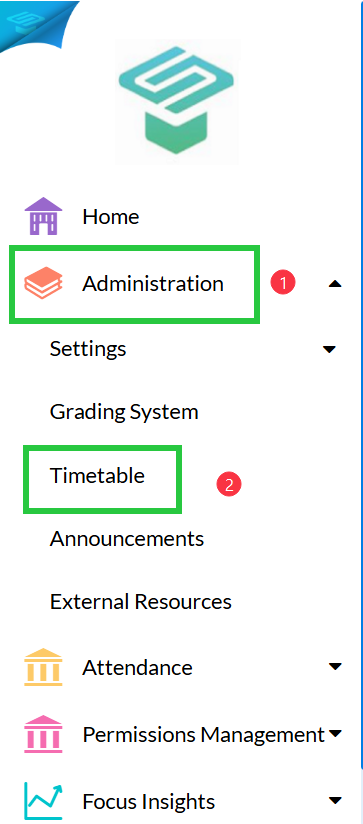
From the Navigation menu at the left side
Go to Administration > Timetable
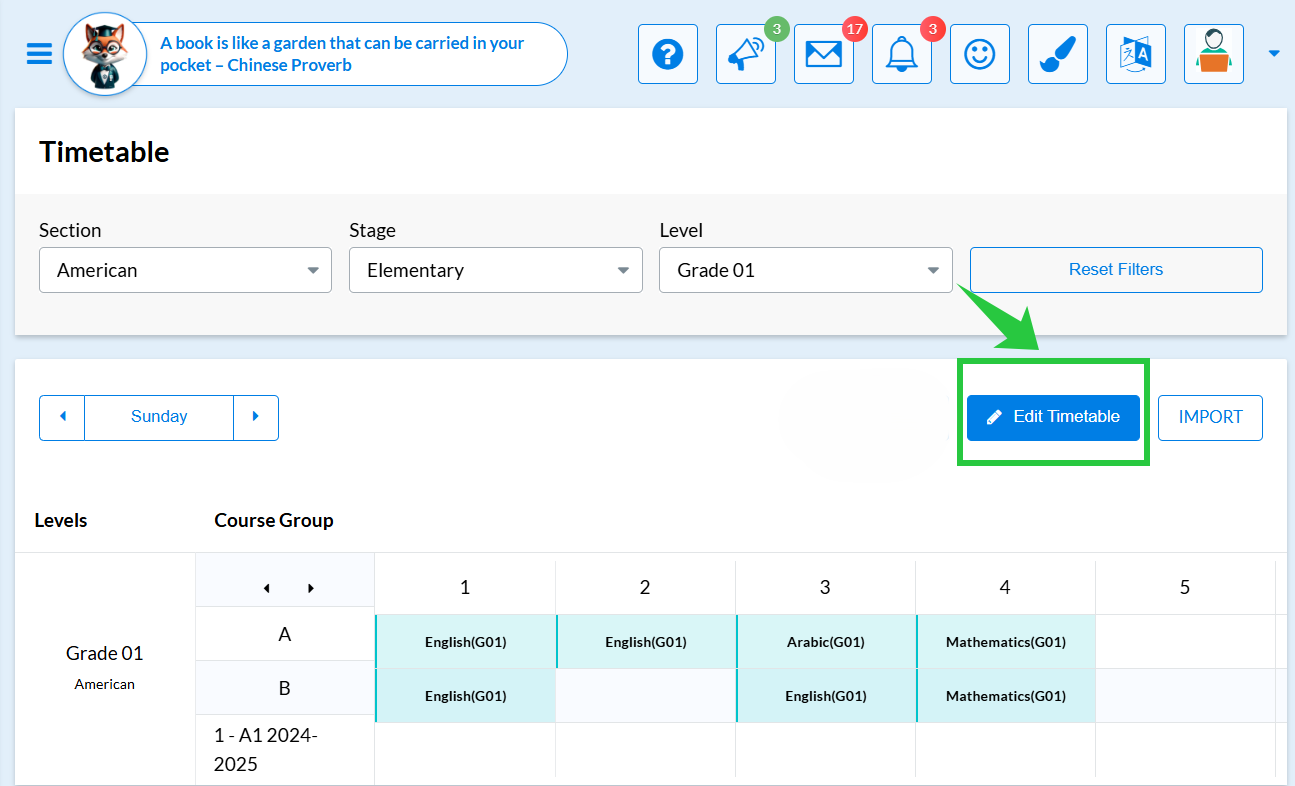
Press on Edit Time table
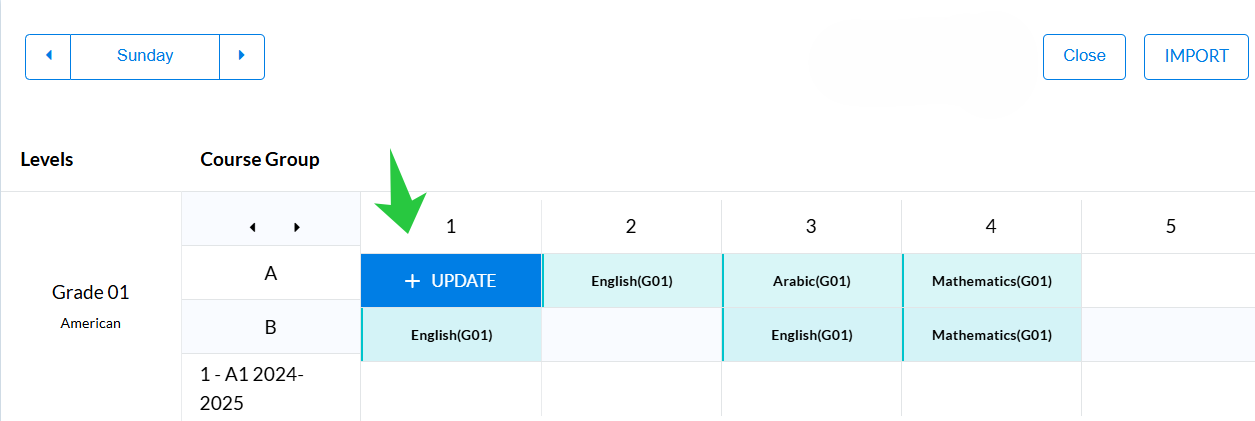
Stand on any cell in the time table and an "Update" icon will appear
Press on <Update>
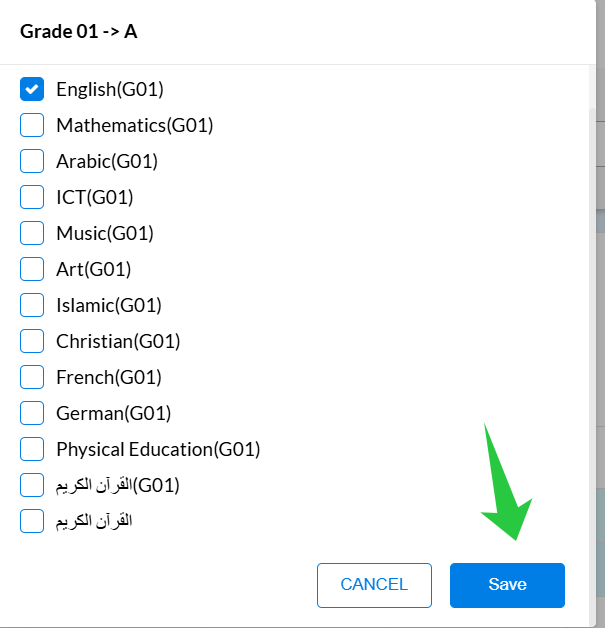
A list of Courses associated to this Grade level and Course group will appear
Choose the required Course by checking on the box at the left side and then press <Save>
Note : you can select multiple courses in the same time if the session is divided or shared between the two courses
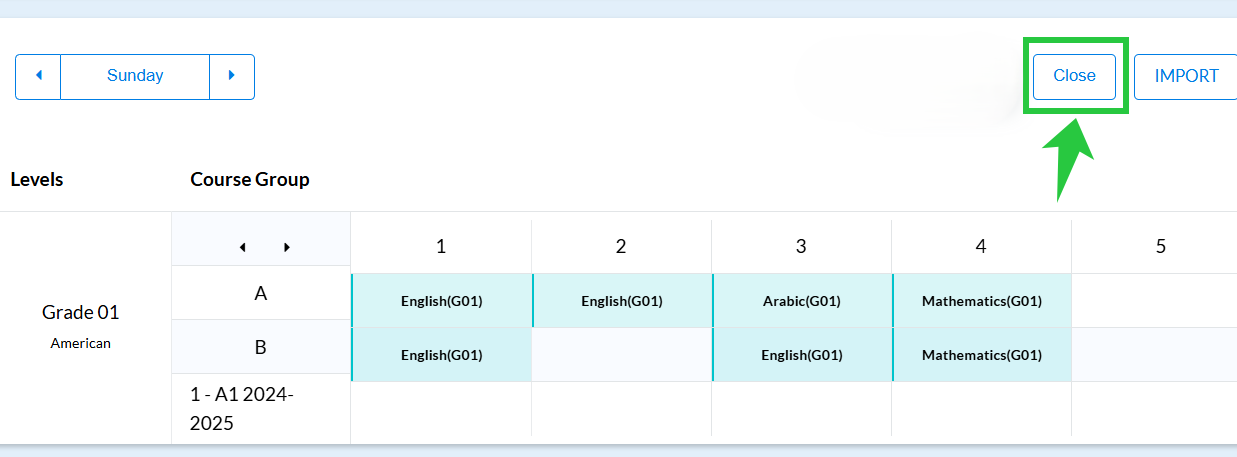
Now press <Save> then <Close >to proceed successfully.
To Update the timetable , follow the previous steps .
Watch the Video below :