
To add a new column to the students' grades (grade item), do the following steps:
1. After logging in as a Teacher, select My Courses from the navigation tab on the left.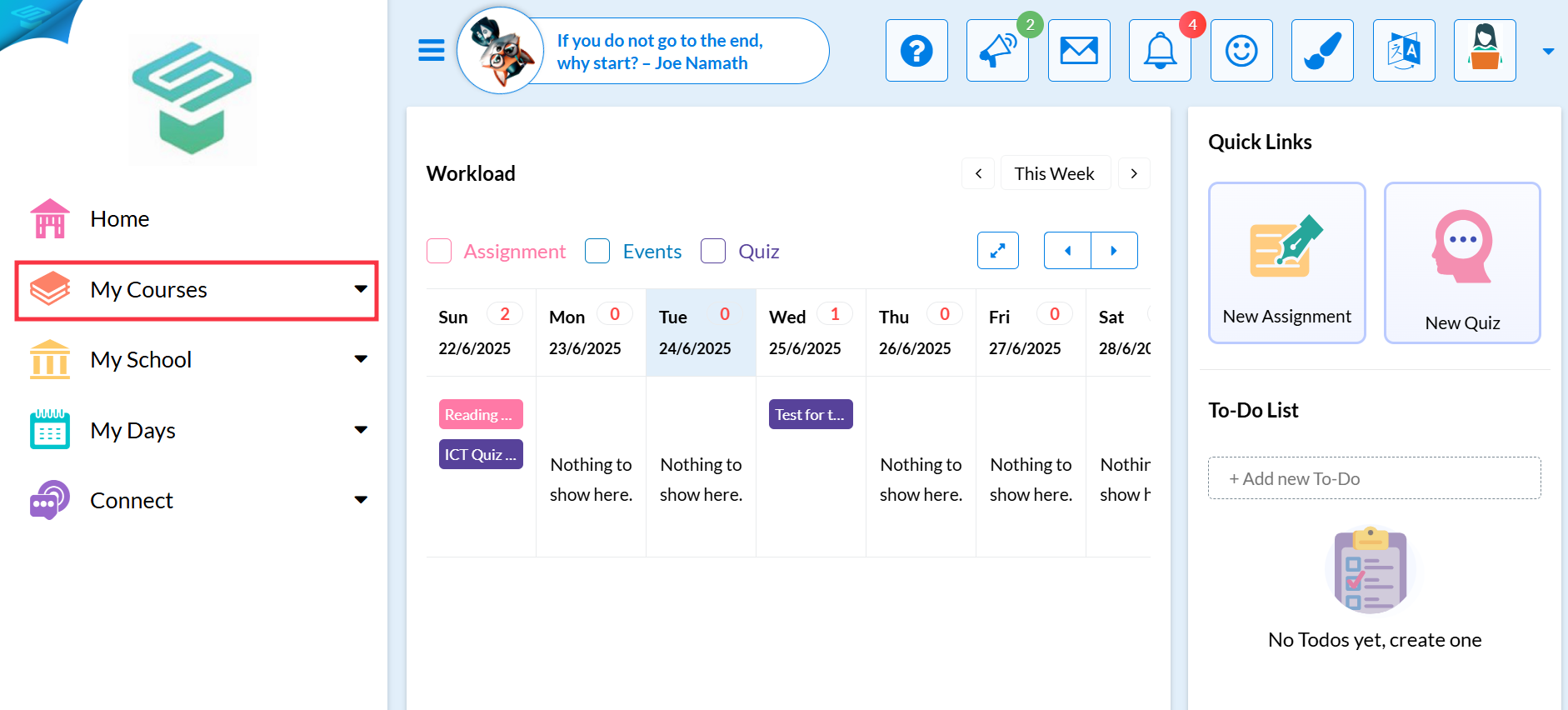
2. From the drop-down menu, select the course for which you would like to view the grades.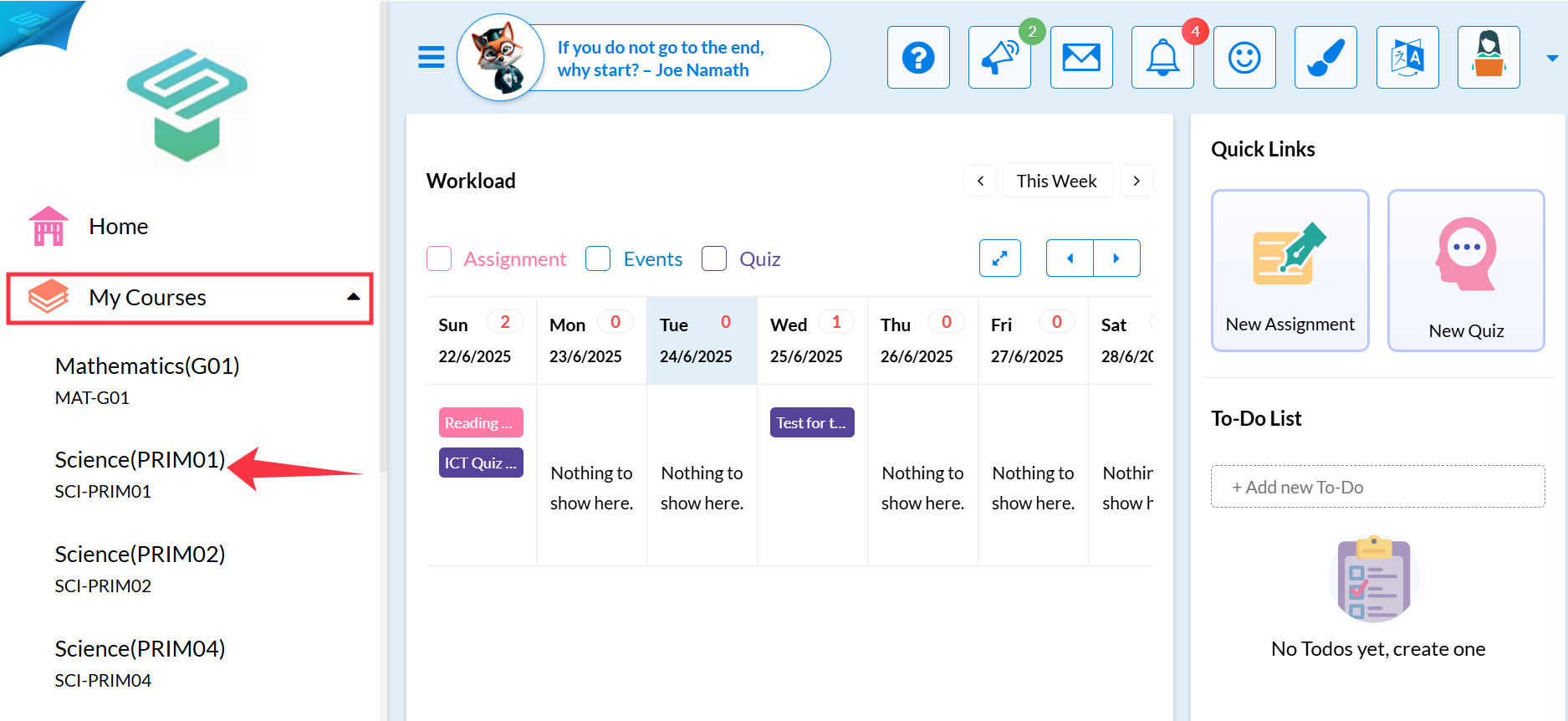
3. Select the class that you would like to view.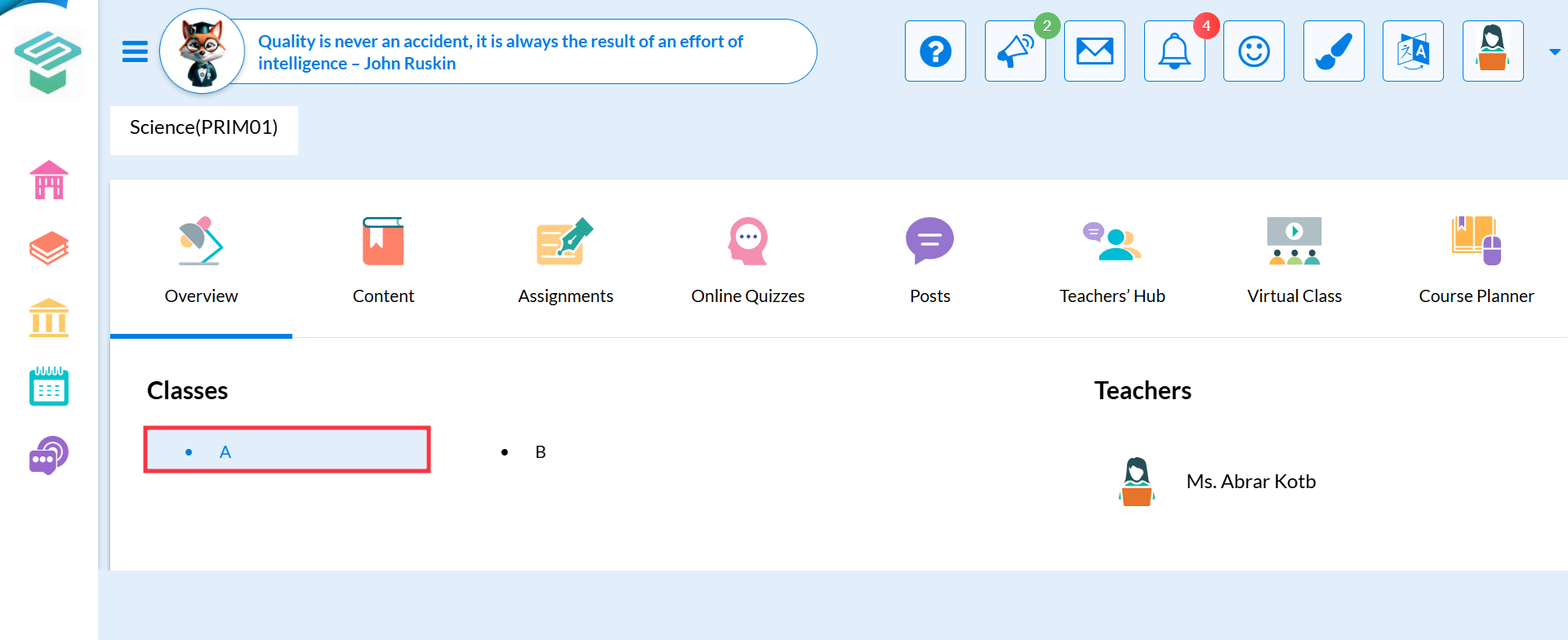
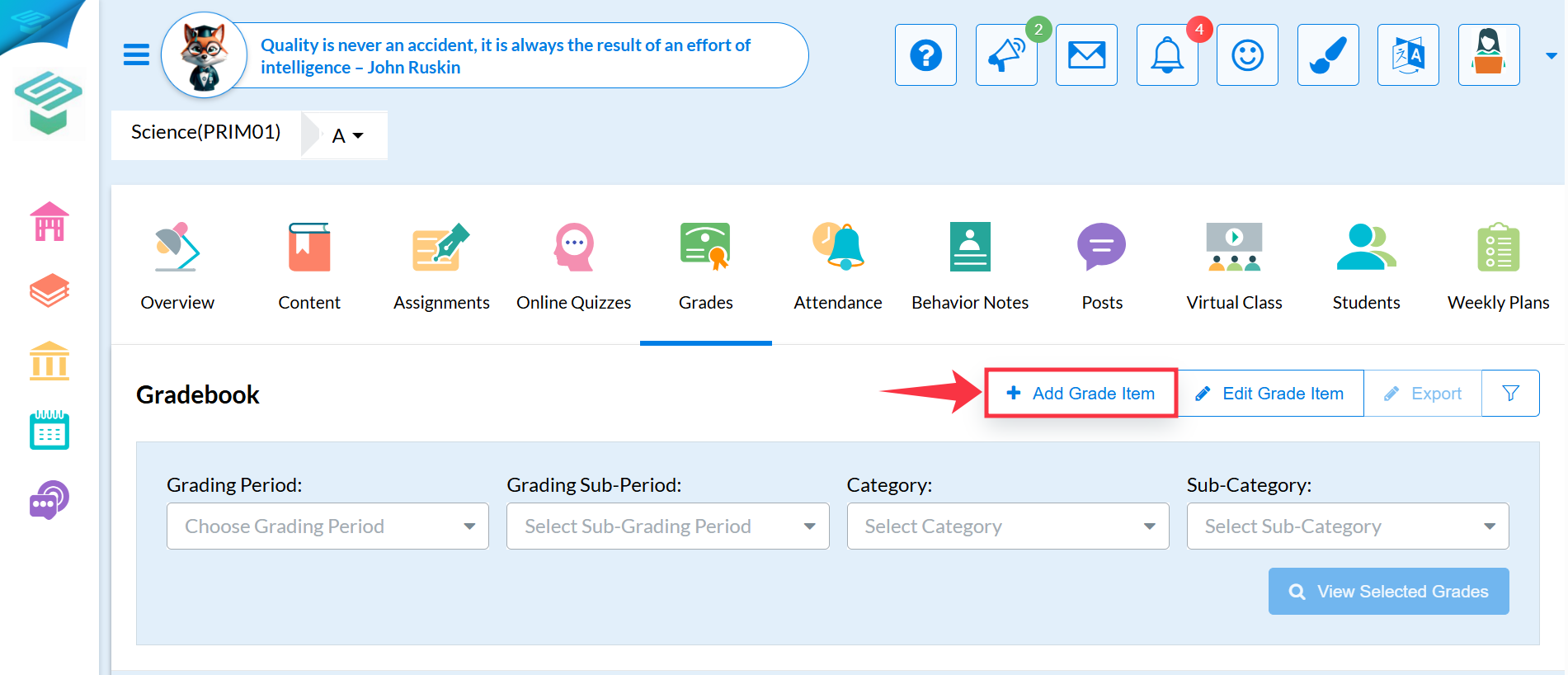
4. Select the Grades tab.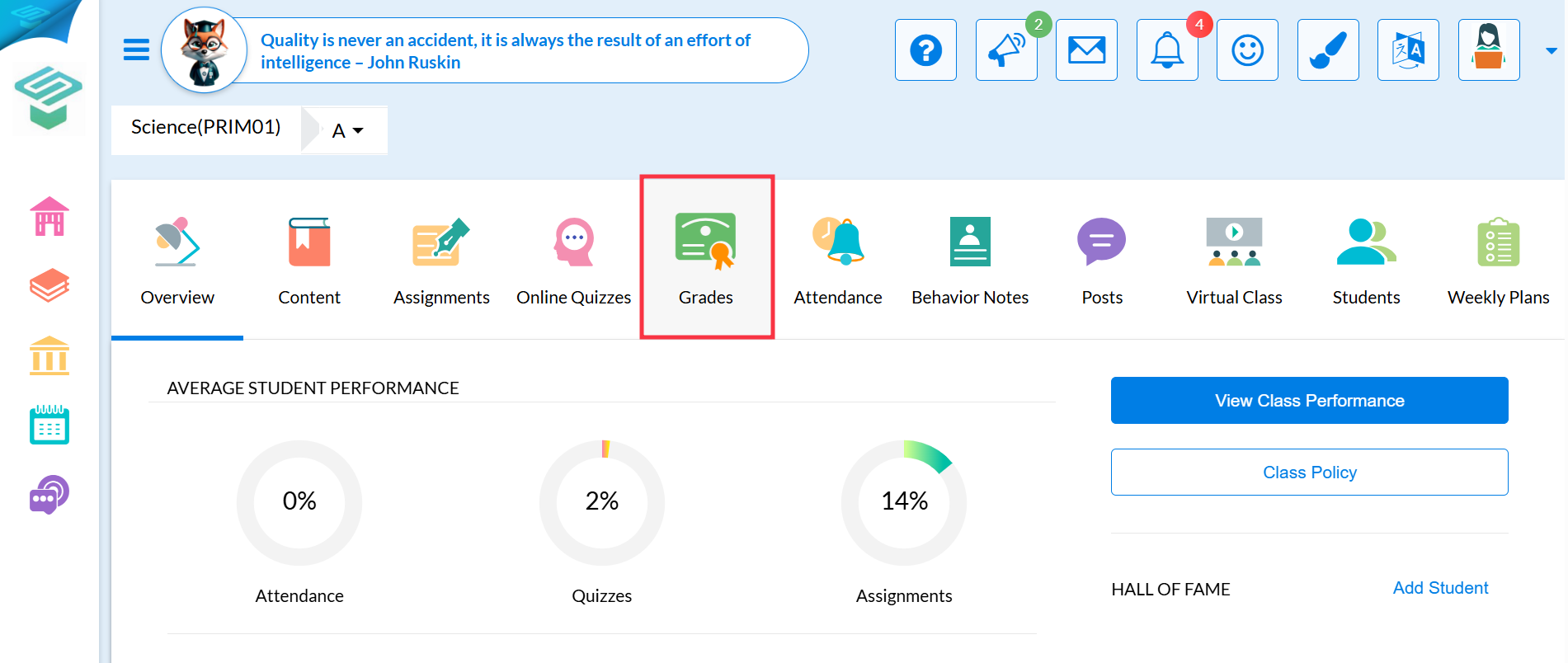
5. Click the + Add Grade Item button.
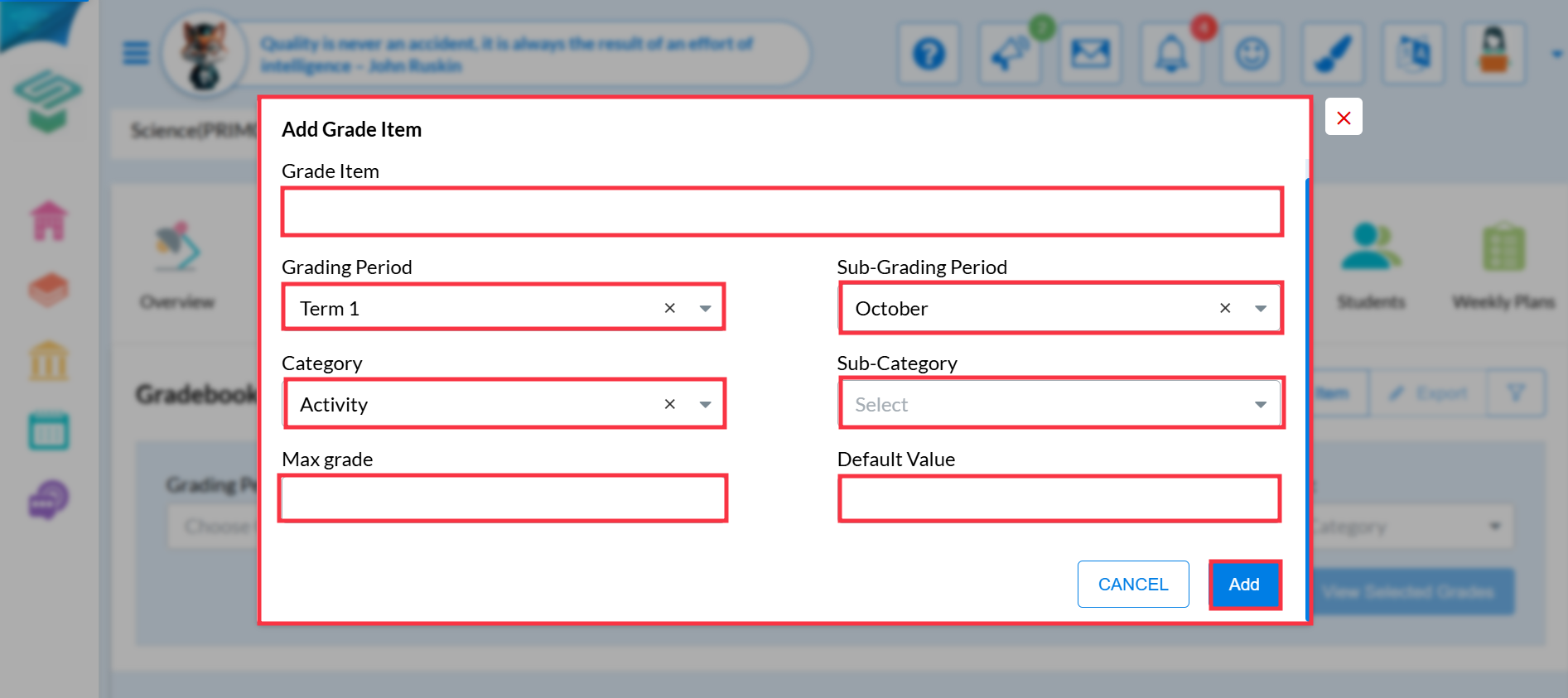
6. Click the Name box to enter a name for your grade item, then choose the Grading Period and the appropriate Grade Category from their drop-down menus, specify the Max Grade, optionally set a Default Grade (which can be left empty or set to 0 and edited later), and finally click Add.
Watch the video below: