
Log in
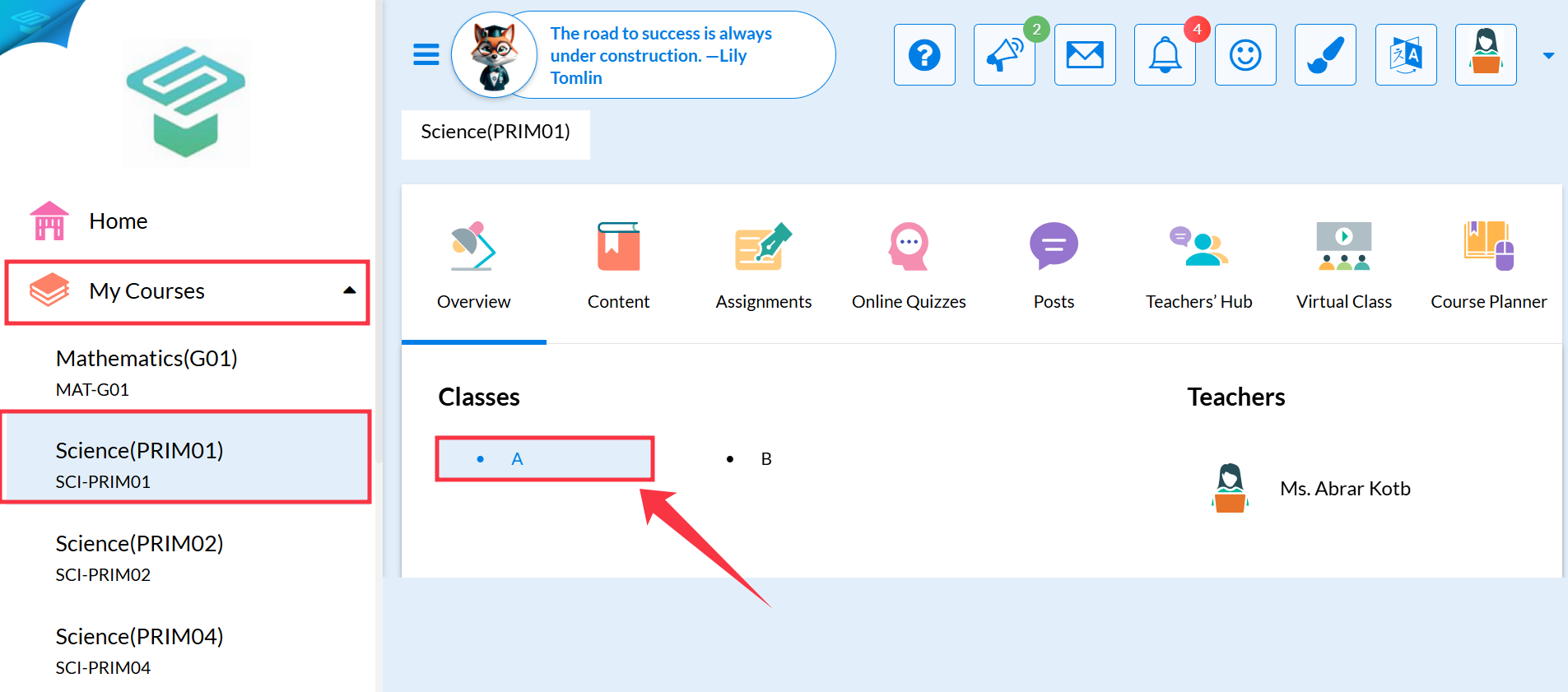
Sign in to Skolera LMS using your Teacher account.Navigate to the course
From the left-hand Navigation Menu, go to:Courses→ Select the Course Name → Choose the relevant Class.
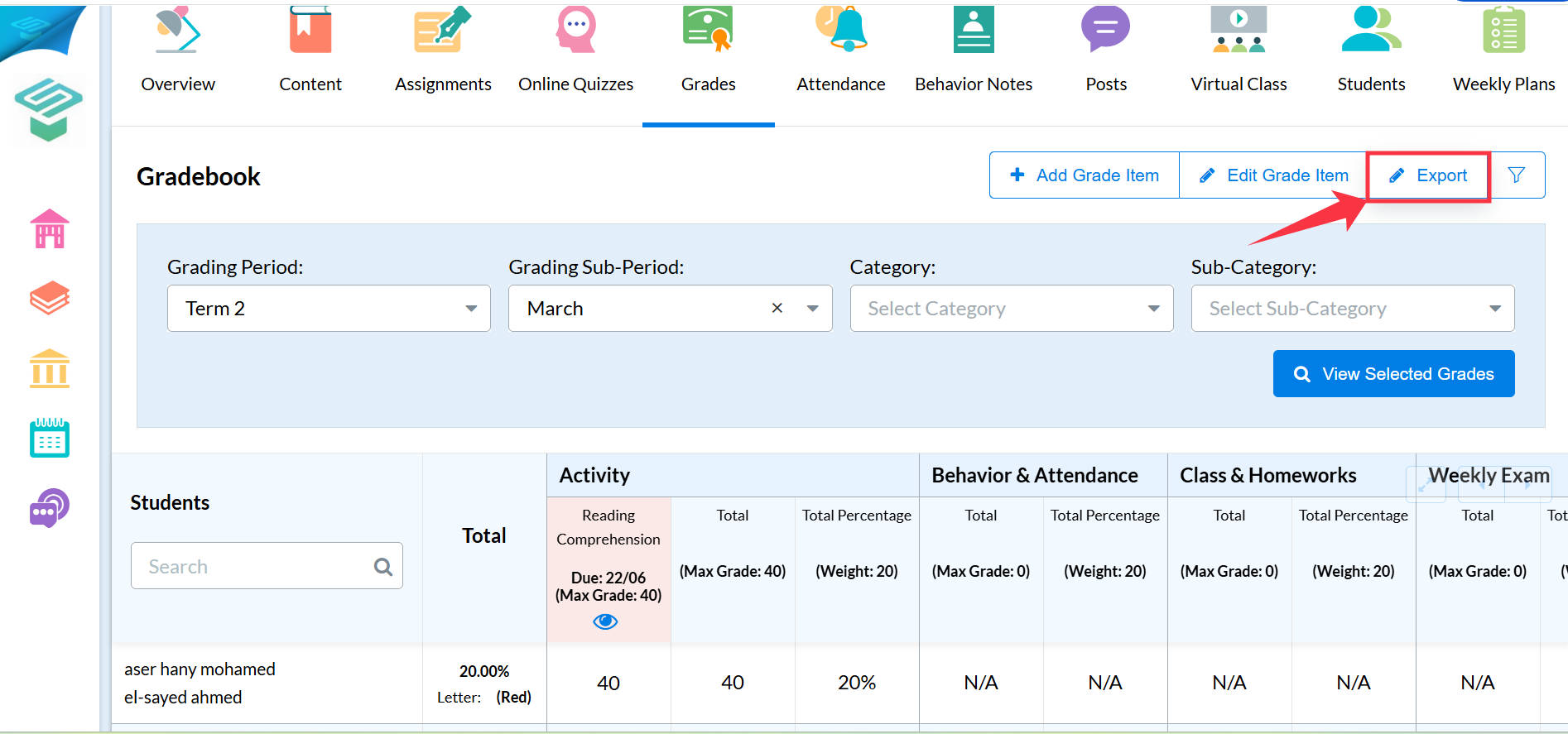
Option 1: Entering Grades via the Gradebook
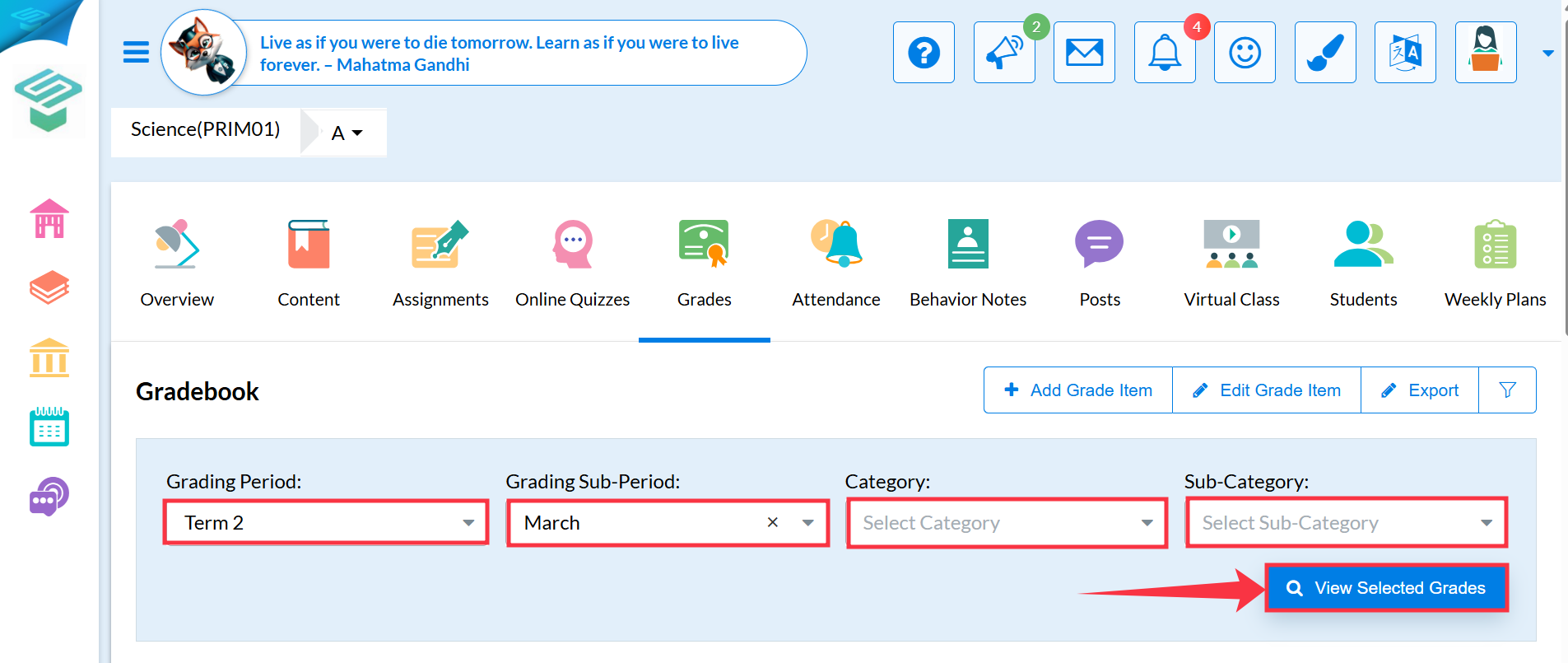
Go to the Gradebook tab.
You can filter grade entries by:
- Grading Period
- Grading Sub-Period
- Category
- Sub-Category
2. Assignments and Online Quizzes created inside Skolera are automatically added to the Gradebook.
? You don’t need to create a new entry manually.
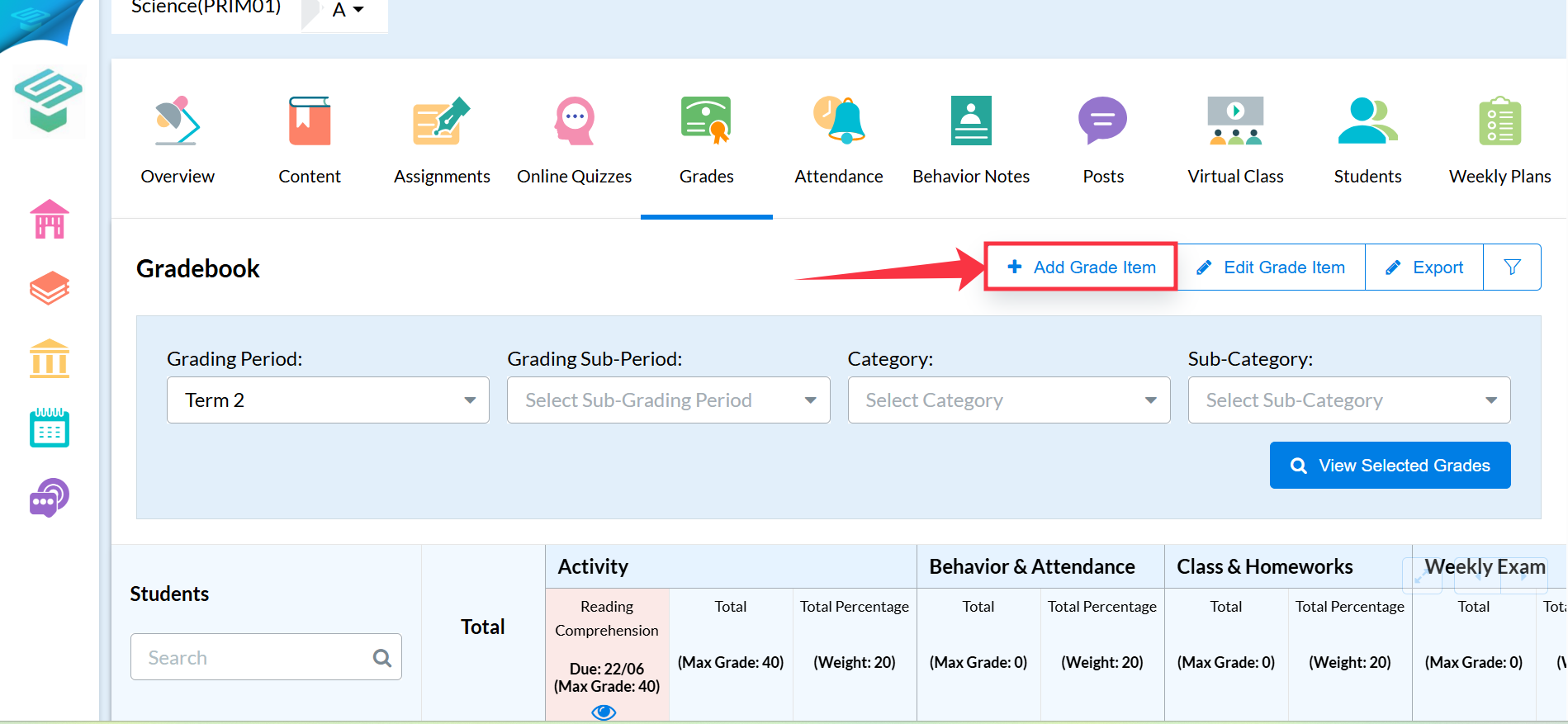
To enter grades for other types of assessments (e.g., oral presentations, offline activities), click Add Grade Item:
A new column will be created.
You can manually enter grades for each student.
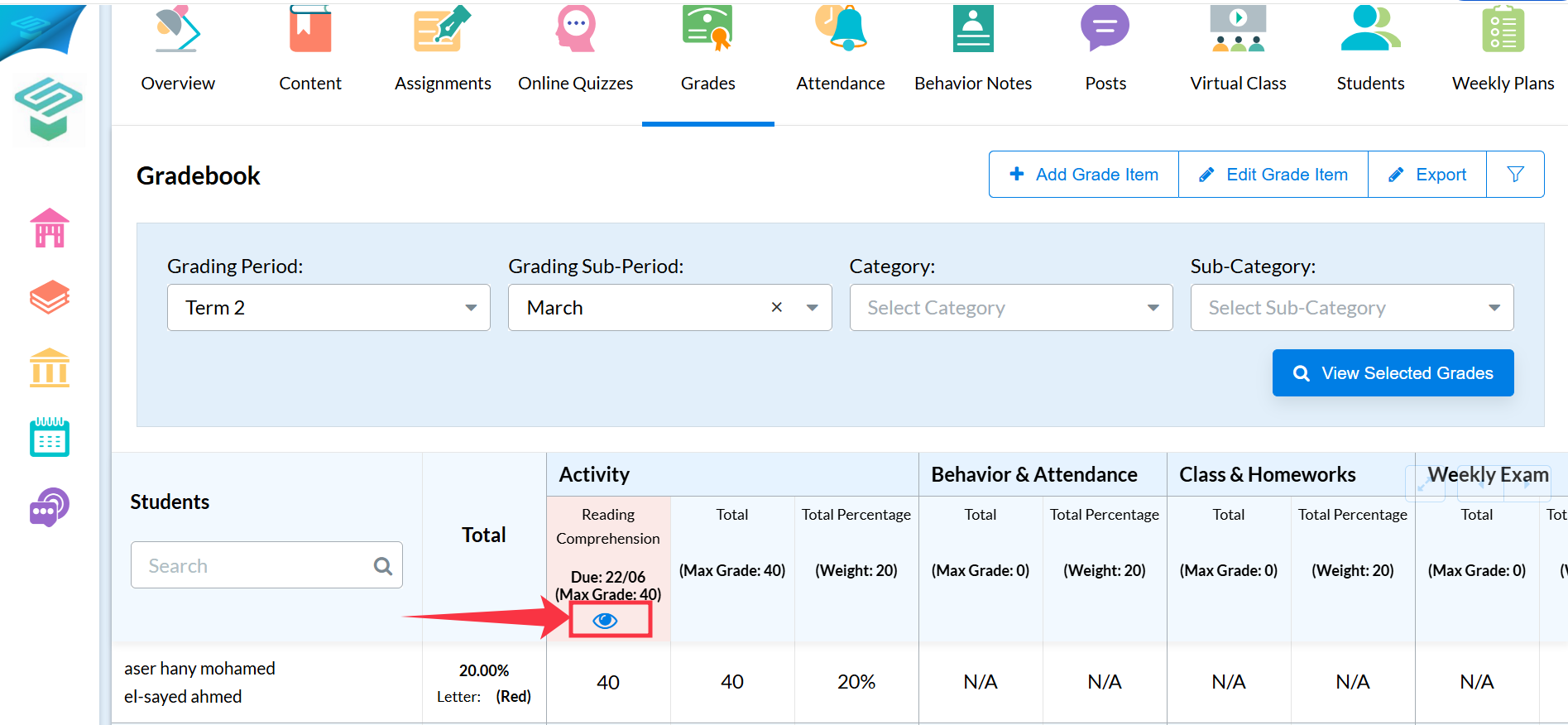
2. Next to each grade item, there is an eye icon (?):
If you click it, the item will be hidden from the student’s report but still visible in your gradebook.
3. To export grades, click the Export button at the top right of the Gradebook page.
Option 2: Grading Individual Assignments
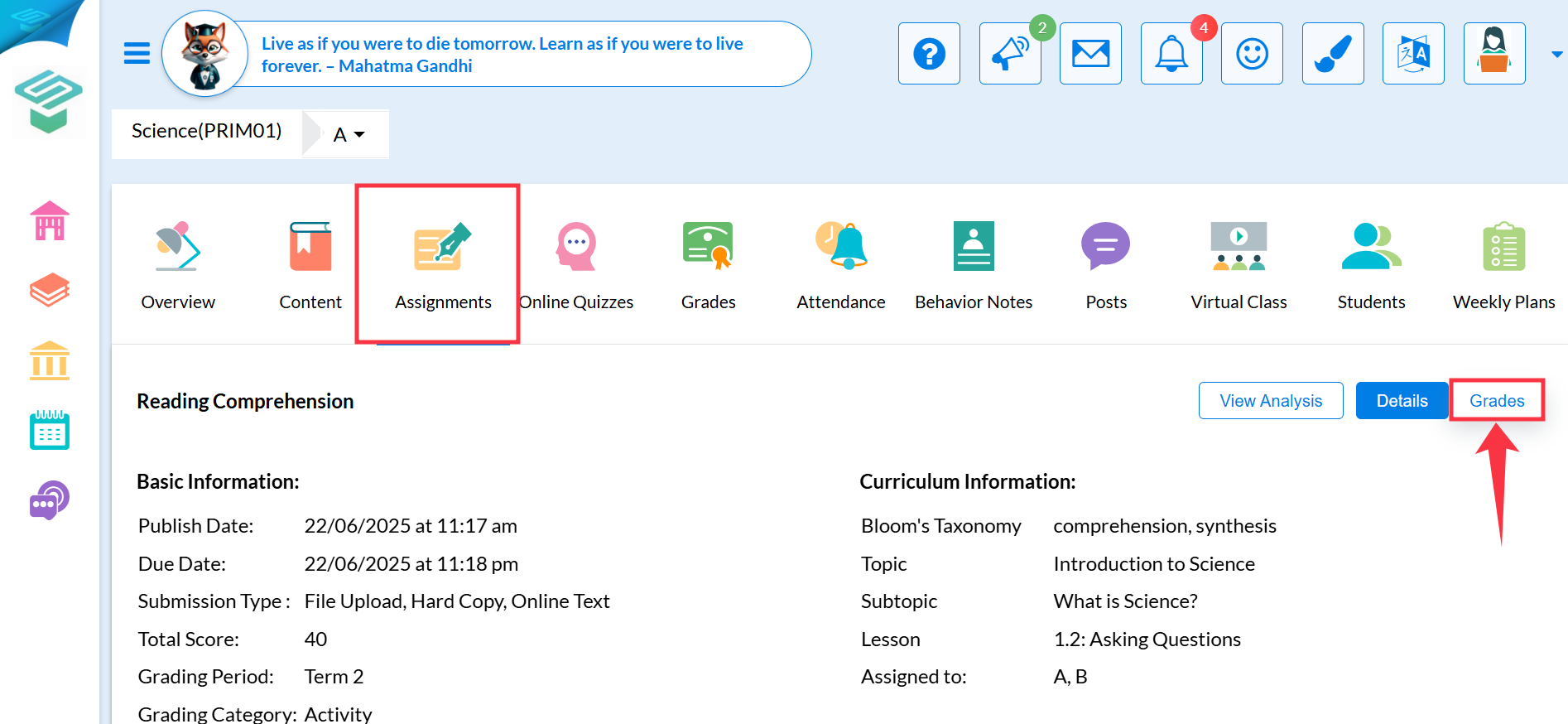
Go to the Assignments tab.
Look for a closed assignment (marked with a red radio button).
Click on the Assignment Title.
Select the Grades tab from the right-hand side
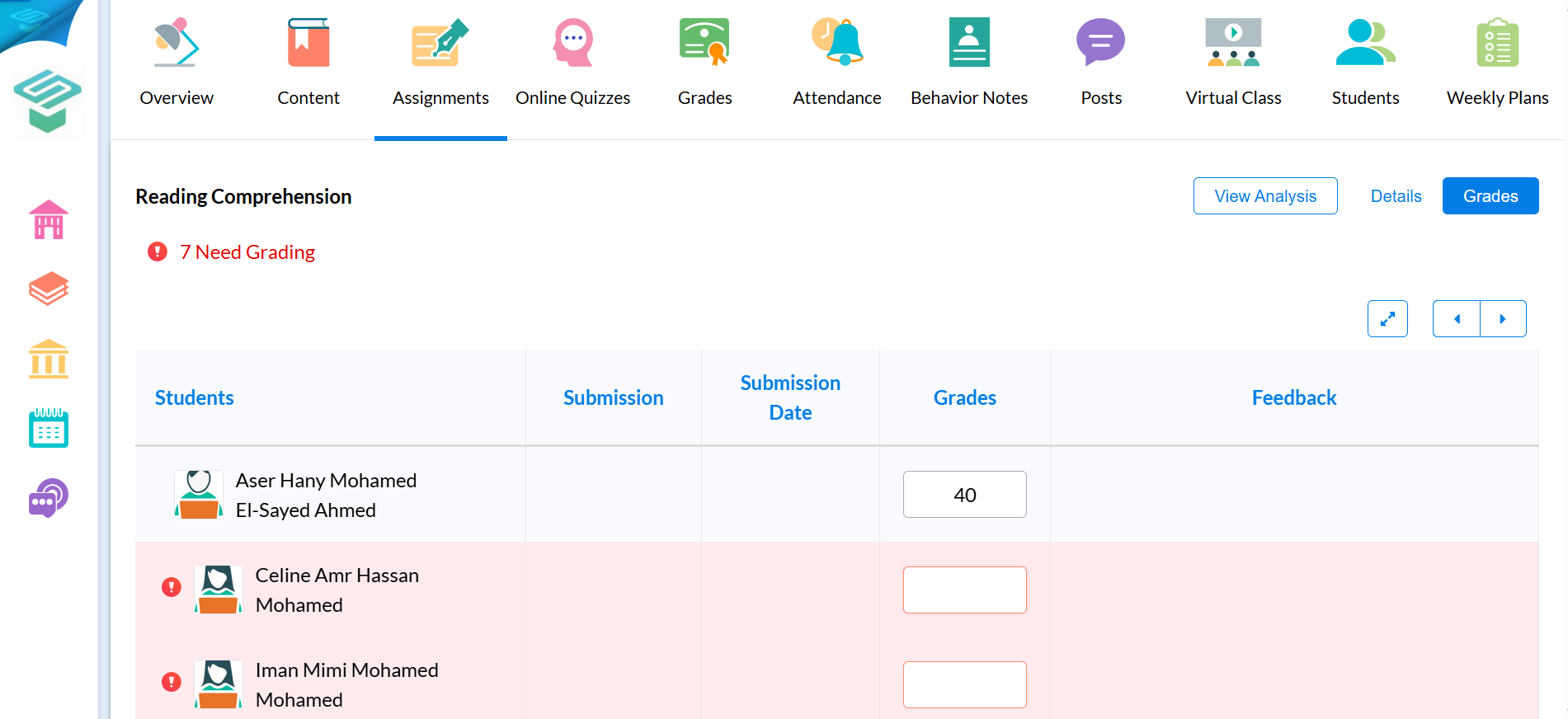
From here:
You can download student submissions.
Enter each student's grade in the Grade column.
Write individual feedback in the Teacher Feedback column.
Additional Notes:
All grading items (Assignments, Online Quizzes, and Manual Grade Items) appear in the Gradebook, organized by category.
Grades and feedback can be edited at any time.
Students will only see the items that are visible (not hidden using the eye icon).