
can send messages to users (teachers, students, or parents) to communicate important information, updates, or instructions. Here’s how to send messages from the admin to users:
Steps to Send Messages from Admin to Users:
Sign into your Admin account
Navigate to the Messages Section:
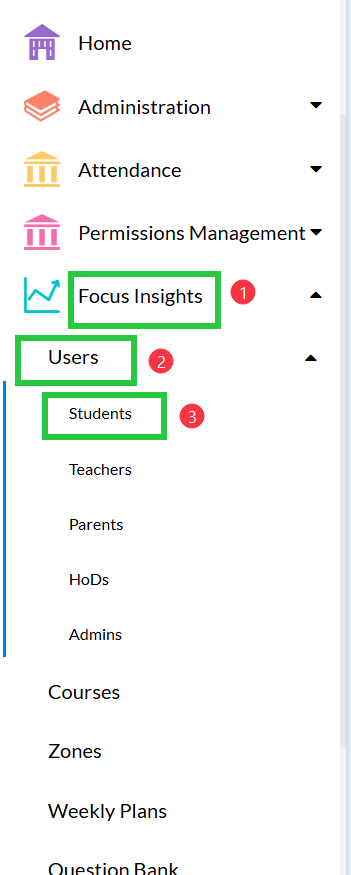
- Go to Focus Insights > Users
- Select the user group you want to send the message to.
To send a message to a single user:
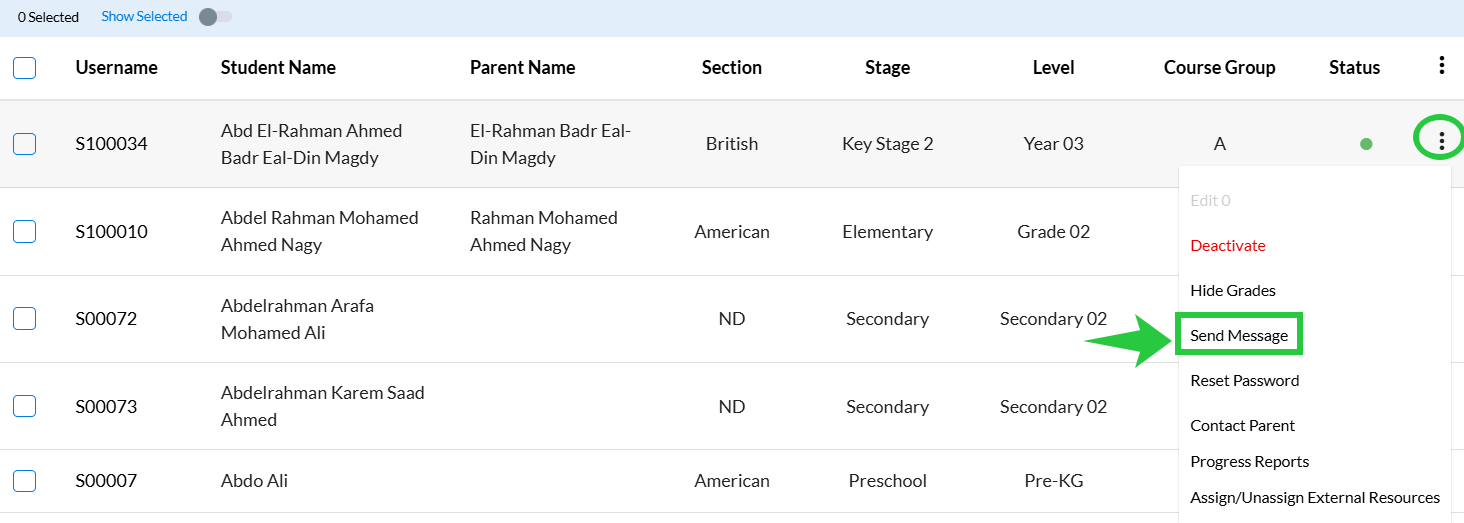
- Click on the three dot menu to the side of the user name.
- Select Send Message.
- Enter the message subject.
- Enter the message content.
- Click Send Message
- To Send a message to a group of users:
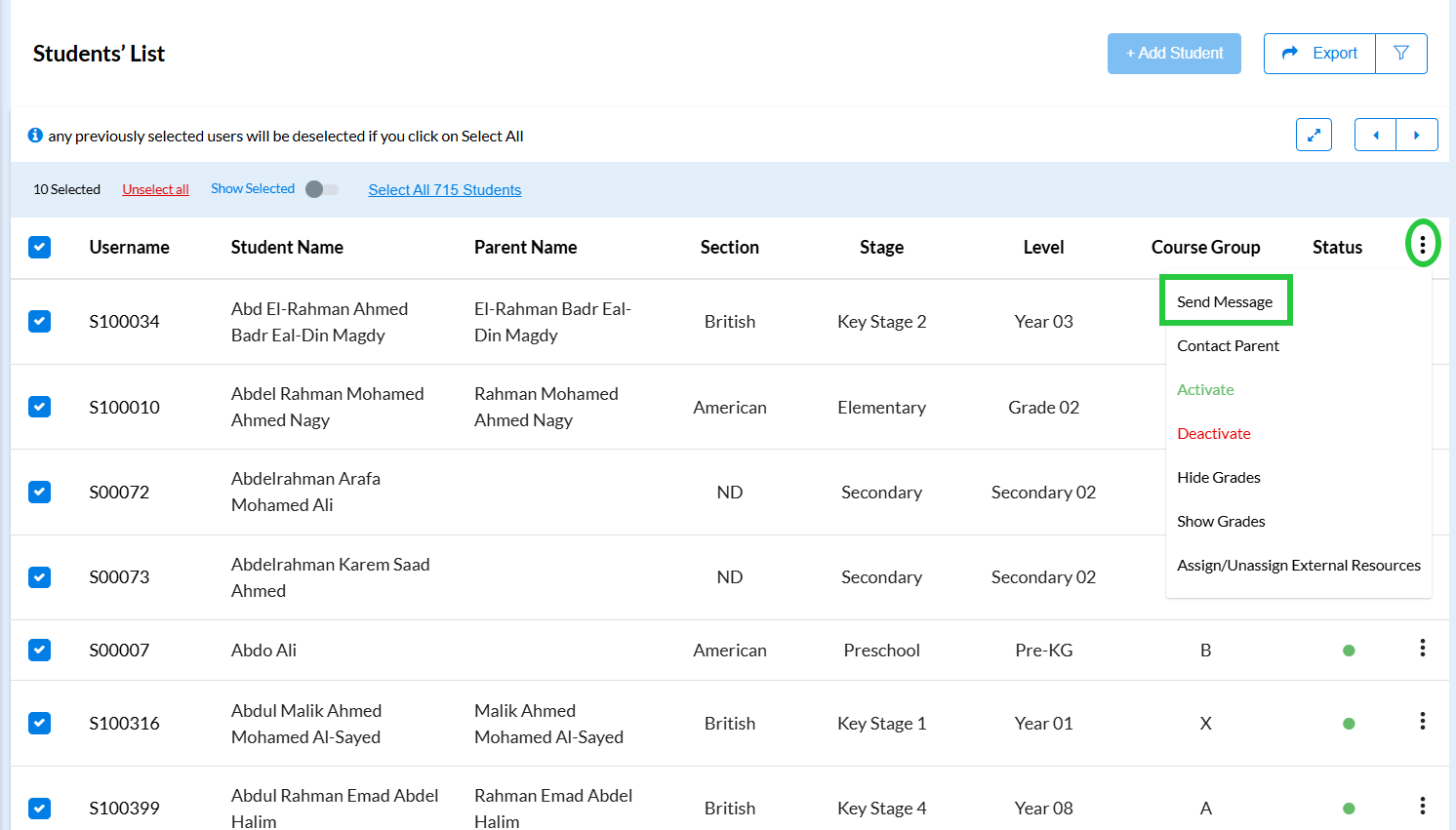
- Select the users you want to send the message to using the select checkboxes.
- Click on the three dot menu at the top of the list.
- Select Send Message.
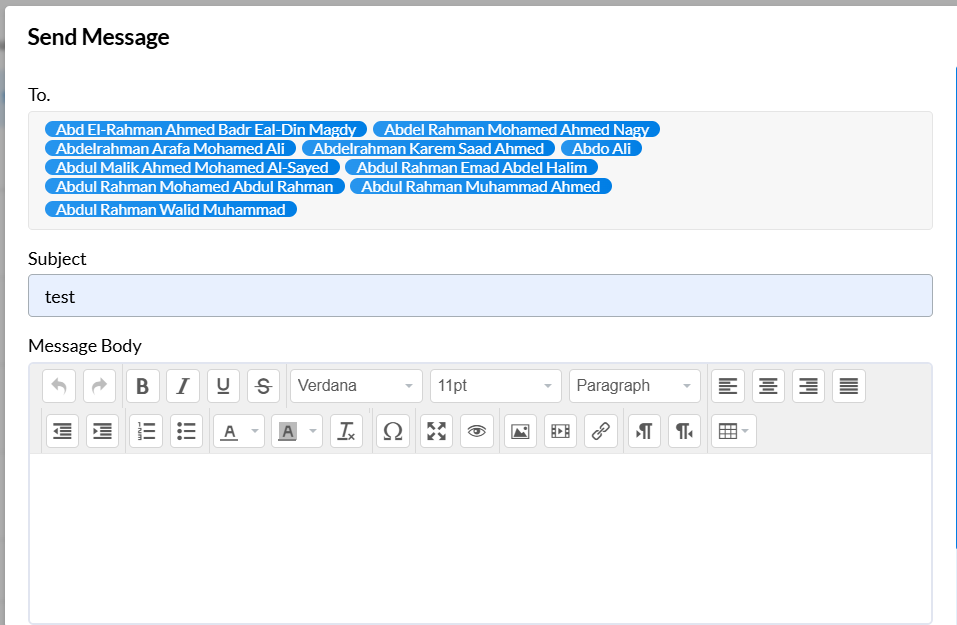
- Enter the message subject.
- Enter the message content.
- Click Send Message
- We can send messages to all users using the same way
Note: If you do not expect users to reply to the message, you can use Announcements for Groups instead.
Check the Video