
Assigning teachers and Heads of Departments (HODs) to specific batches or classes is essential for organizing the teaching structure for the academic year. Here’s how to do it:
Steps to Assign Teachers and HODs to Batches:
Sign in to your ERP admin account using your credentials.
1. Go to the "OpenEduCat" app from the main dashboard.
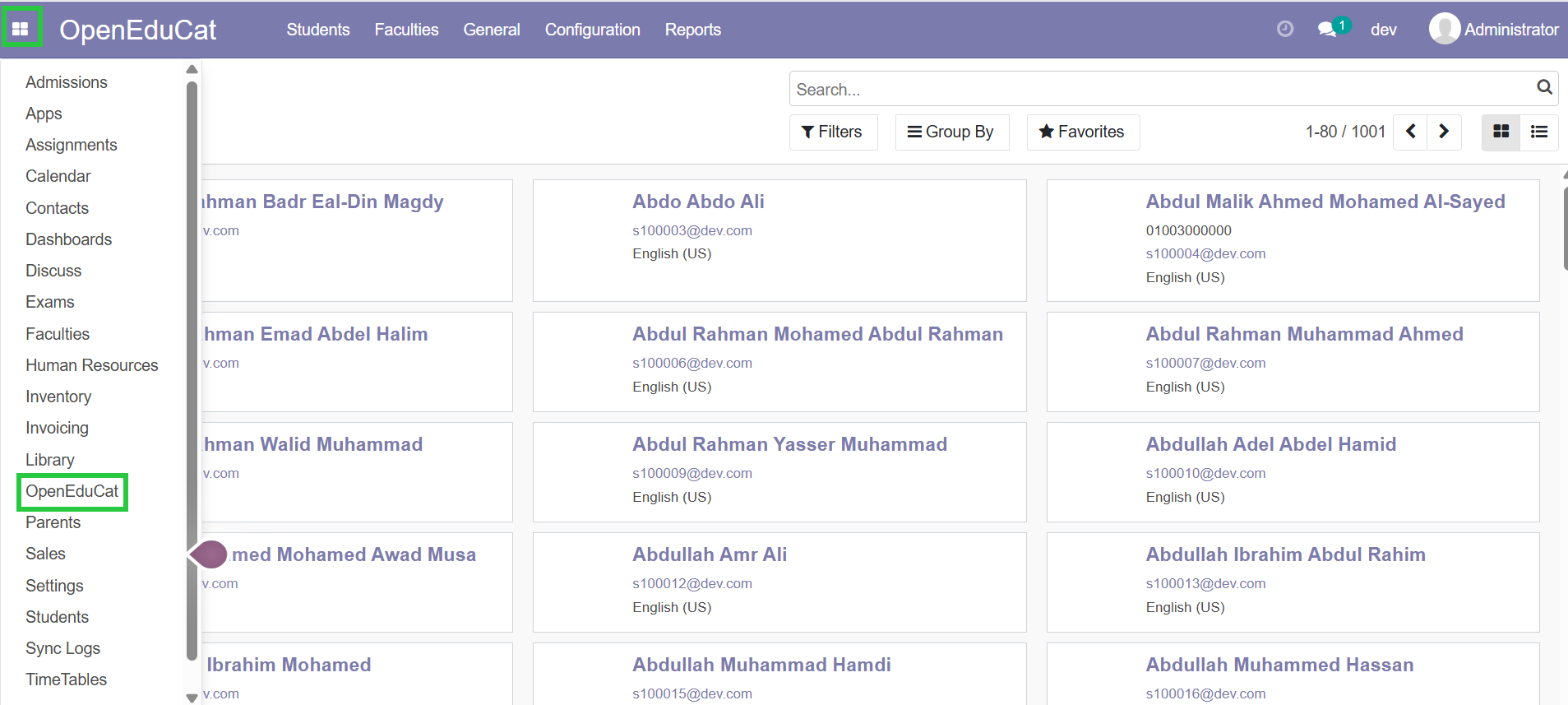
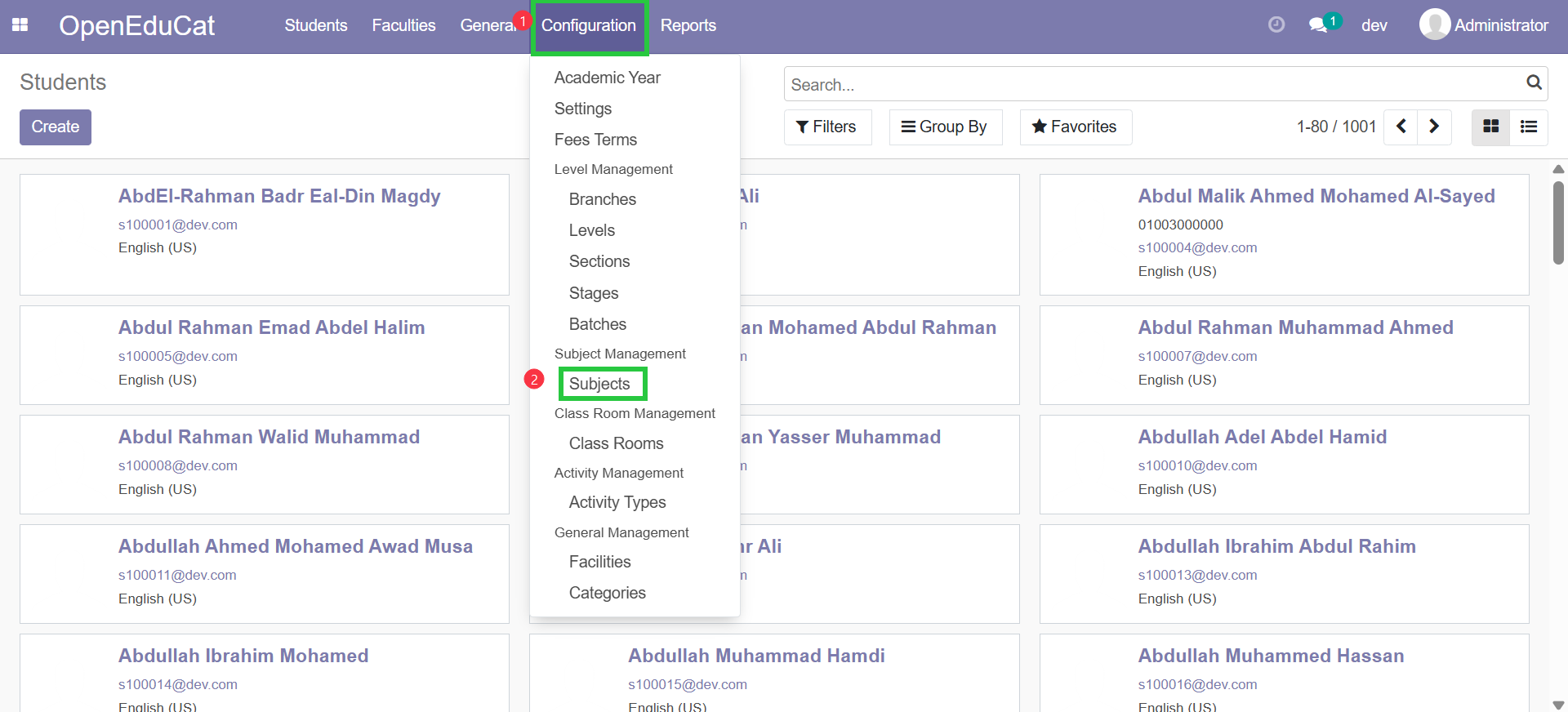
2. Navigate to the "Configuration" menu or module within the app.
3. Click on "Subjects" to access the subjects management interface.
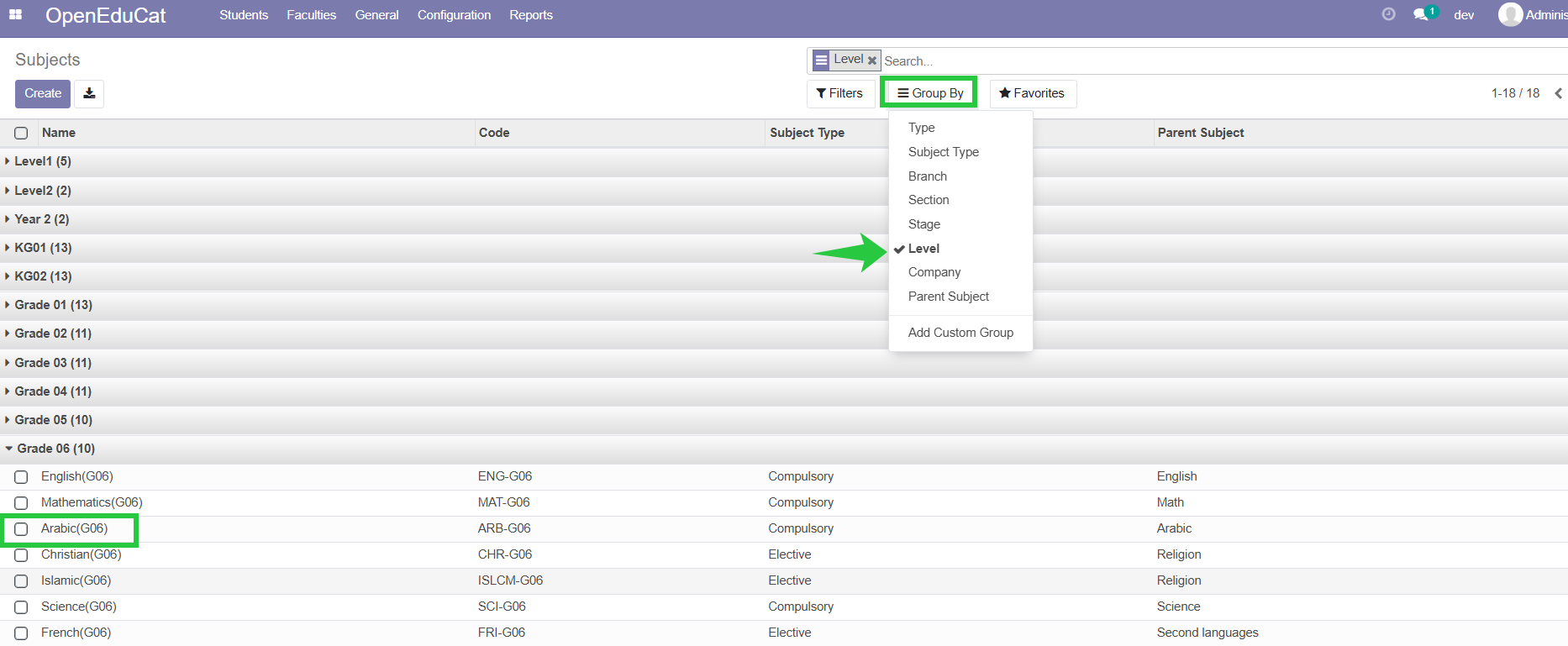
4. To make it easier to find subjects you need, click on Group by, then select level.
5. This filtering method helps you organize the subject list the academic level you're working on.
6. Now, select the subject for which you want to assign teachers and heads of departments.
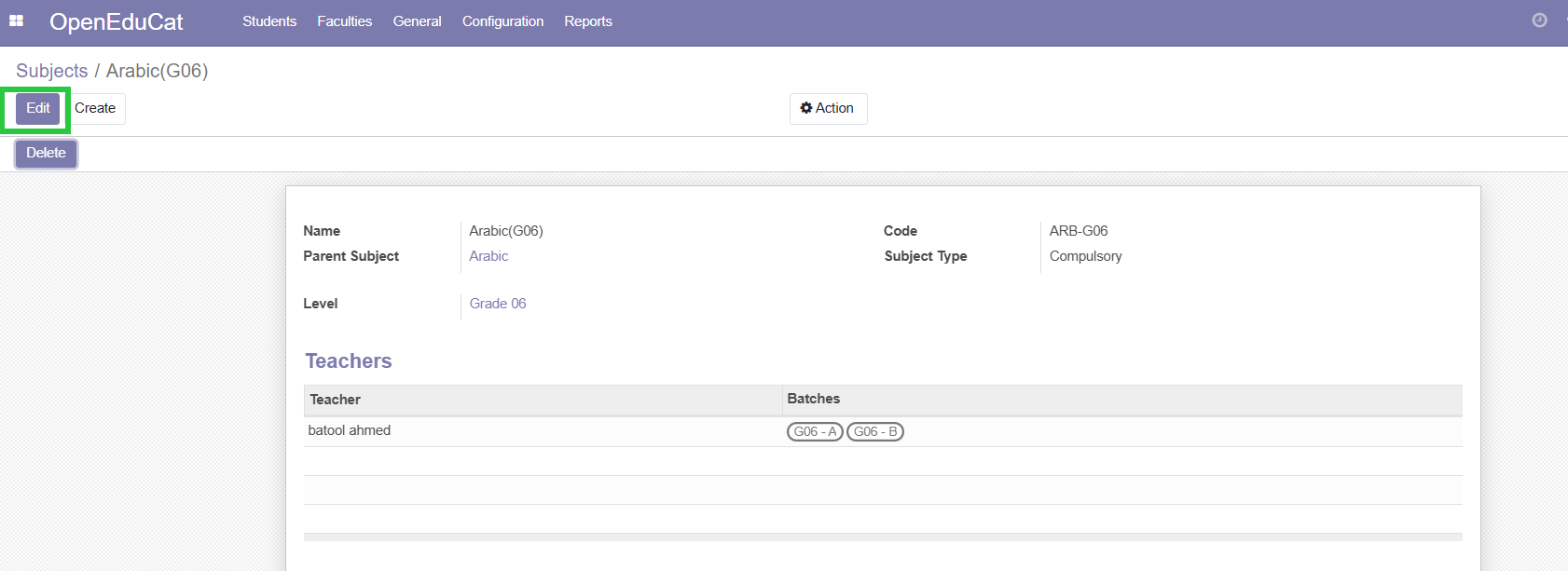
7. Click on the name of the subject , Then click on "Edit"
8. Click on the "Add a line" button to begin the process of assigning Teachers / Heads of Departments (HODs)
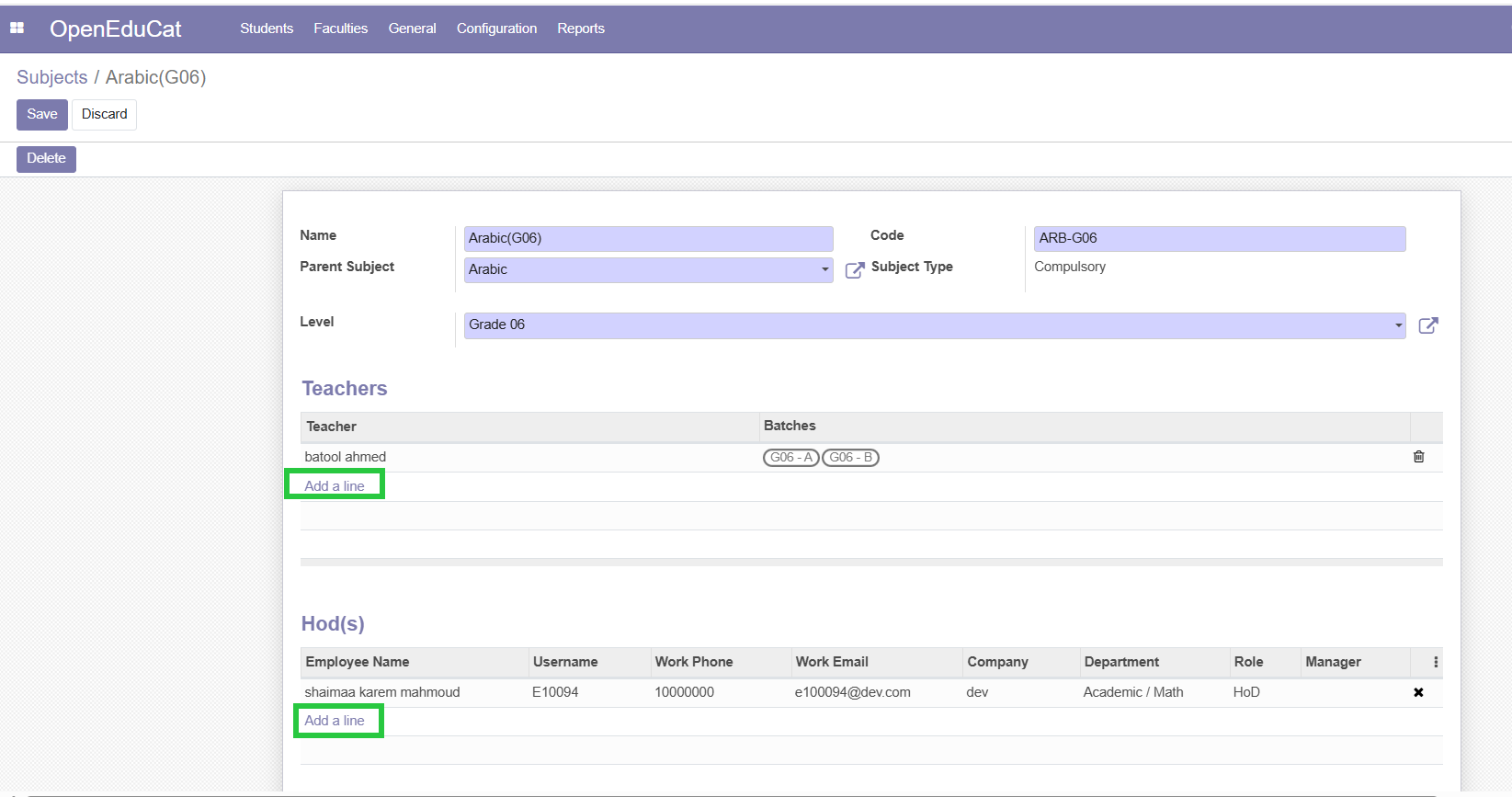
Step 9 : When the 'Create Teacher Details' window appears, select the teacher and assign the Batches they will be responsible for.
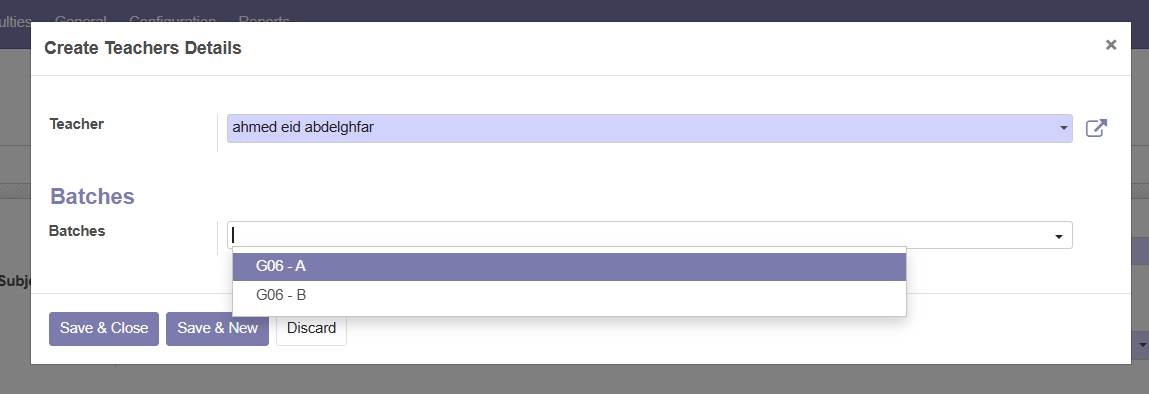
To assign
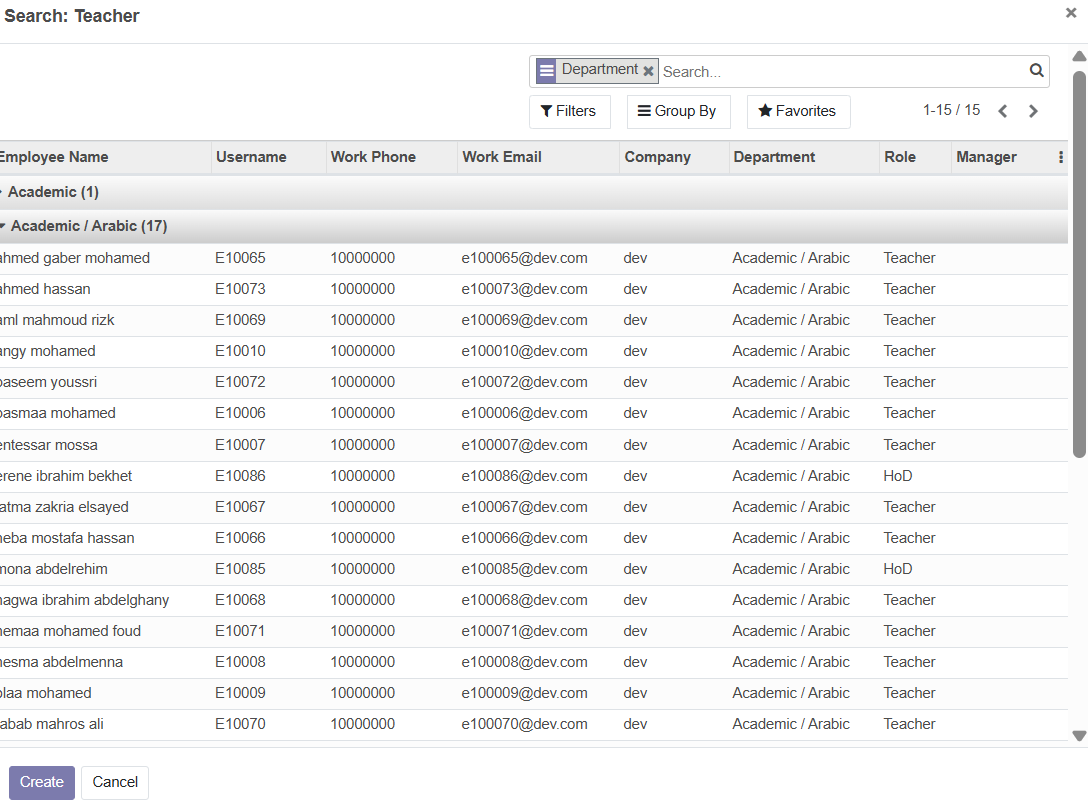
: A dialog box or form will appear, enabling you to search and select the relevant Teachers /HOD from a dropdown menu or search field.
Step 10 : Utilize the available filters, search options, and sorting features to easily find specific Teachers / HOD
Step 11 : Select the desired Teachers / HOD by checking the checkboxes next to their names.
Once you have selected the Teachers / HOD , click on Save & Close , Then Save
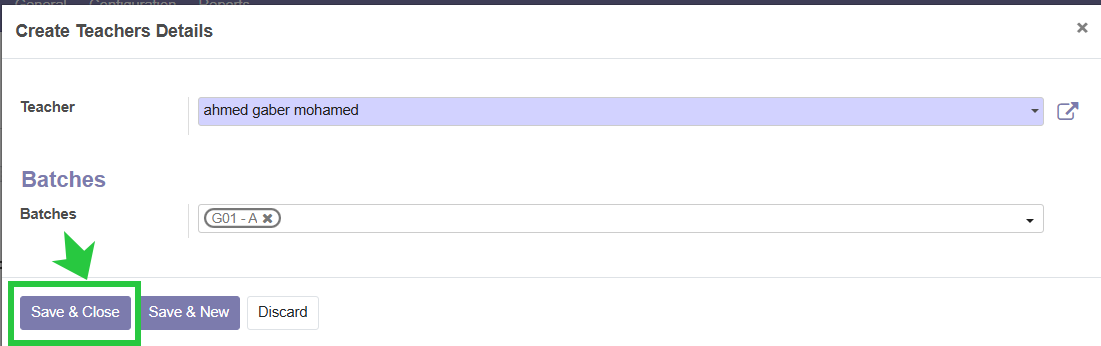
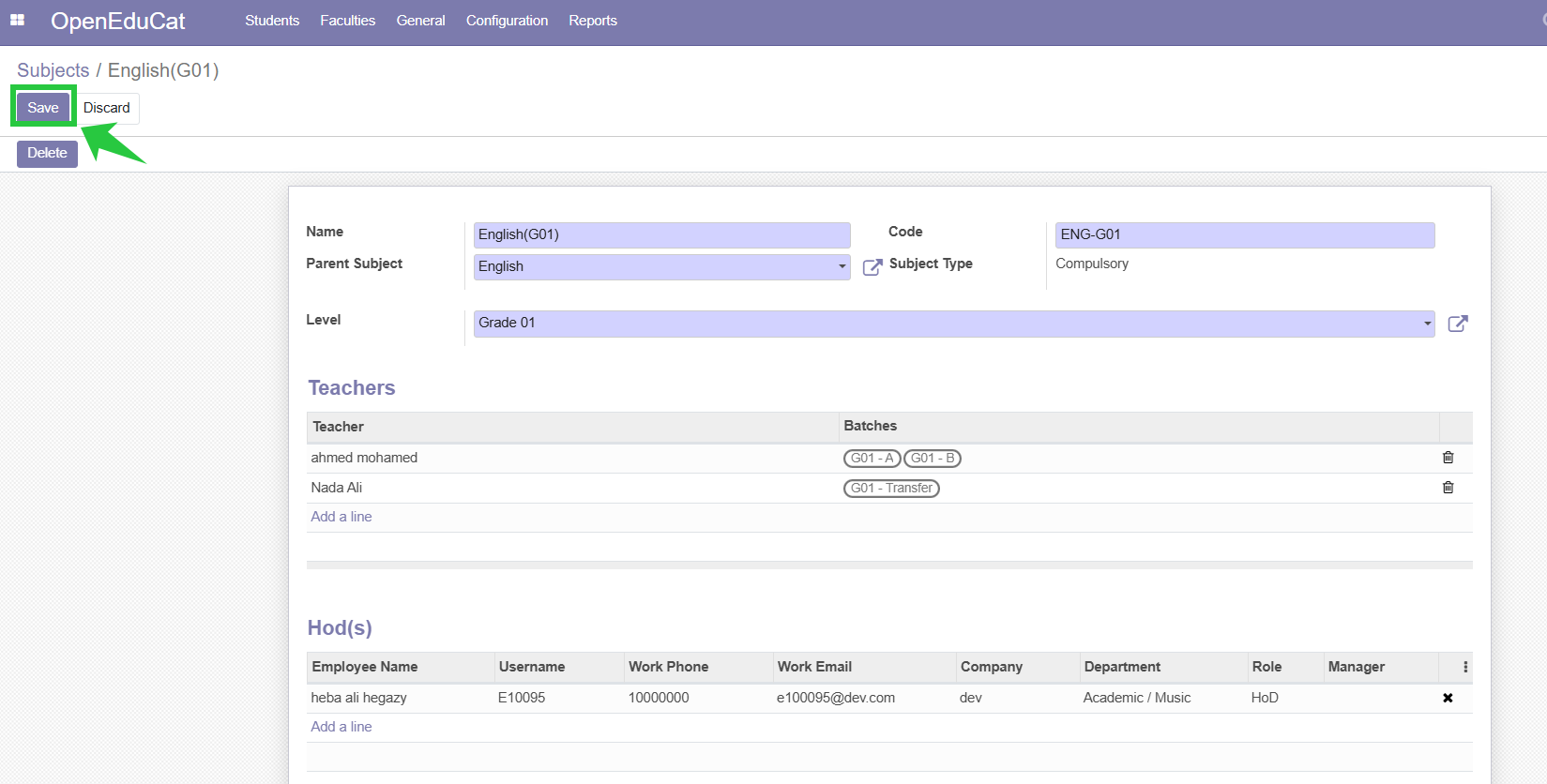
By following these steps, you can effectively assign teachers and HODs to batches in your ERP system, ensuring that the teaching structure for the academic year is organized and efficient.