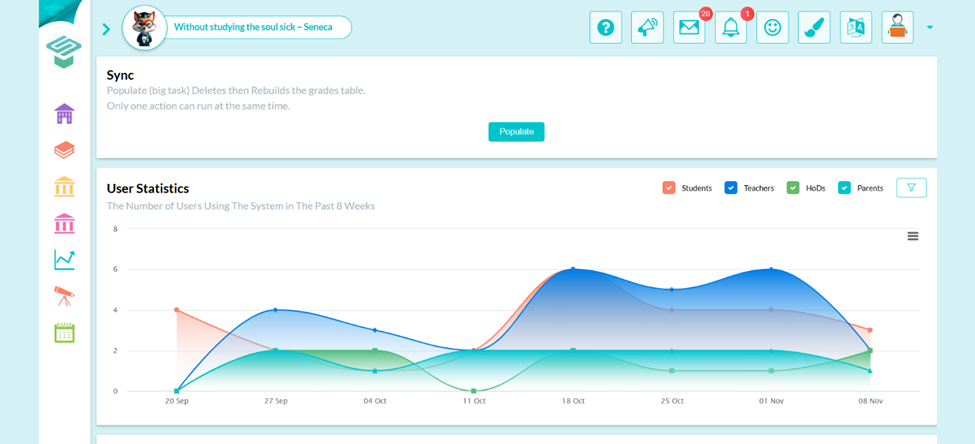
Step1: Login as admin
You can create a new weekly plan only from the admin account
Step2: Weekly plan section
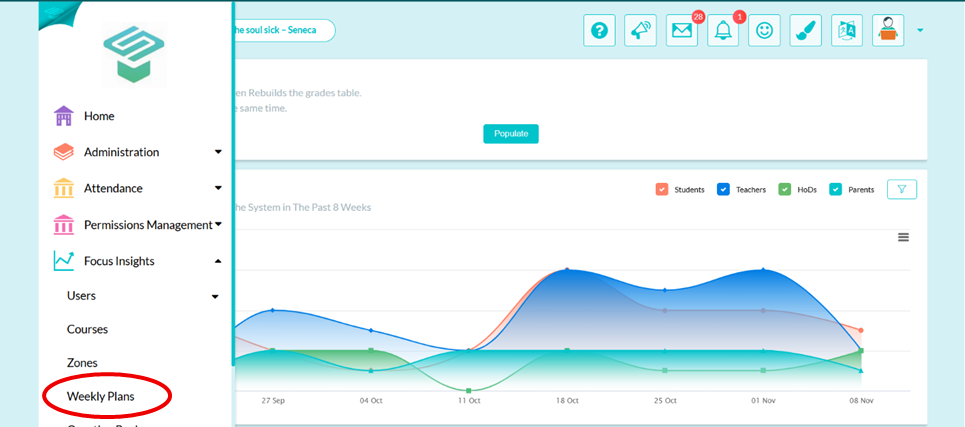
- From the admin homepage go to the left navigation bar
 focus insights
  Weekly plan
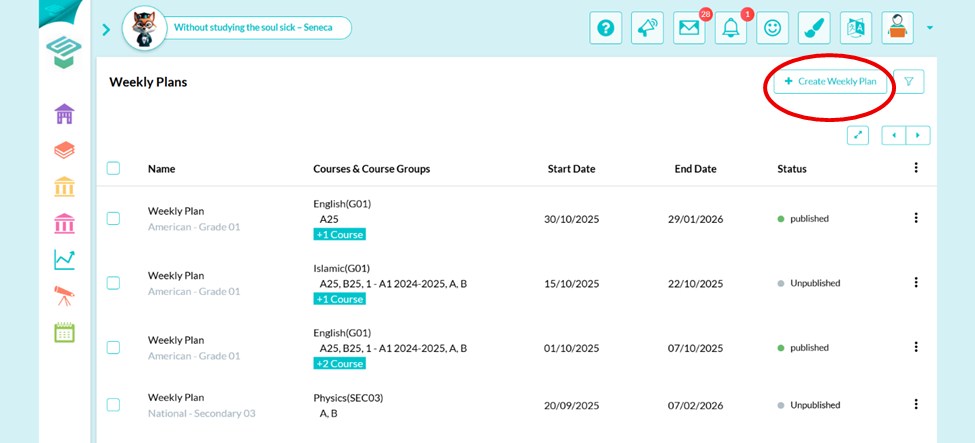
Step3: Press Create weekly plan to make a new one
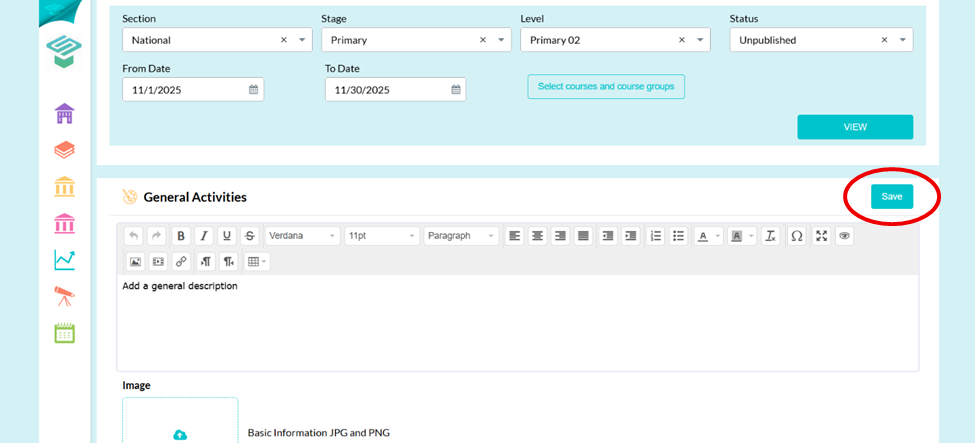
Step4: Choose section, stage, Level and date of the weekly plan
- You can choose only one level for each weekly plan
- you can choose multiple courses for each weekly plan
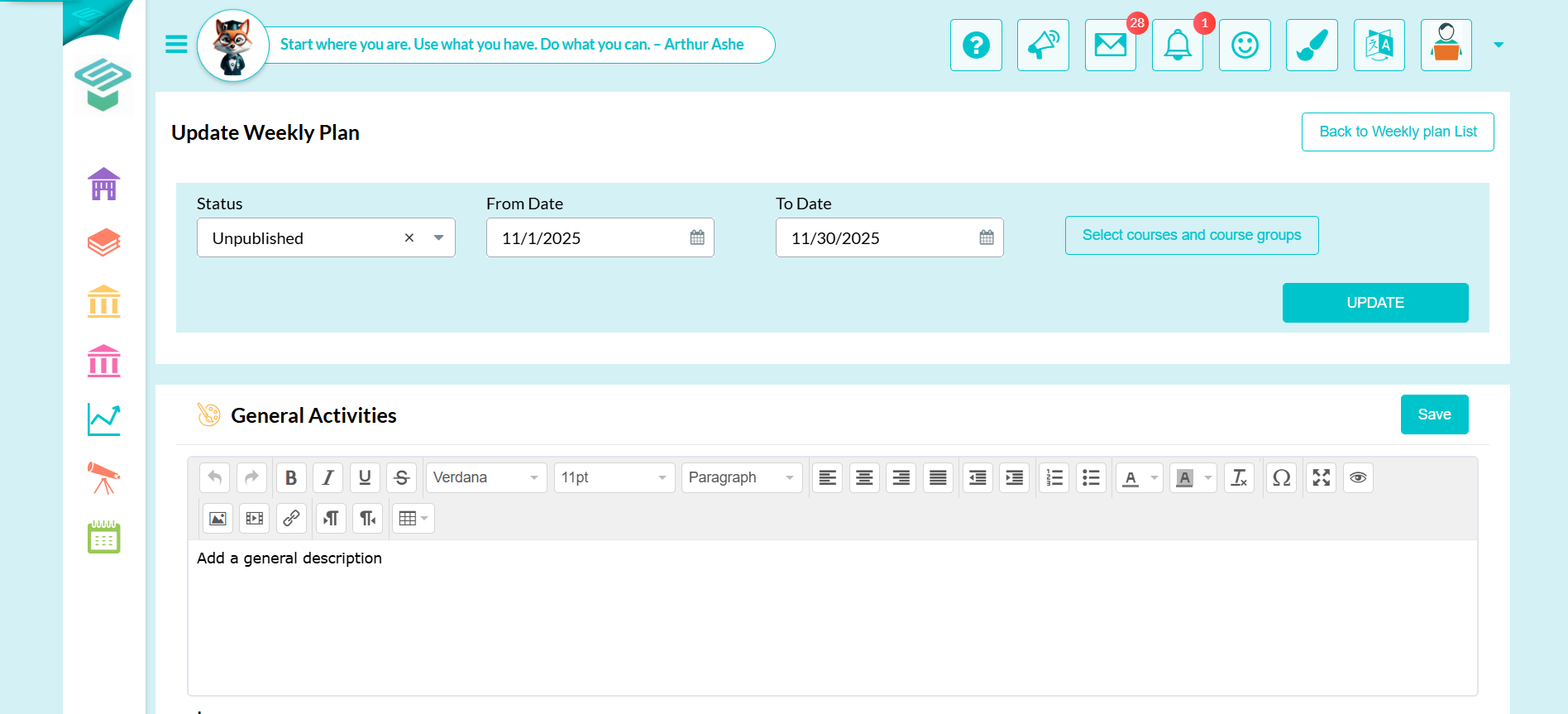
- Status: Unpublished to keep weekly plan invisible to students but available to edit by teachers, Published to make it visible to students
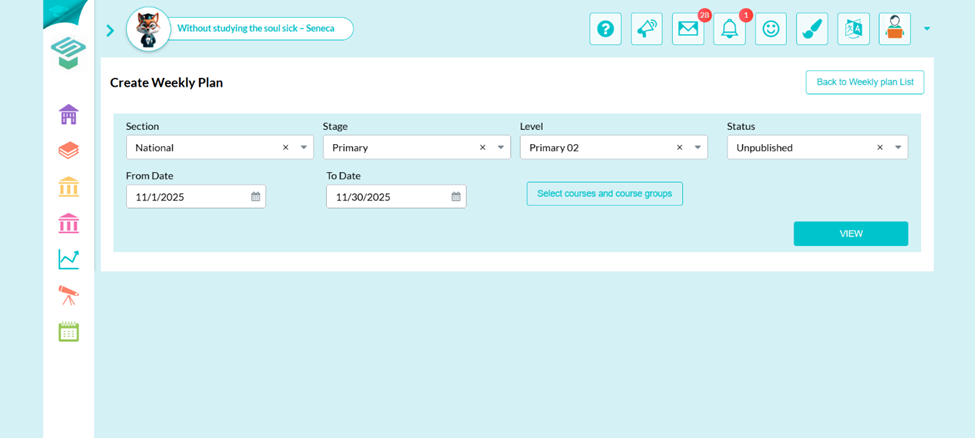
Step5: Choose courses assigned to this plan from Select courses and course groups then view to create weekly plan.
- You can select entire group with all classes assigned to it or Only one class
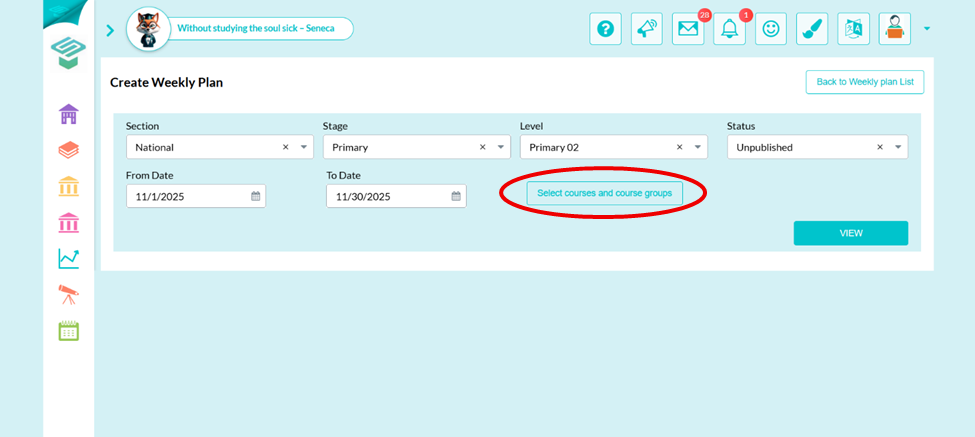
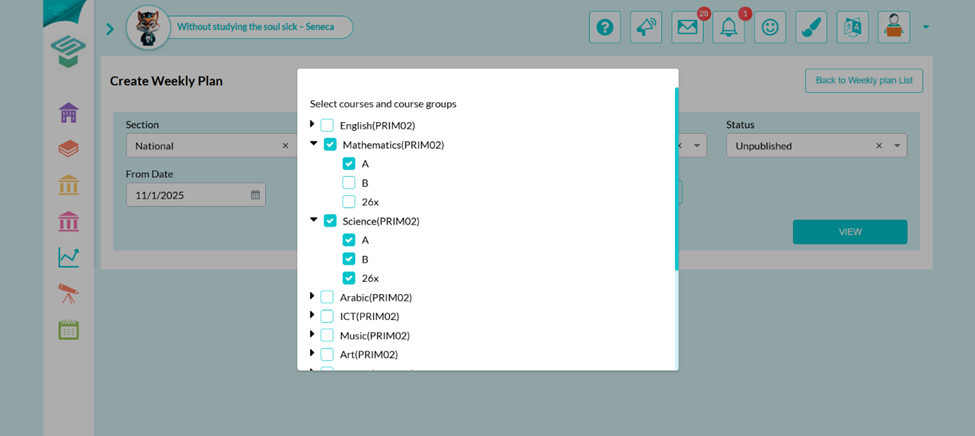
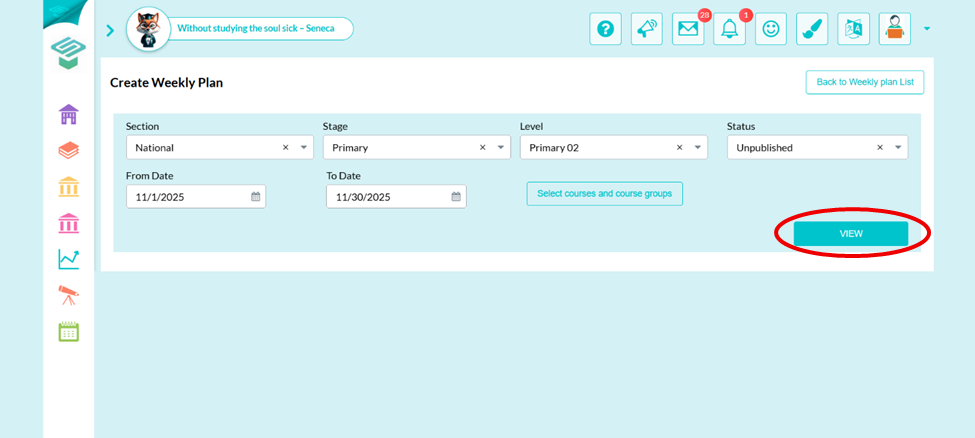
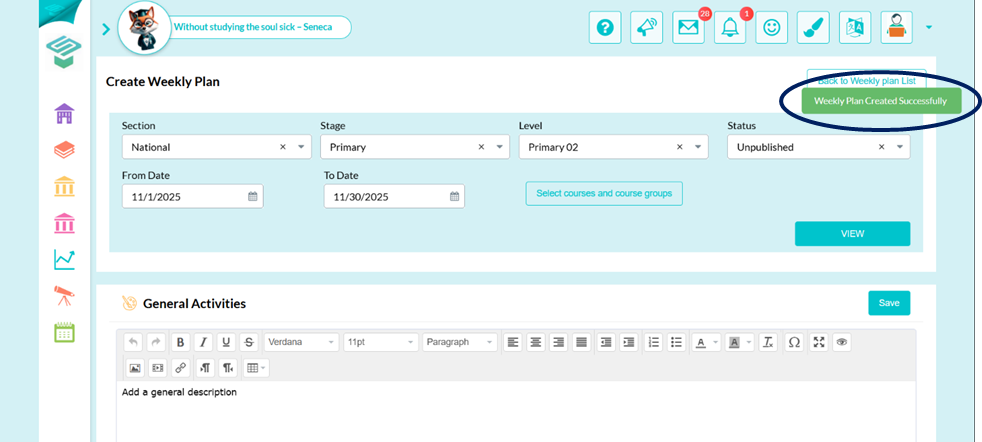
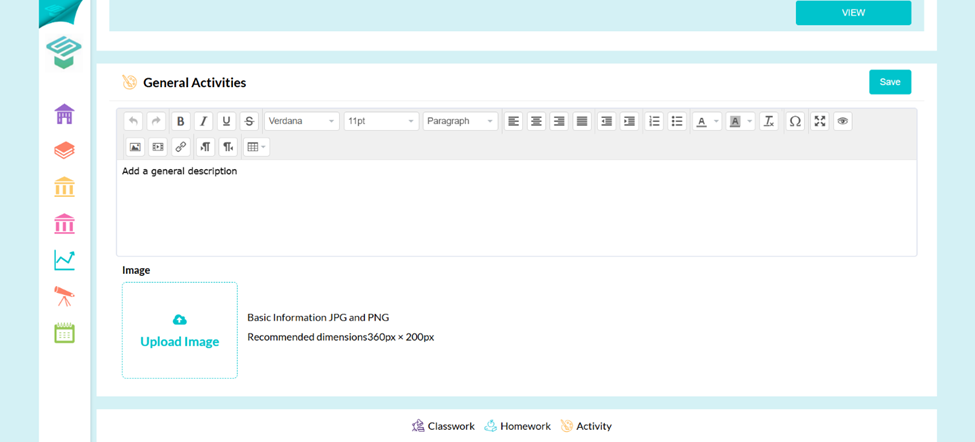
Step6: You can add a description and a photo to your plan
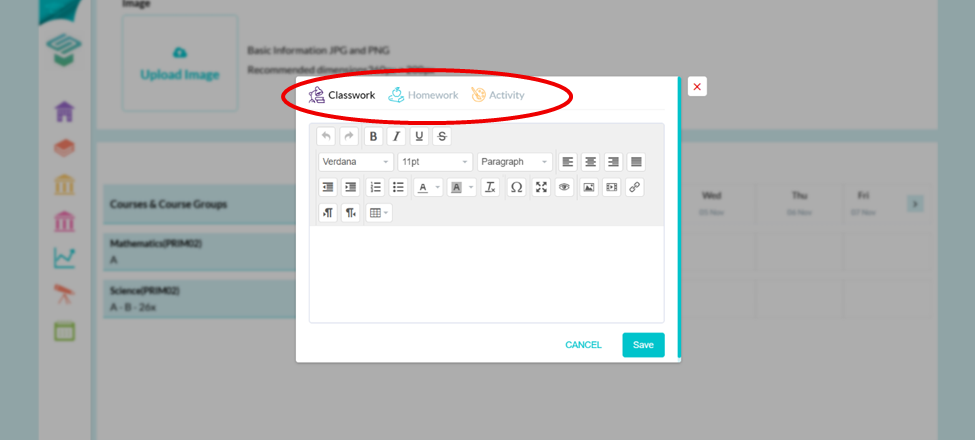
Step7: Add your plans from Update cell then save
- You can classify your plan to (Classwork, homework, activity)
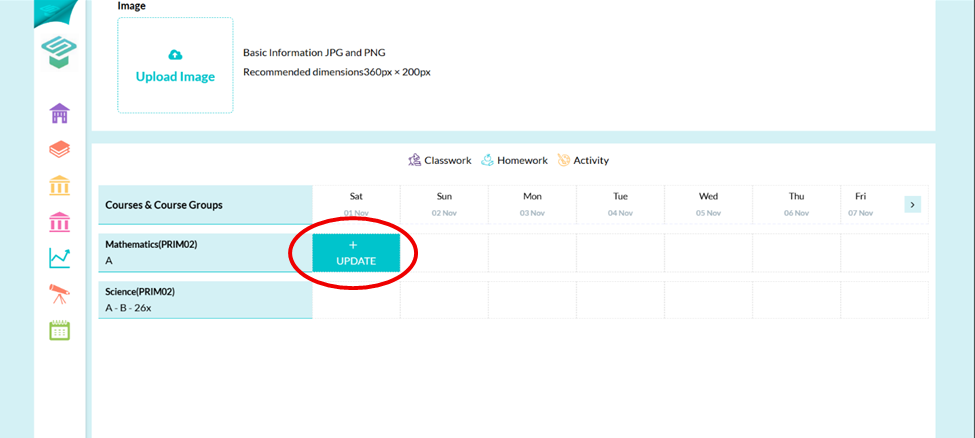
Step8: Plan is created
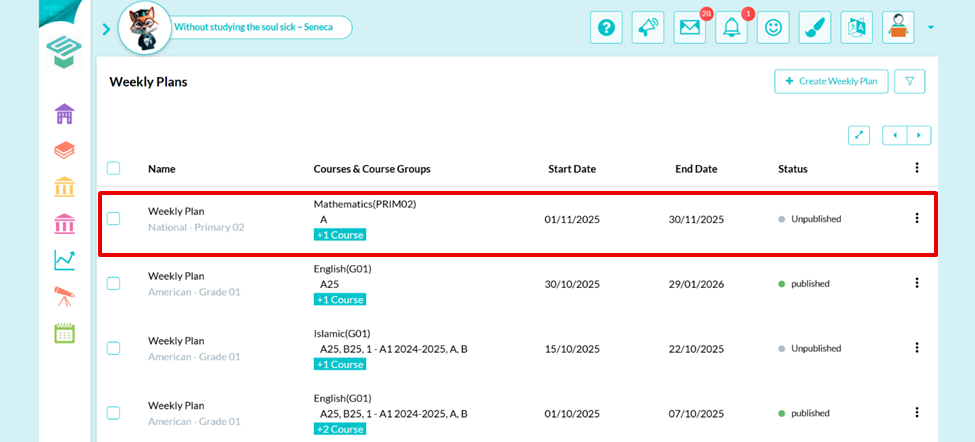
Update weekly plan from admin page
- From three dots choose edit
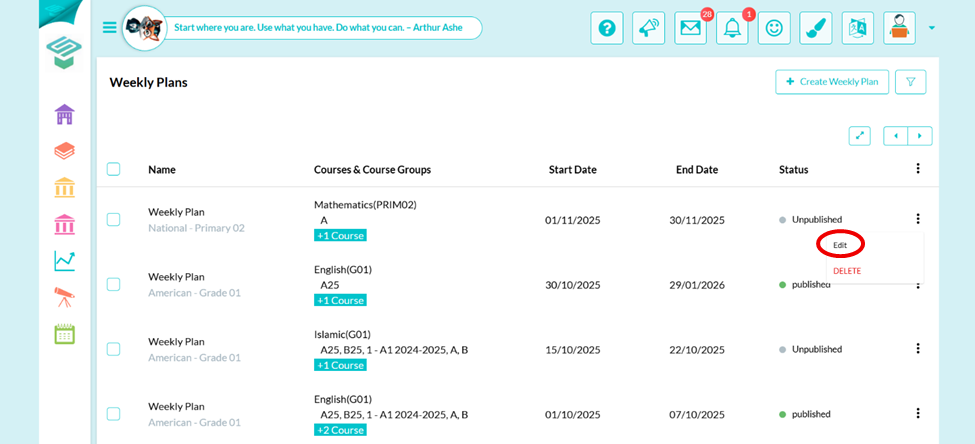
- You change if it is published or unpublished, start and end date and update your plan contents then click update