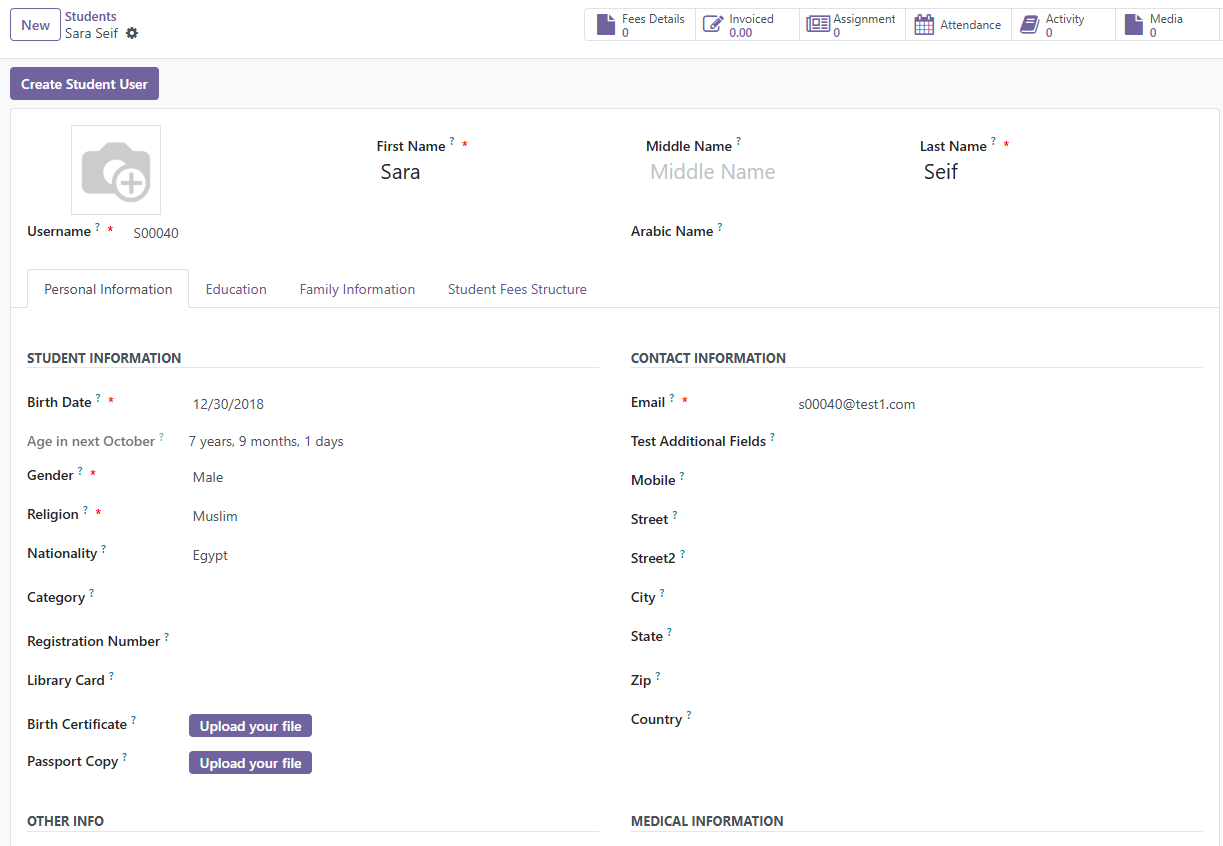
Creating a student profile in the ERP system is a simple process if you follow the correct
steps. Please make sure you have access to the SIS Module before starting.
Step 1: Log in to ERP
Open your ERP account.
Make sure you have the required permissions for the SIS Module.
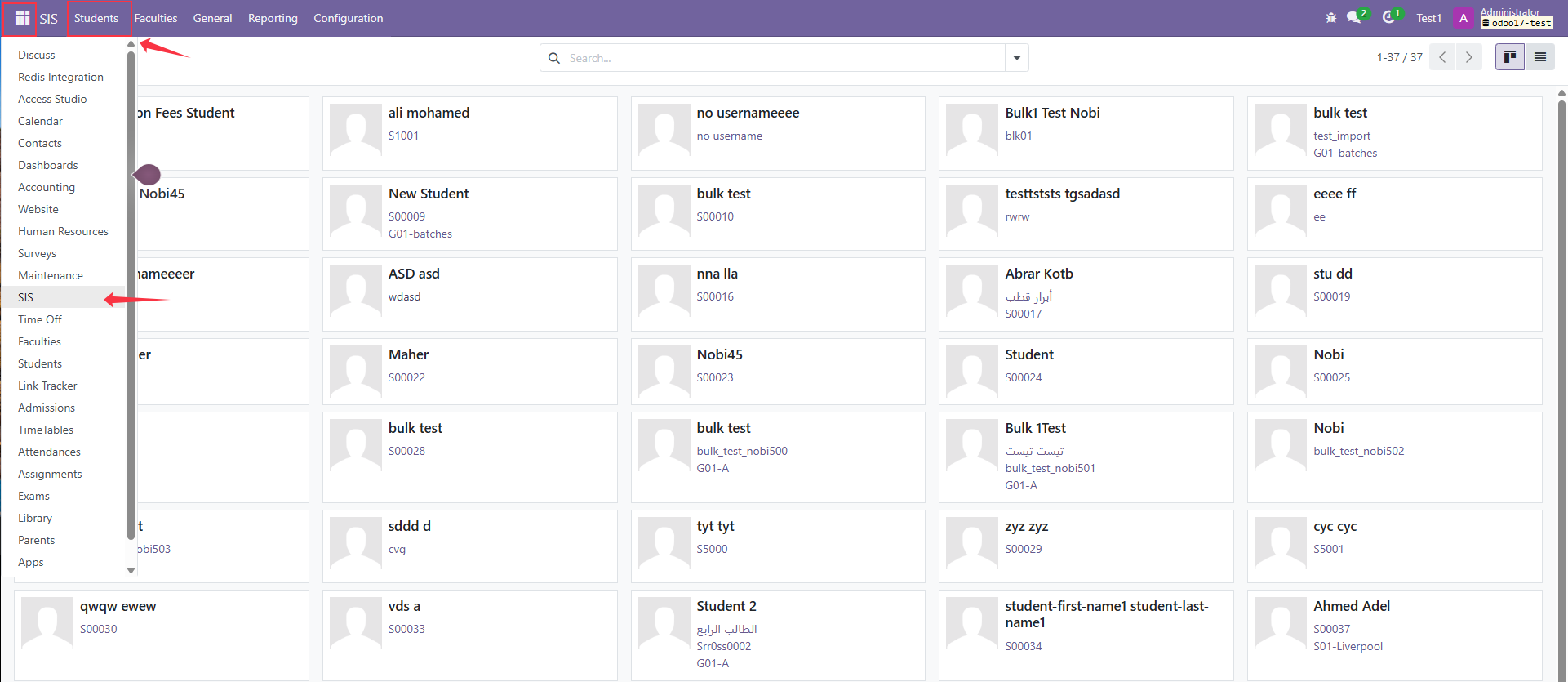
Step 2: Open the SIS Module
From the side menu, select SIS Module.
Click on Students.
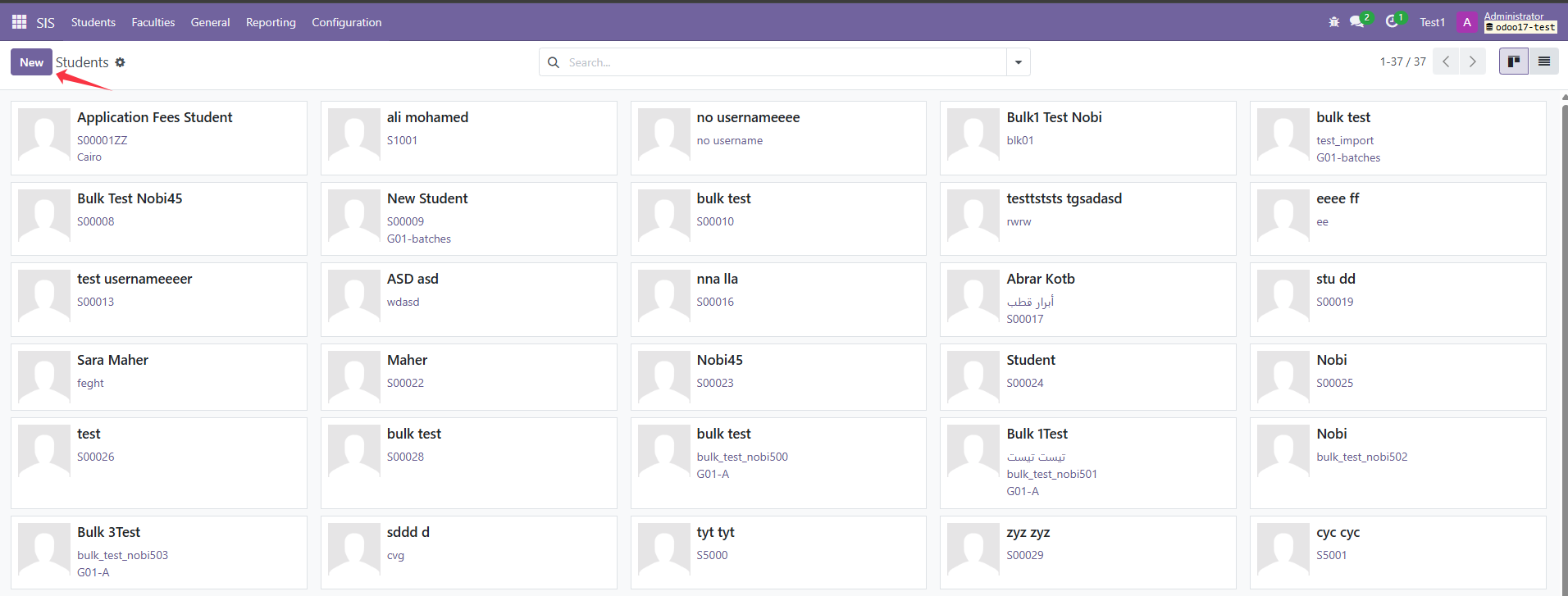
Step 3: Create a New Student
Click on the New button to create a new student record.
Step 4: Fill in Personal Information
Complete the required fields under Personal Information, including:
First Name
Last Name
Birthdate
Religion
Step 5: Fill in Educational Details
Under Educational Details, complete the required information:
Section
Stage
Level
Batch
Step 6: Add Family Relation Information
Enter the Family Code in the Family Relation section.
Step 7: Save the Record
After filling in all required fields, click Save to create the student profile.