Use your teacher account to log in to your School LMS.
Before Creating the virtual classroom Note that:
- Ensure that the email address registered in the system is valid and active
- Download the Zoom application and create an account using your email address or Sign in if you have an account
- Ensure again that the email registered in the system matches the email registered on Zoom
- When booking a Zoom session for the first time through Skolera, an invitation will be sent to your email and must be accepted.
- The maximum time of the meeting is 40 Minutes
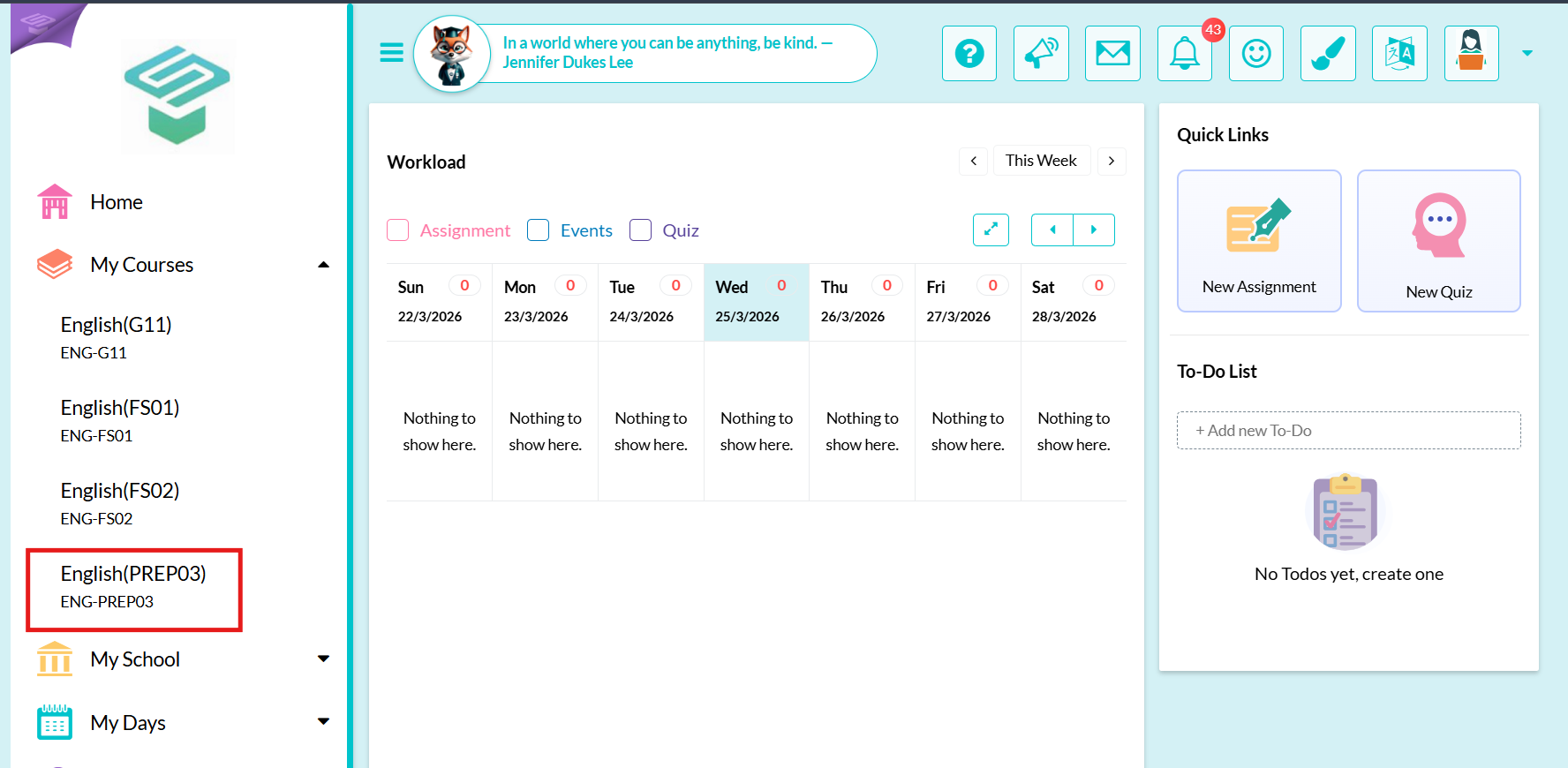
Step1: Login to your teacher account From my courses  Choose the course you want to create the virtual classroom in.
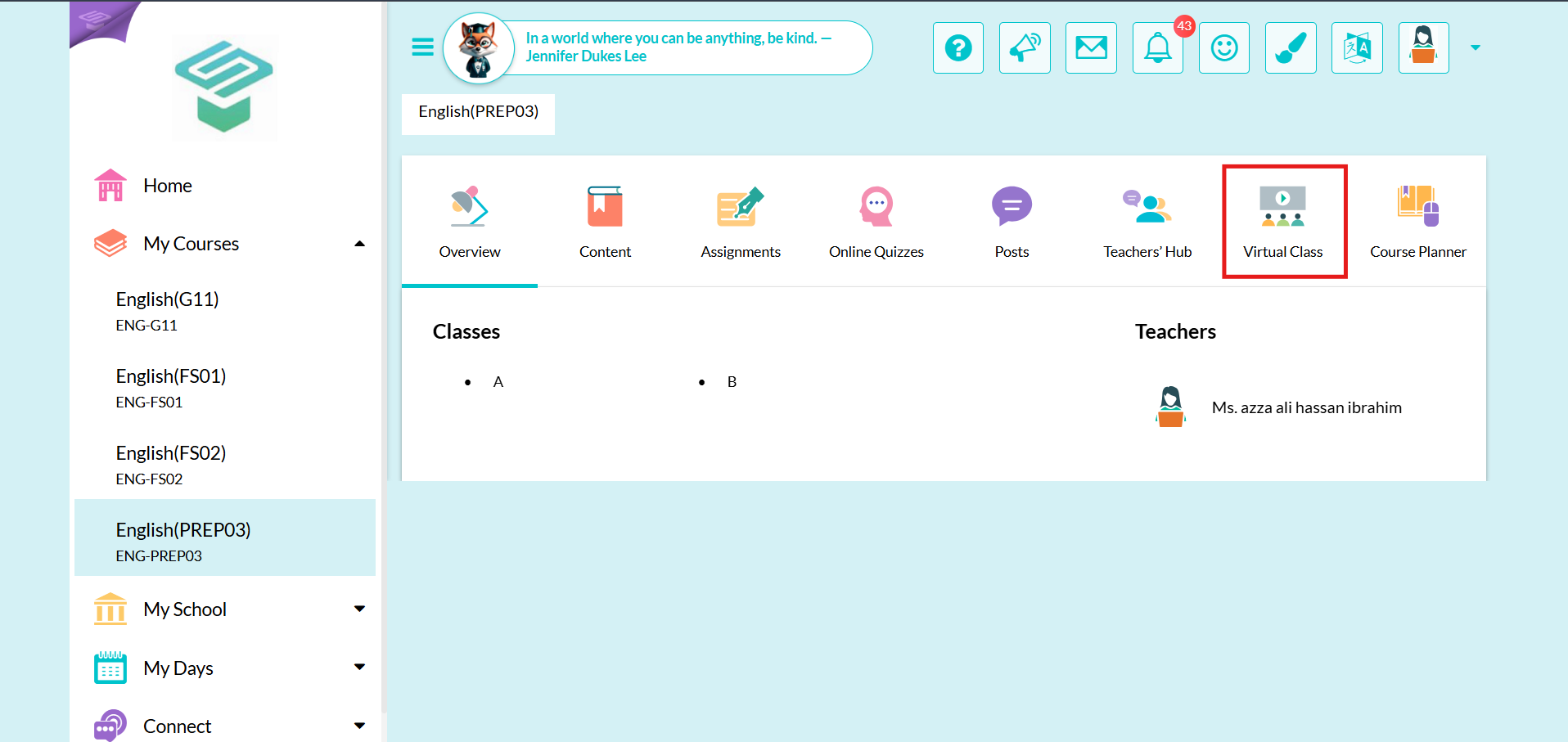
Step2: Click on Virtual class tab
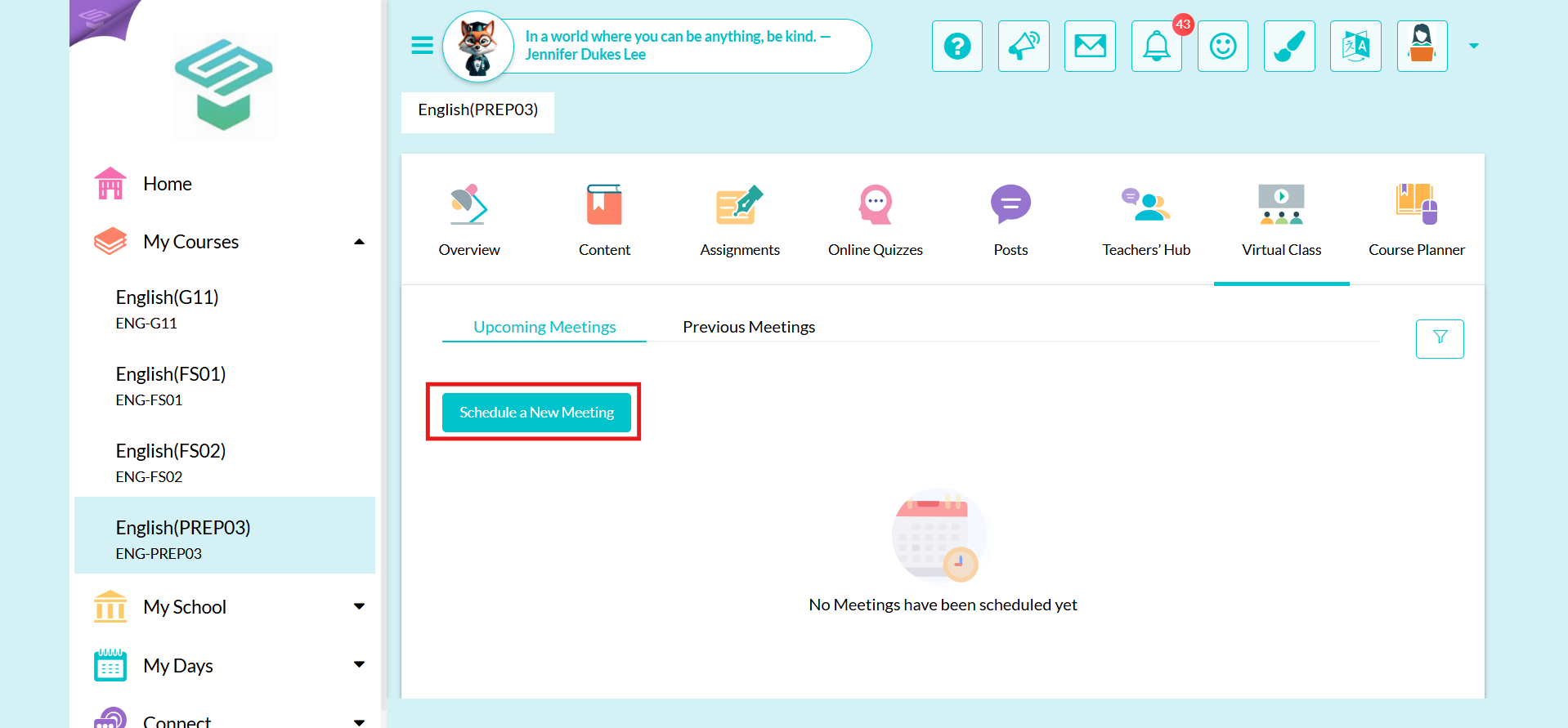
Step3: Click on Schedule a New Meeting and choose Meeting Settings
Meeting Settings
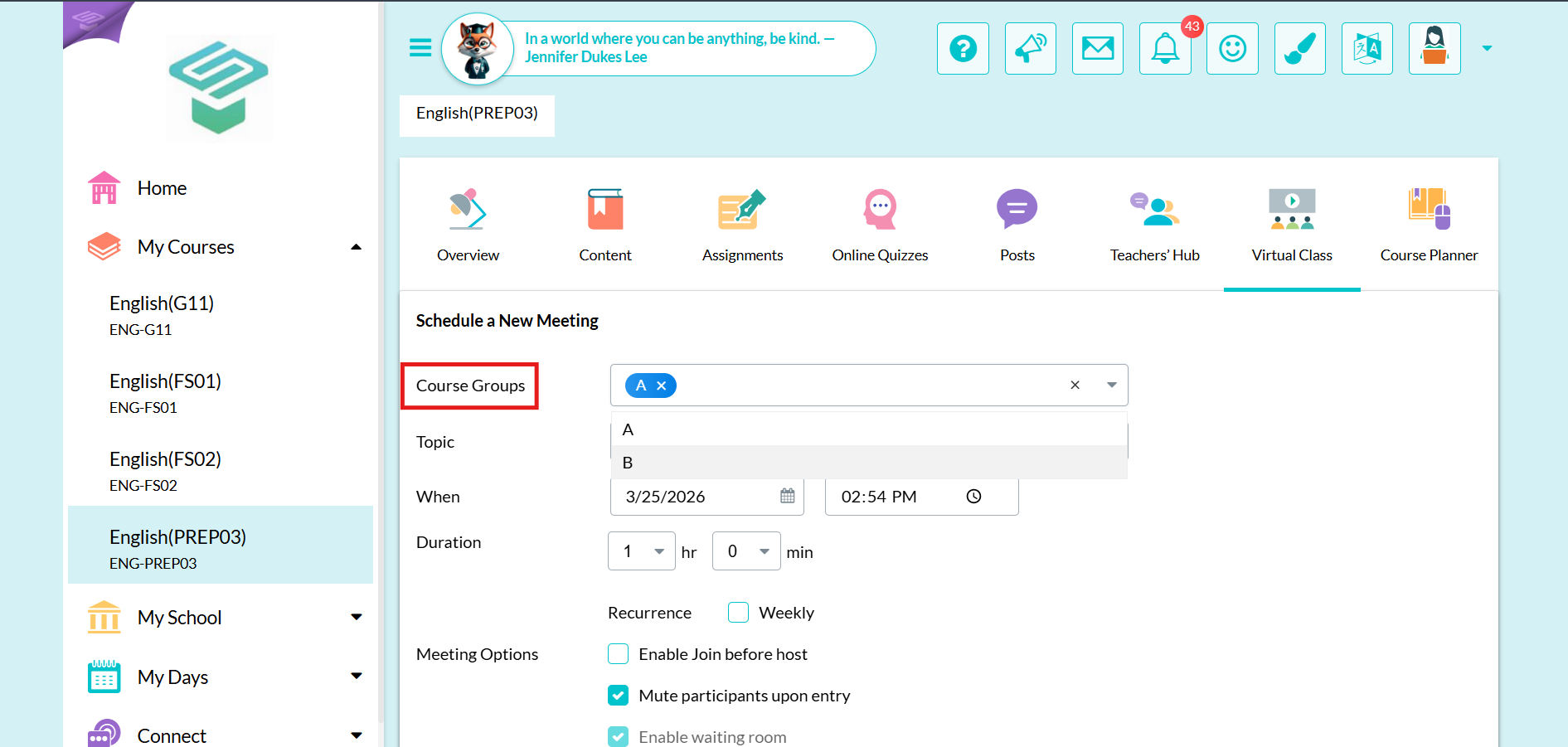
1. Course group: Select the class that the meeting is intended for. You can choose a specific class within the level or select both classes together.
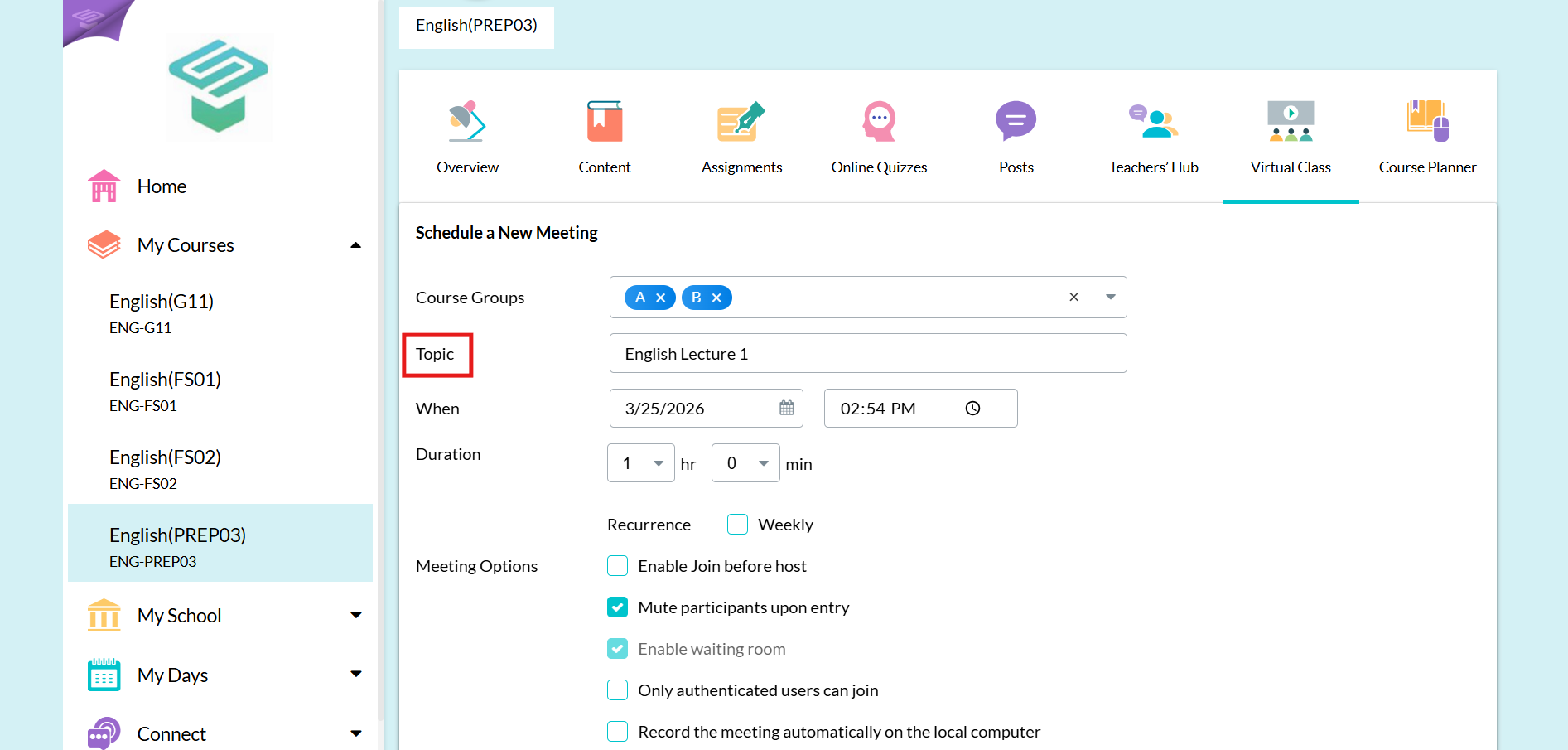
2. Topic: Write Meeting Topic
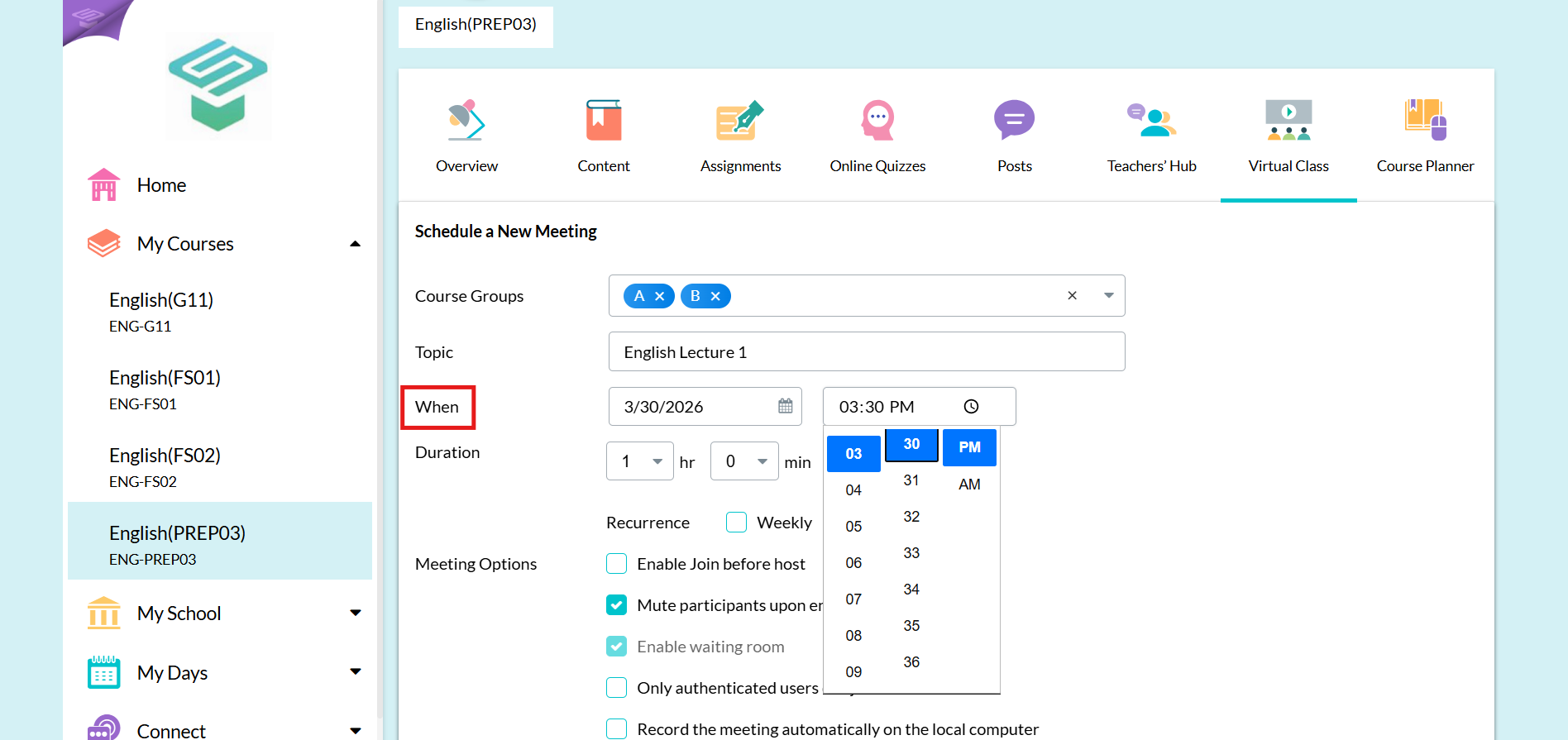
3. When: Choose the Date and time of the Meeting
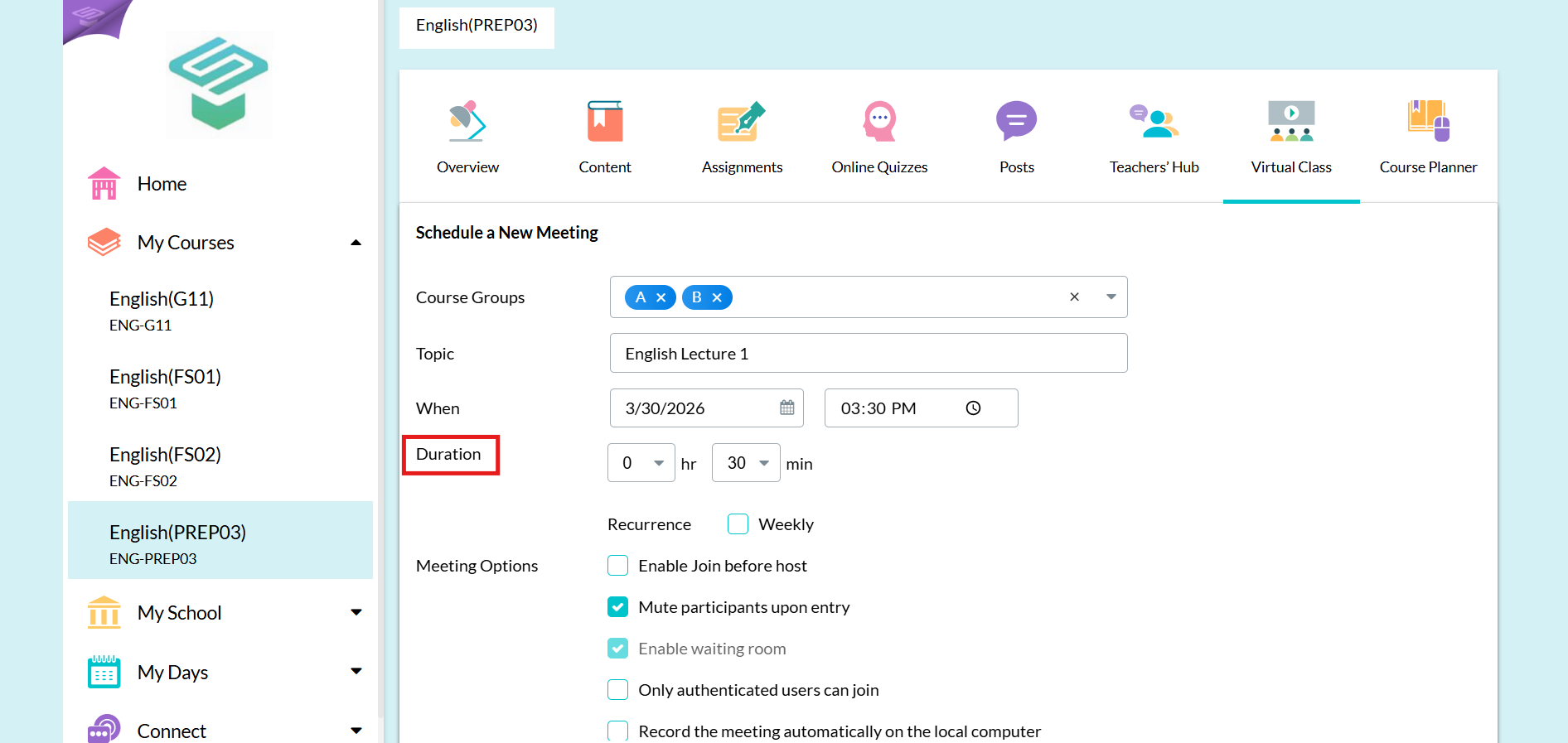
4. Duration: Select the duration of the meeting
Note That: The maximum time of the meeting is 40 Minutes (The default time for free zoom version, if you need more time please contact the administration)
If this class happens every week chick the (Recurrence: Weekly) and set the day and end date of the class recurrence
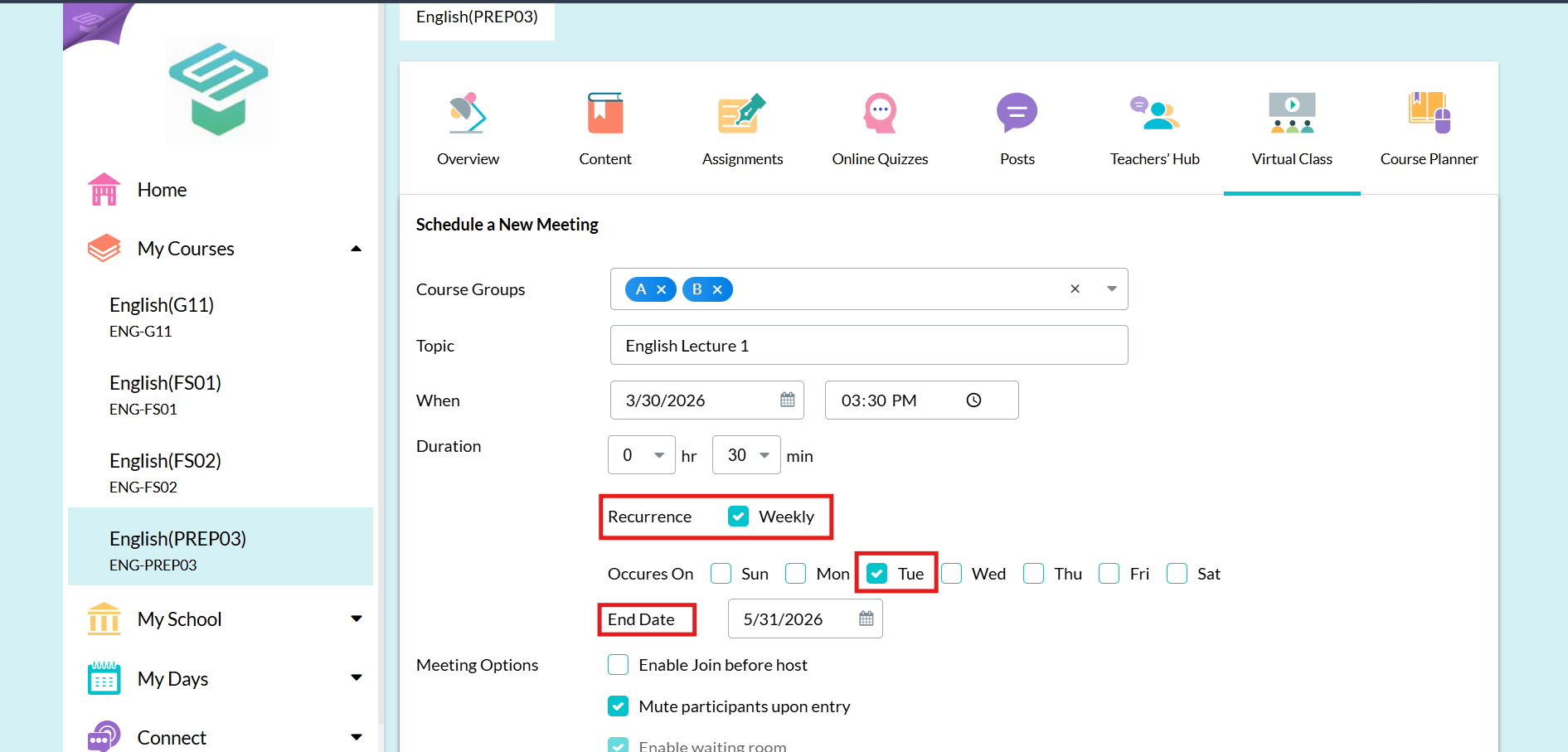
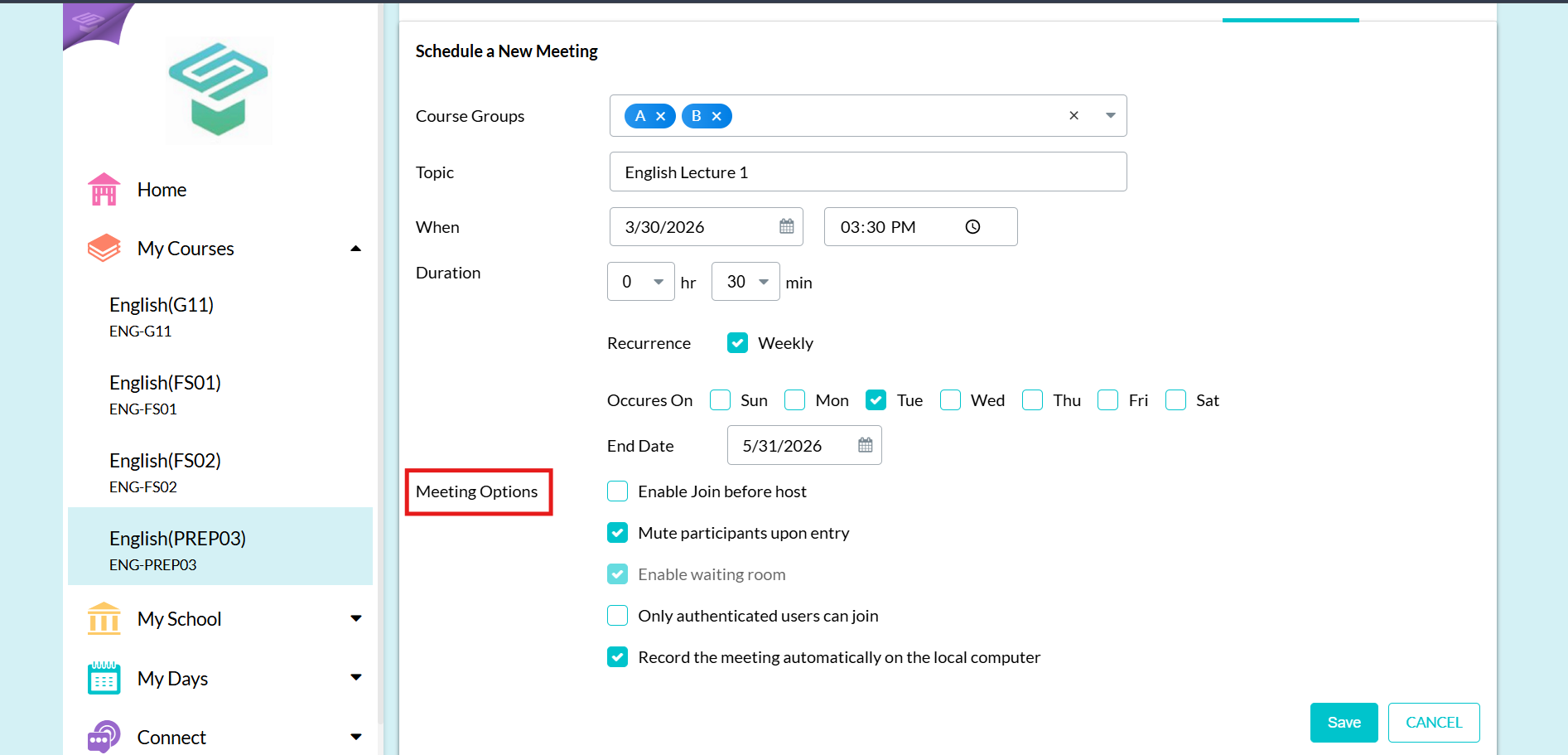
5. Meeting Options: Choose the Required meeting options
⚠️ Note: Enabling “Only authenticated users can join” will allow only users with Zoom accounts to join the meeting. Users who do not have a Zoom account will not be able to join the class. It is recommended to keep this option unchecked.
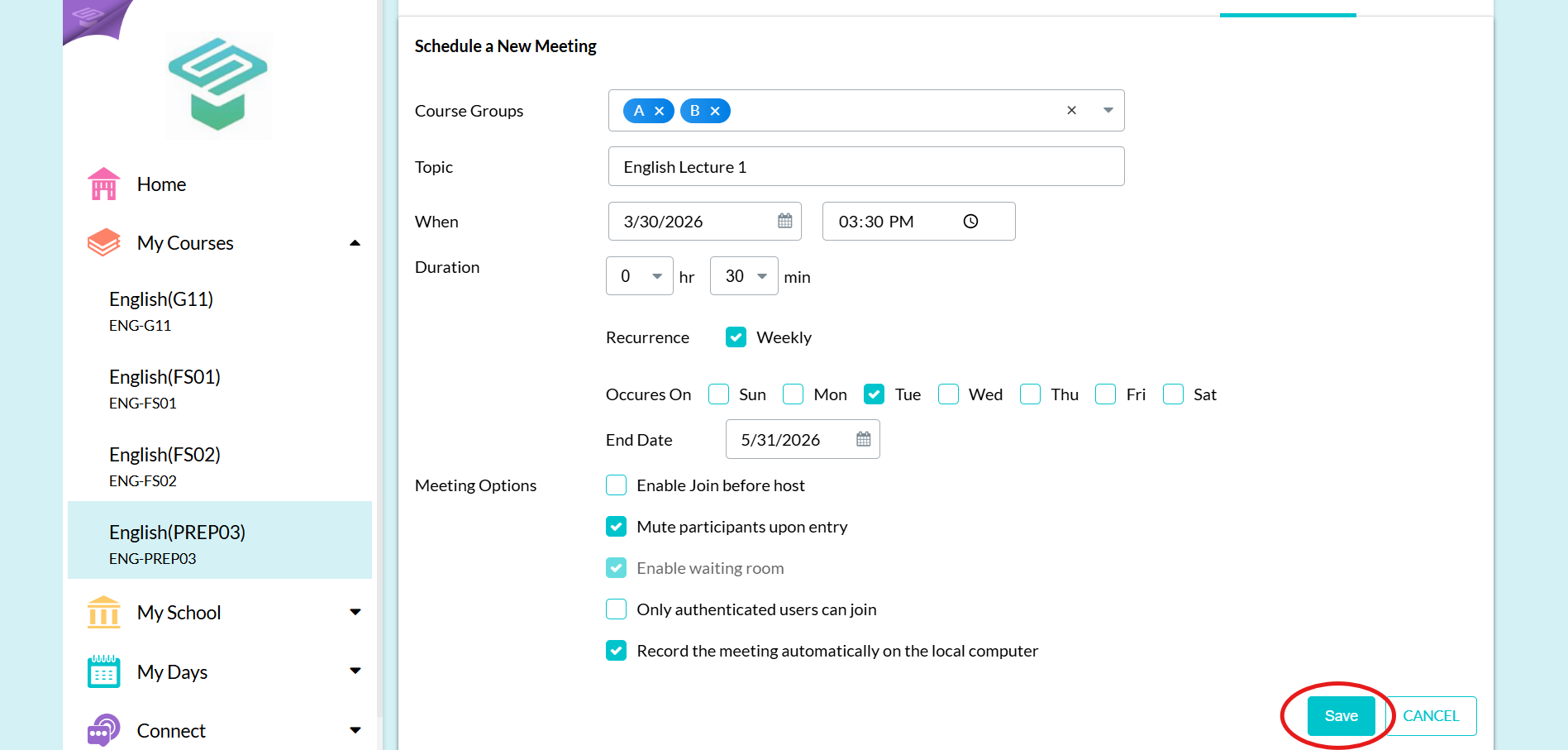
Step4: Click Save
⚠️ Note: An invitation will be sent to your email for the (first time) accept it and click save again
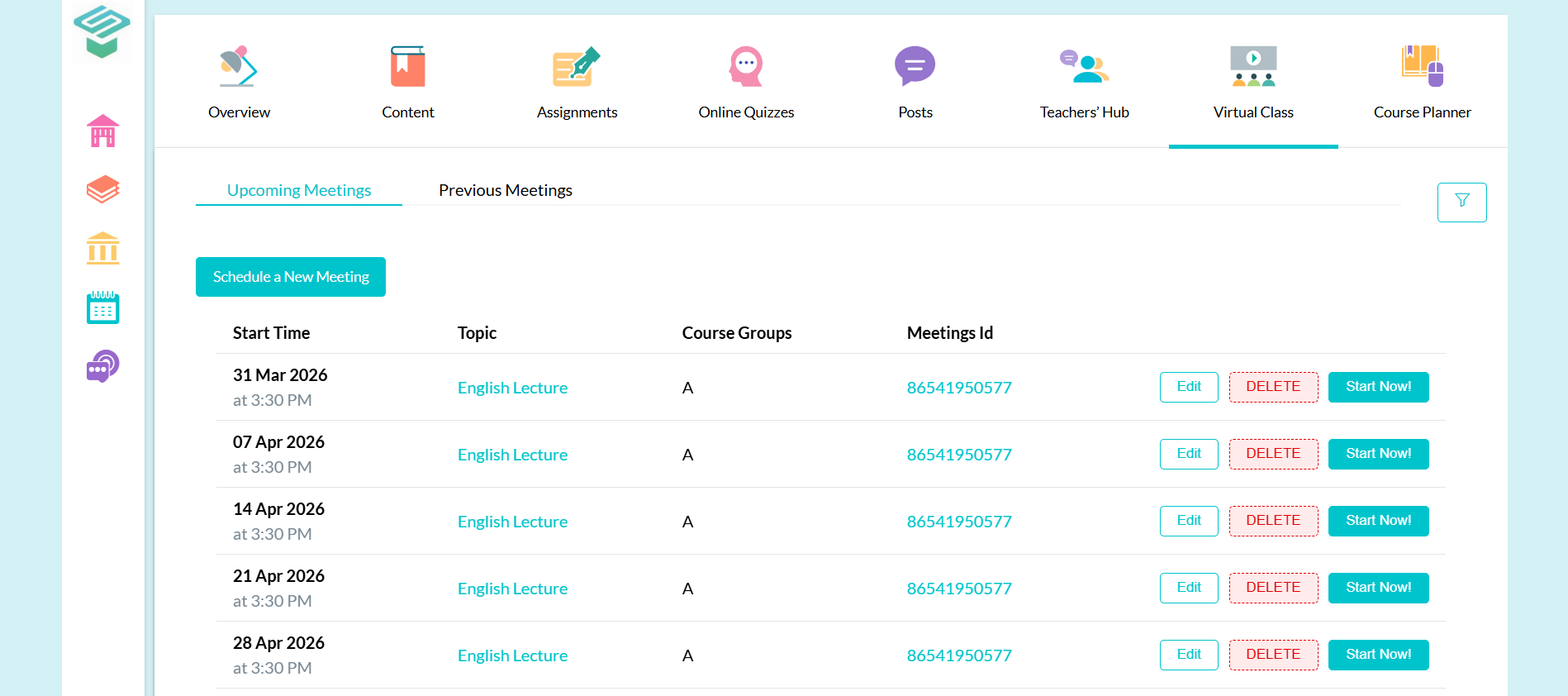
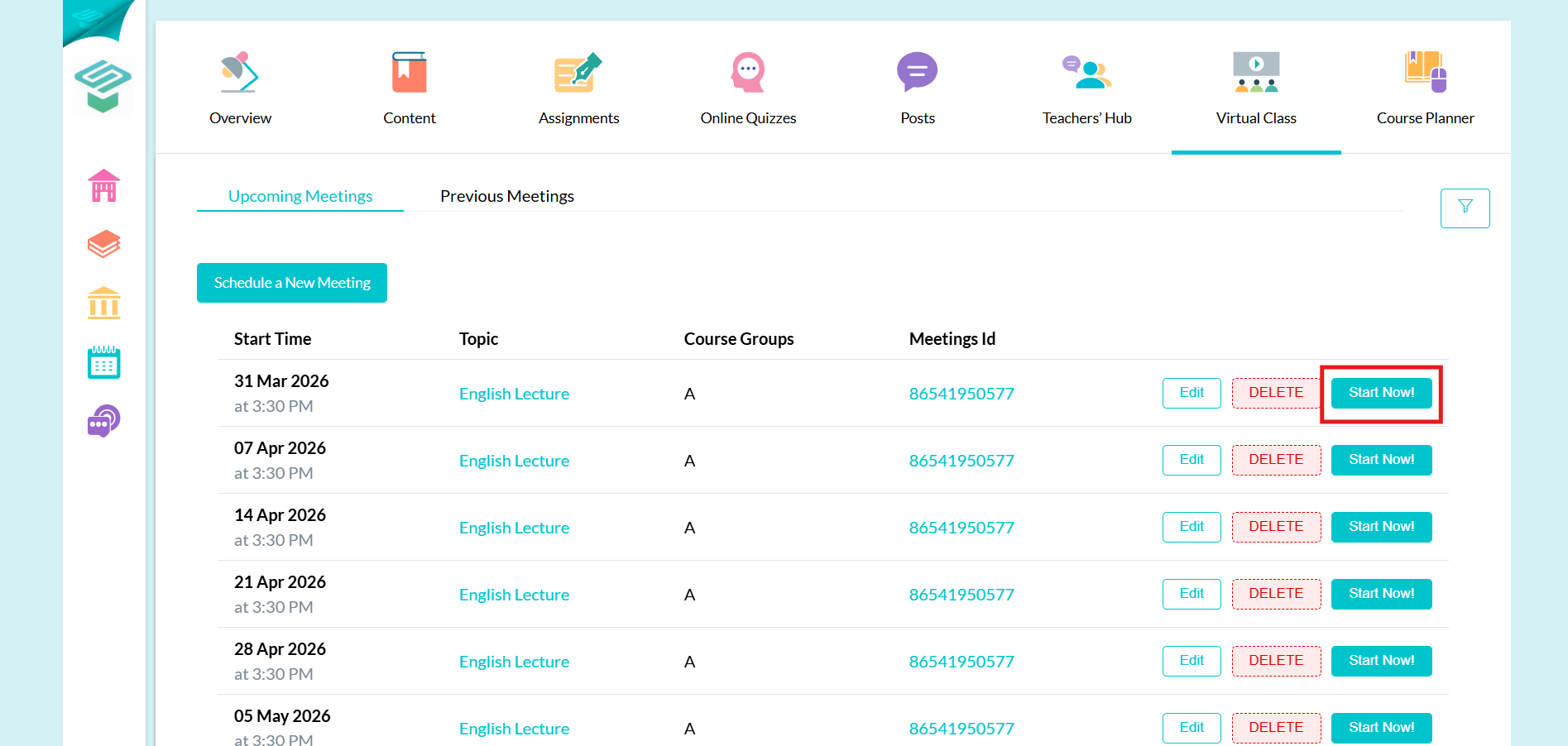
Step5: Start the meeting when it's time  Click on start now
  Zoom will redirect you to the application to start the meeting