
Accessing the Library Module
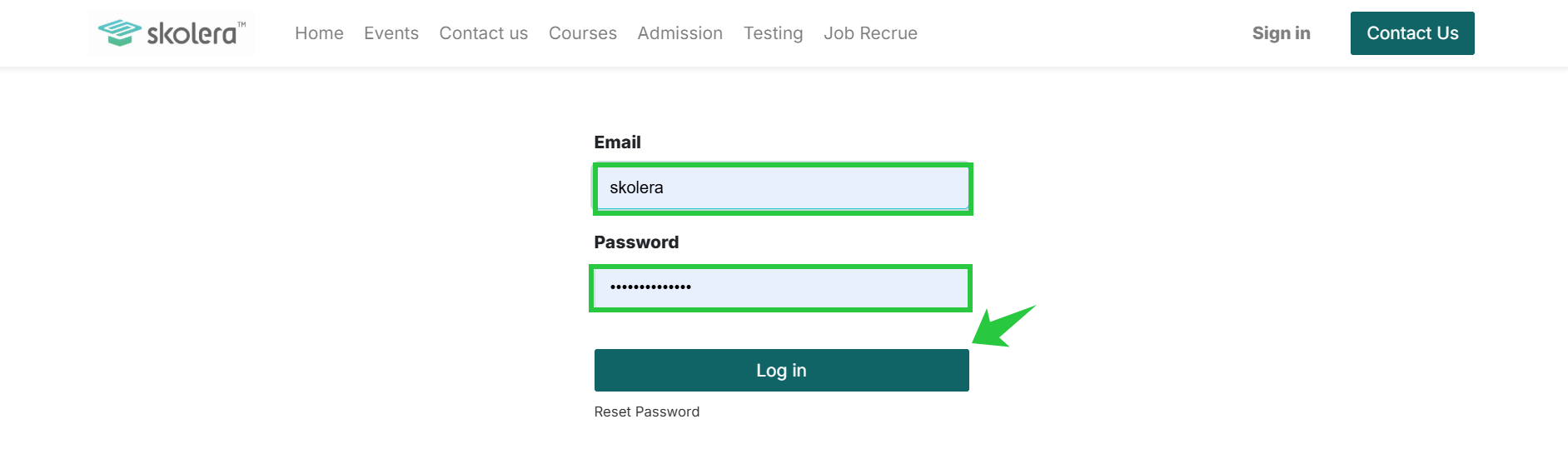
Log in to Skolera ERP.
From the main dashboard, click on Library.
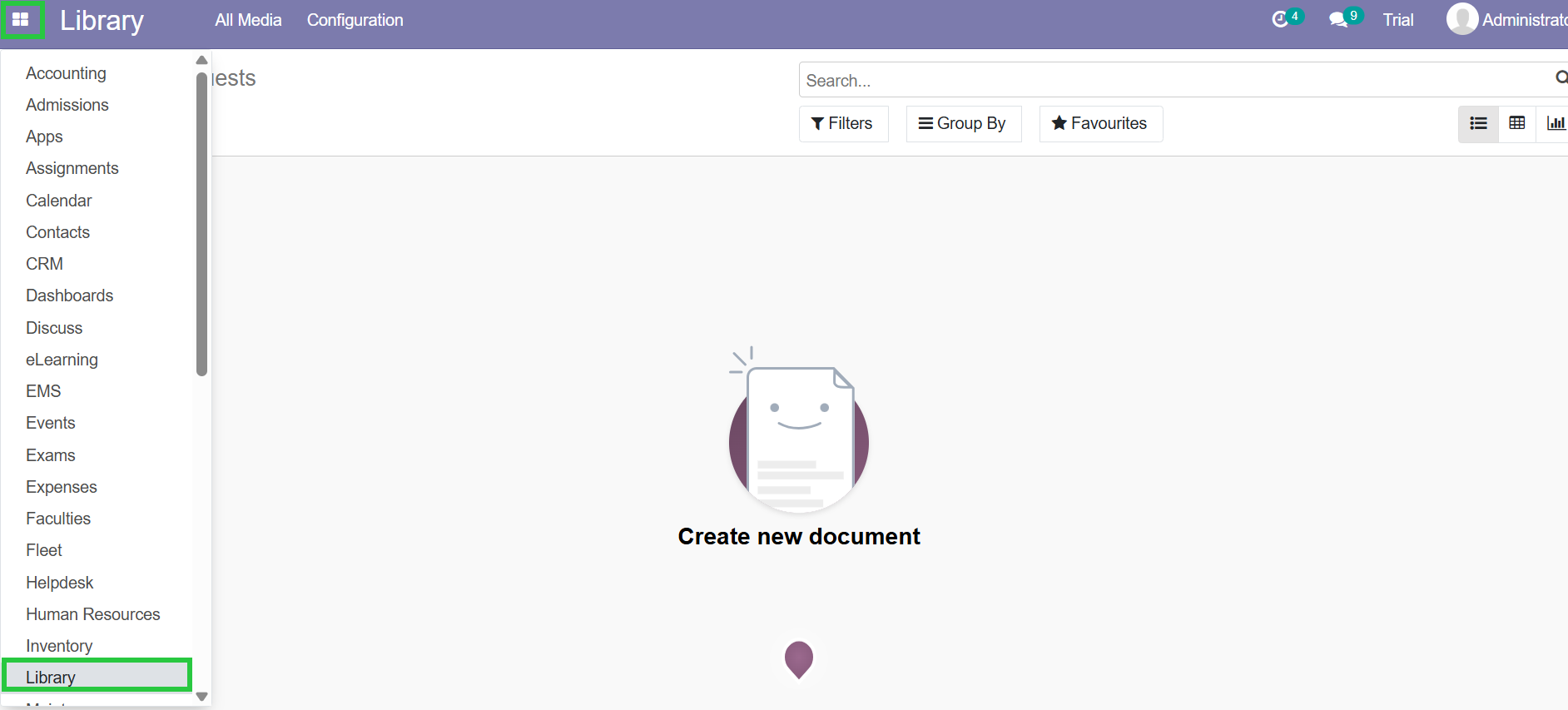
You will be redirected to the Library interface.
Manage Publisher
To add a new publisher:
Go to Library → Configuration → Publishers.
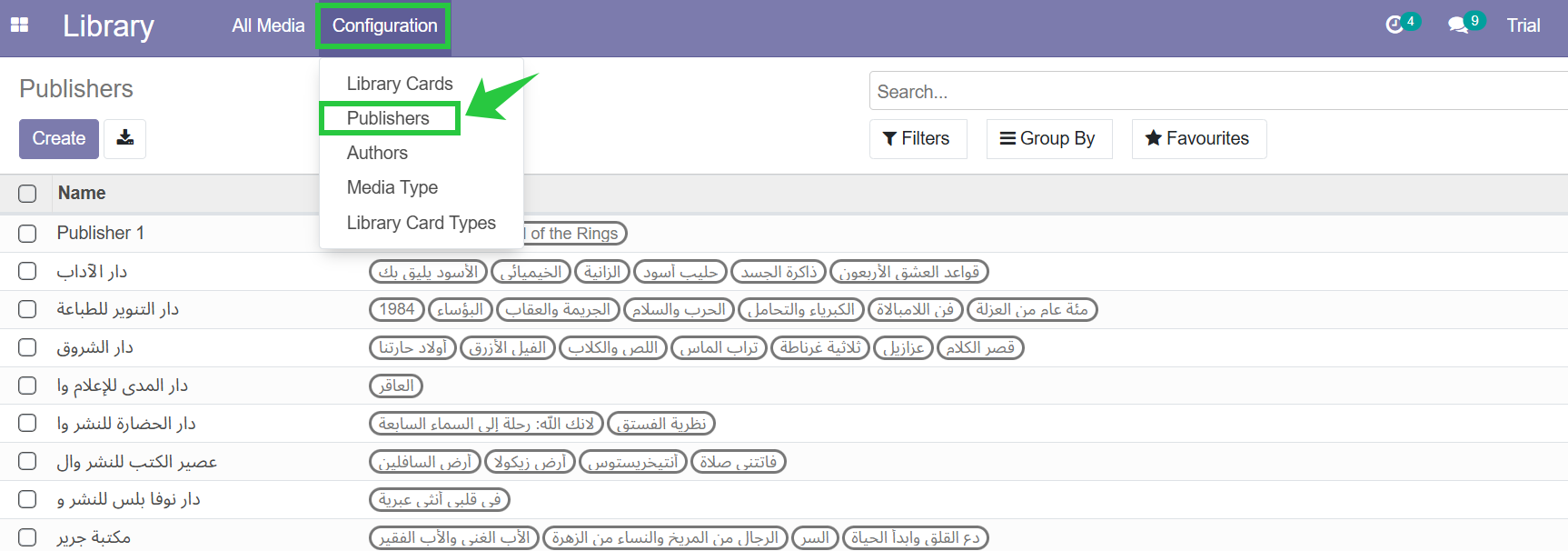
Click Create
Enter the required information such as:
Publisher Name
Additional details if needed .
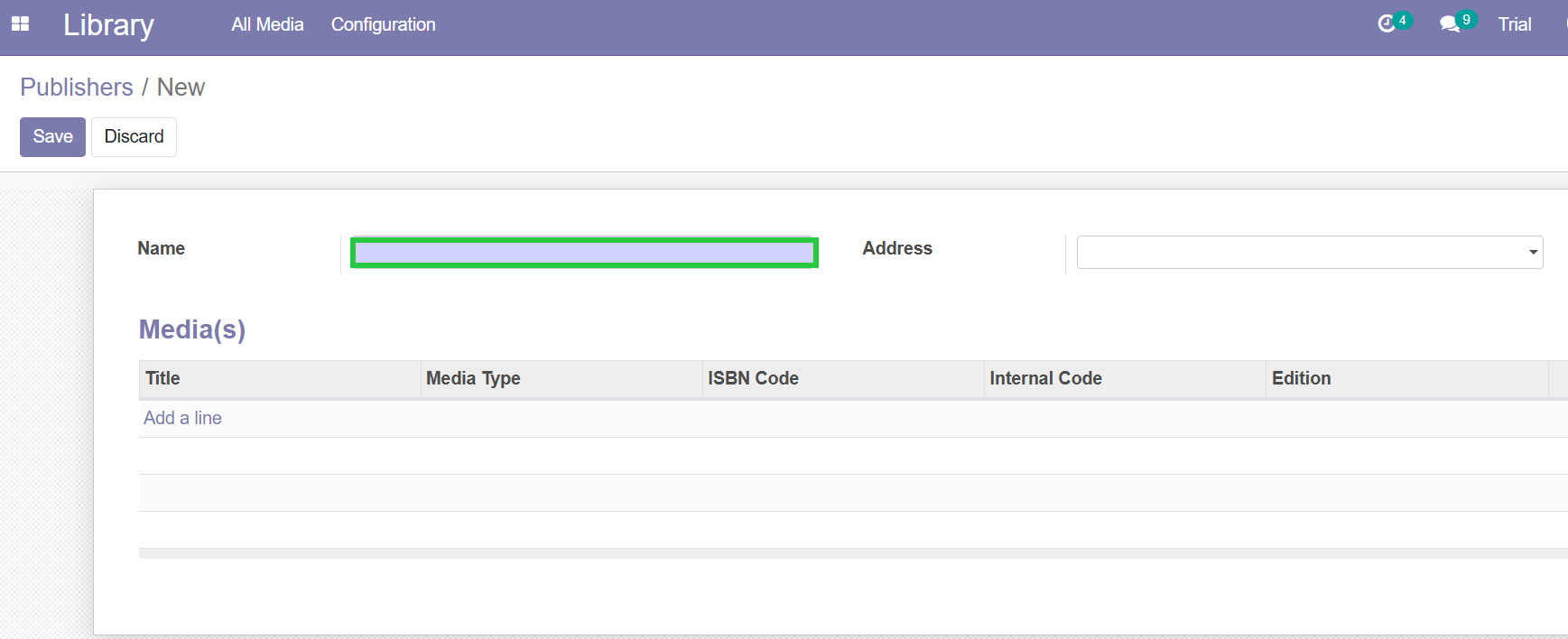 The publisher will now be available in the Publisher field when creating or editing a book
Manage Authors & Categories
Keeping your data organized is essential.
Manage Authors
Go to:
Library → Configuration → Authors
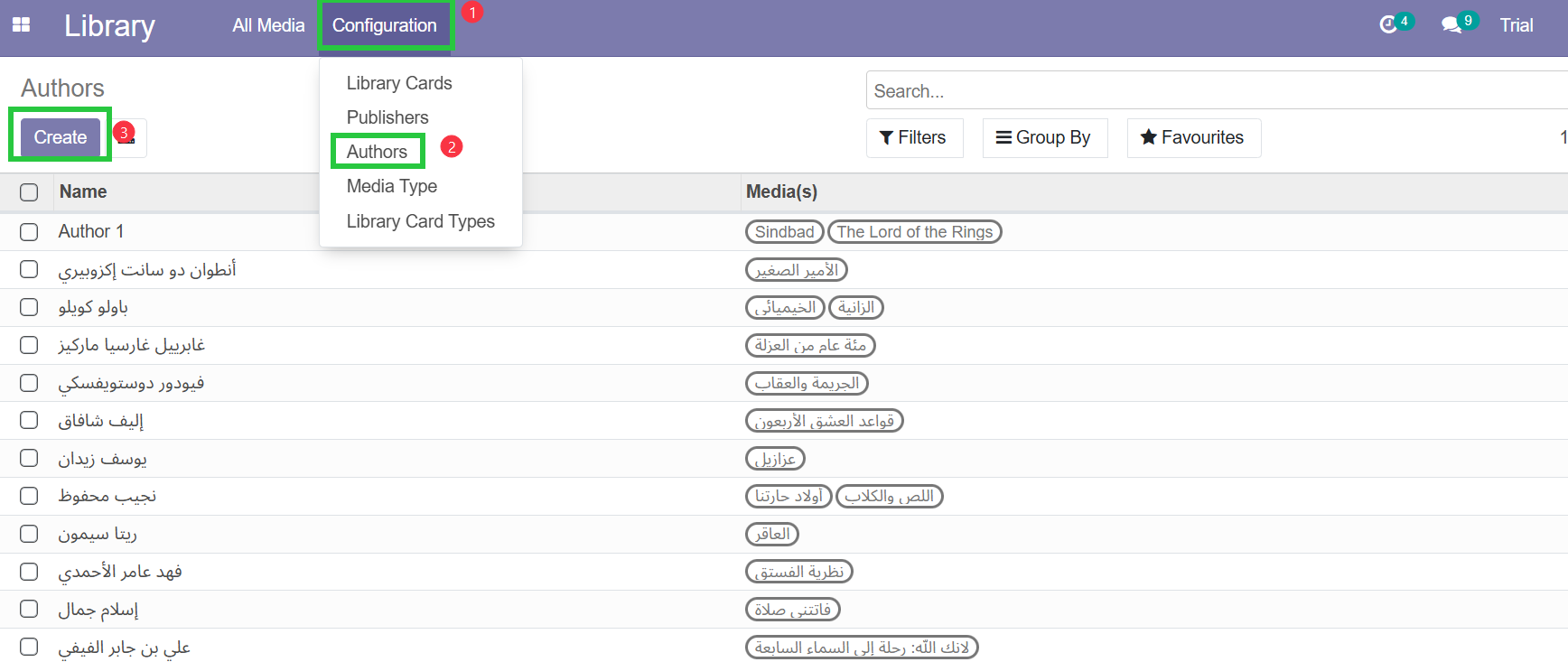
You can:
View existing authors
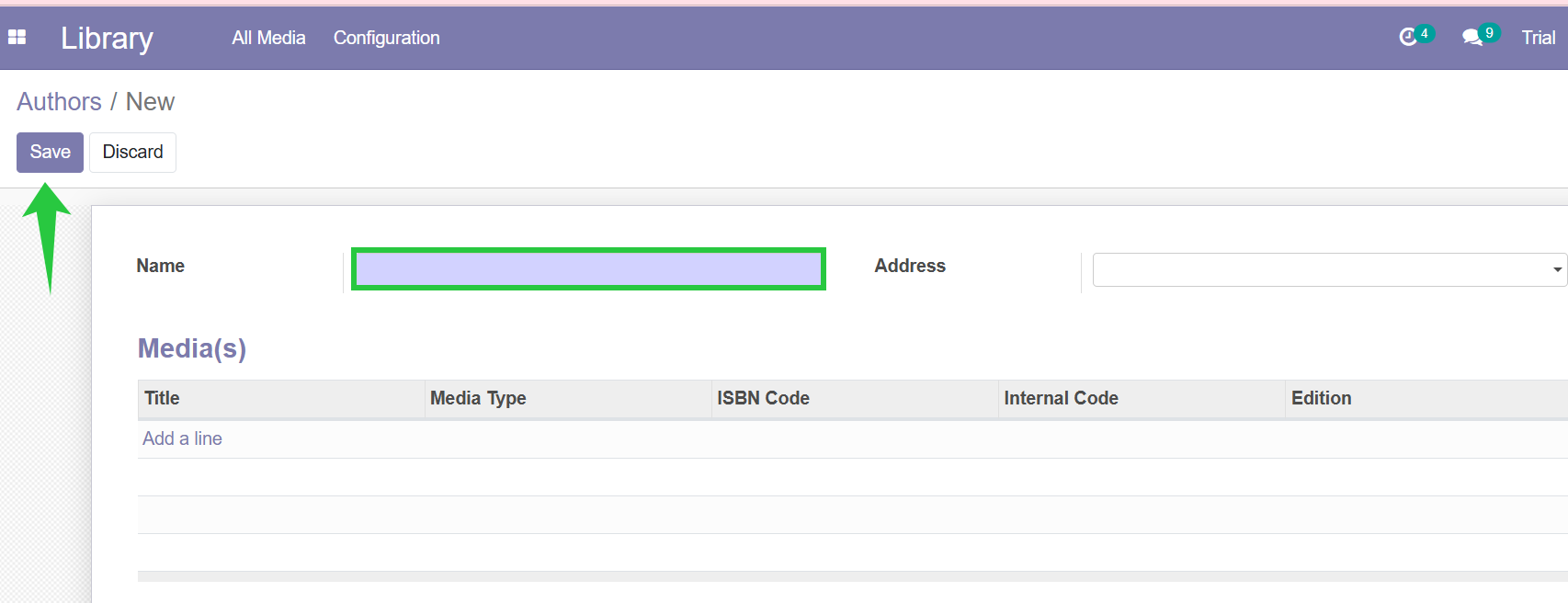
Create new authors
Edit author details
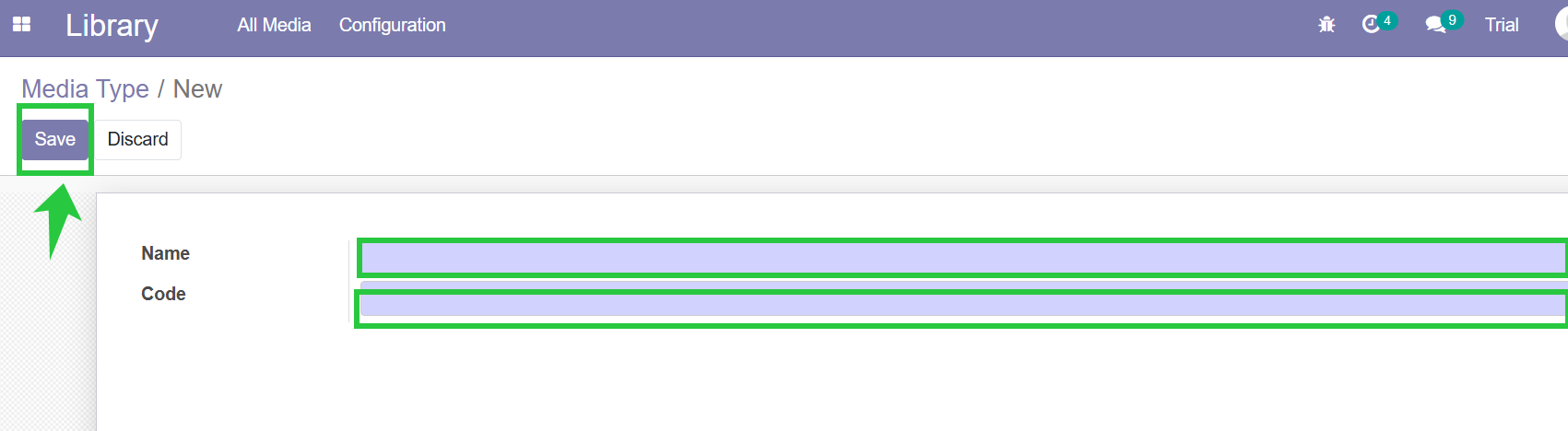
Manage Media Types (Categories)
Go to:
Library → Configuration → Media Type 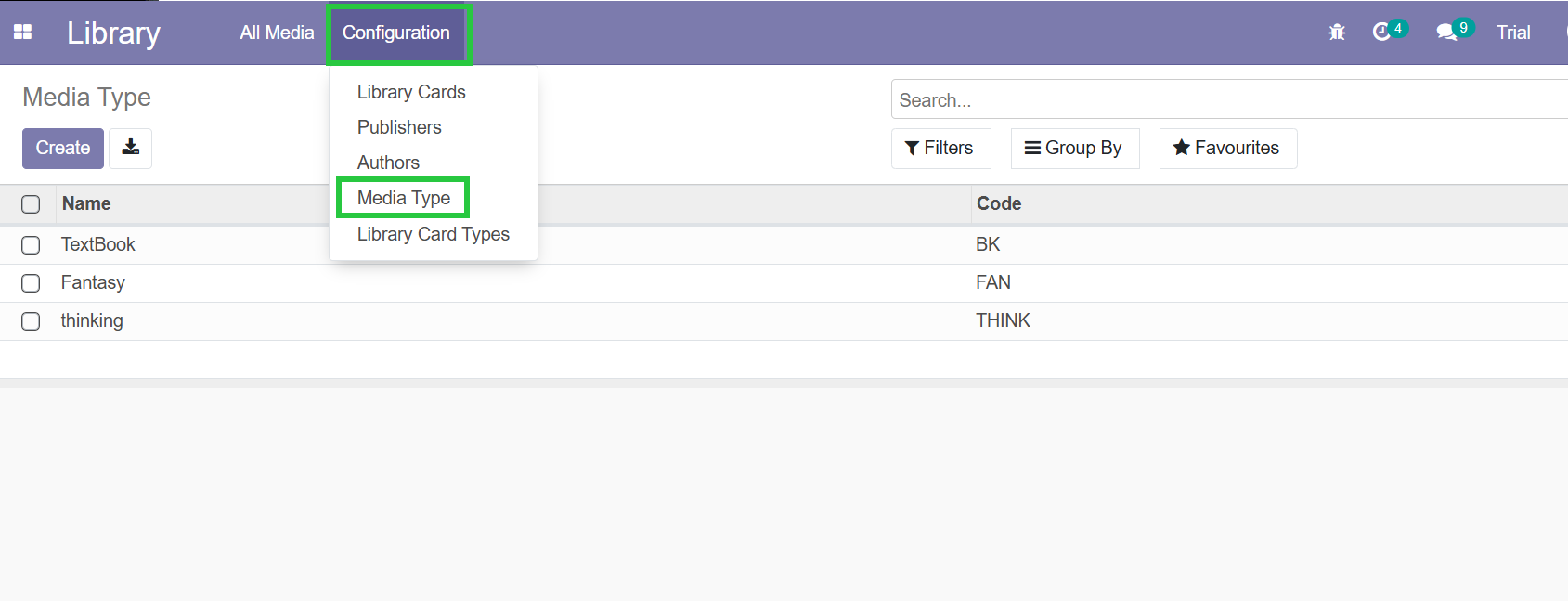
Create Library Cards
Library Cards are required to issue books.
Go to Library → Configuration → Library Cards type
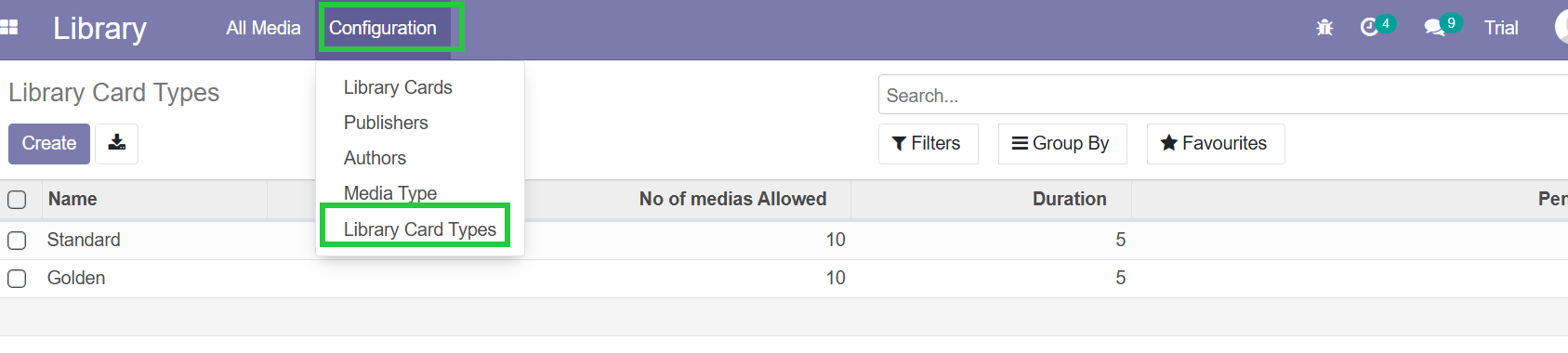
Click Create
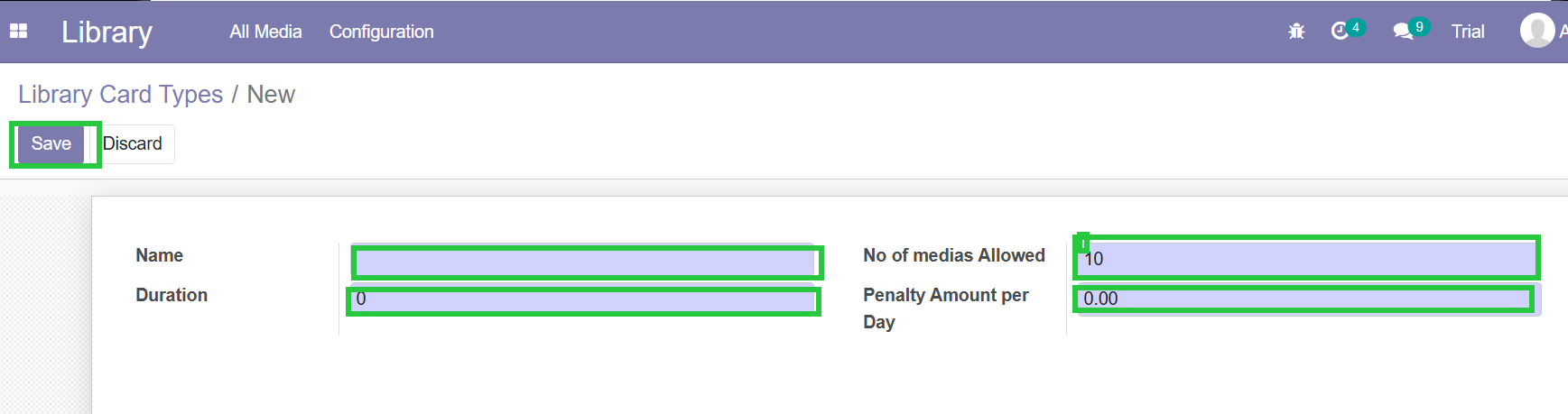
Enter:
Name
Duration
No of Media Allowed
Penalty Amount per Day
Add a New Book
This is the first step in building your library catalog.
Step 1: Create the Media Record
Go to Library → All Media
Click Create

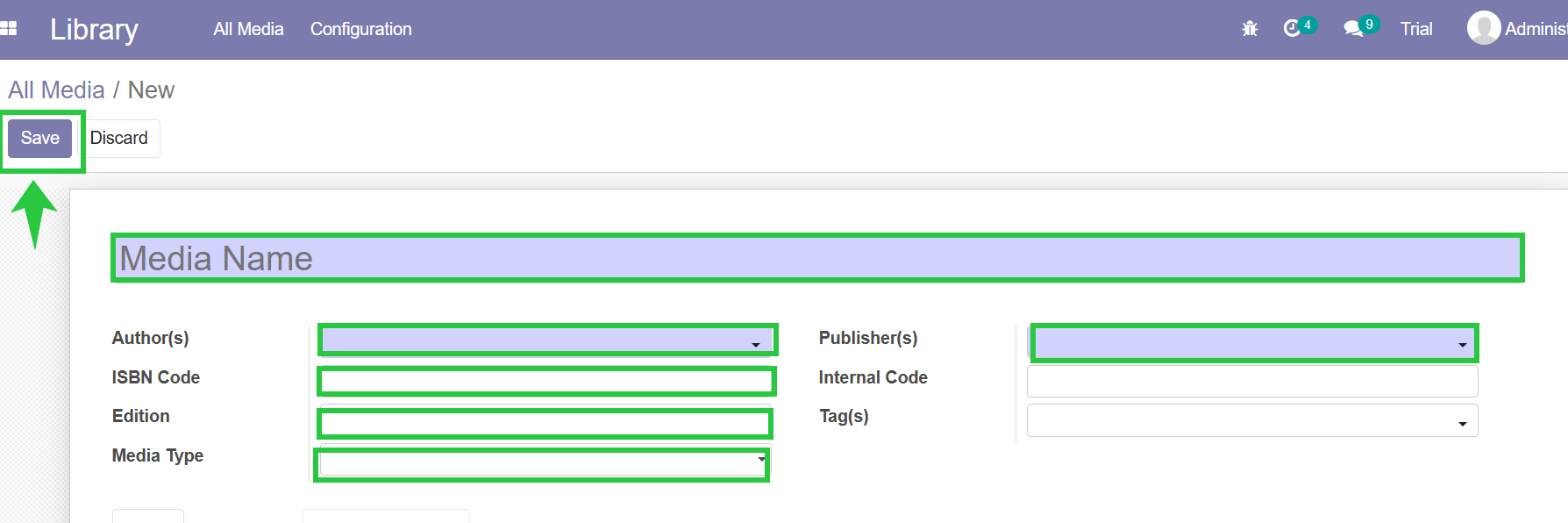
Fill in the required fields:
Media Name: Enter the book title (e.g., "The Lord of the Rings")
Author: Select from dropdown
If not available → Click Create and Edit
Media Type: Select one or more categories (e.g., Fiction, Fantasy)
ISBN: Enter the book ISBN number
Publisher: Select existing publisher or create a new one
Step 2: Add Book Units (Copies)
After saving the book:
Open the book record
Go to Units tab
Click Add a Line
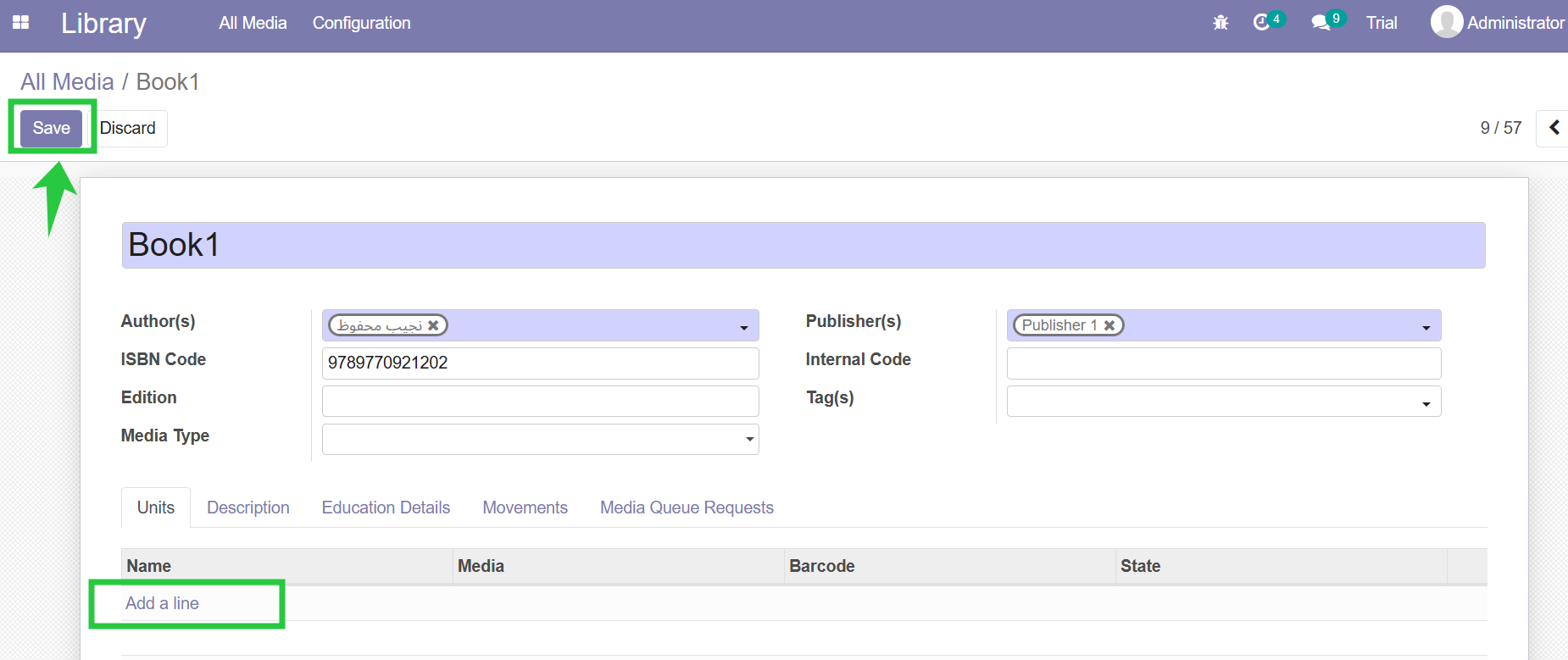
Enter the Data of copies
Click Save
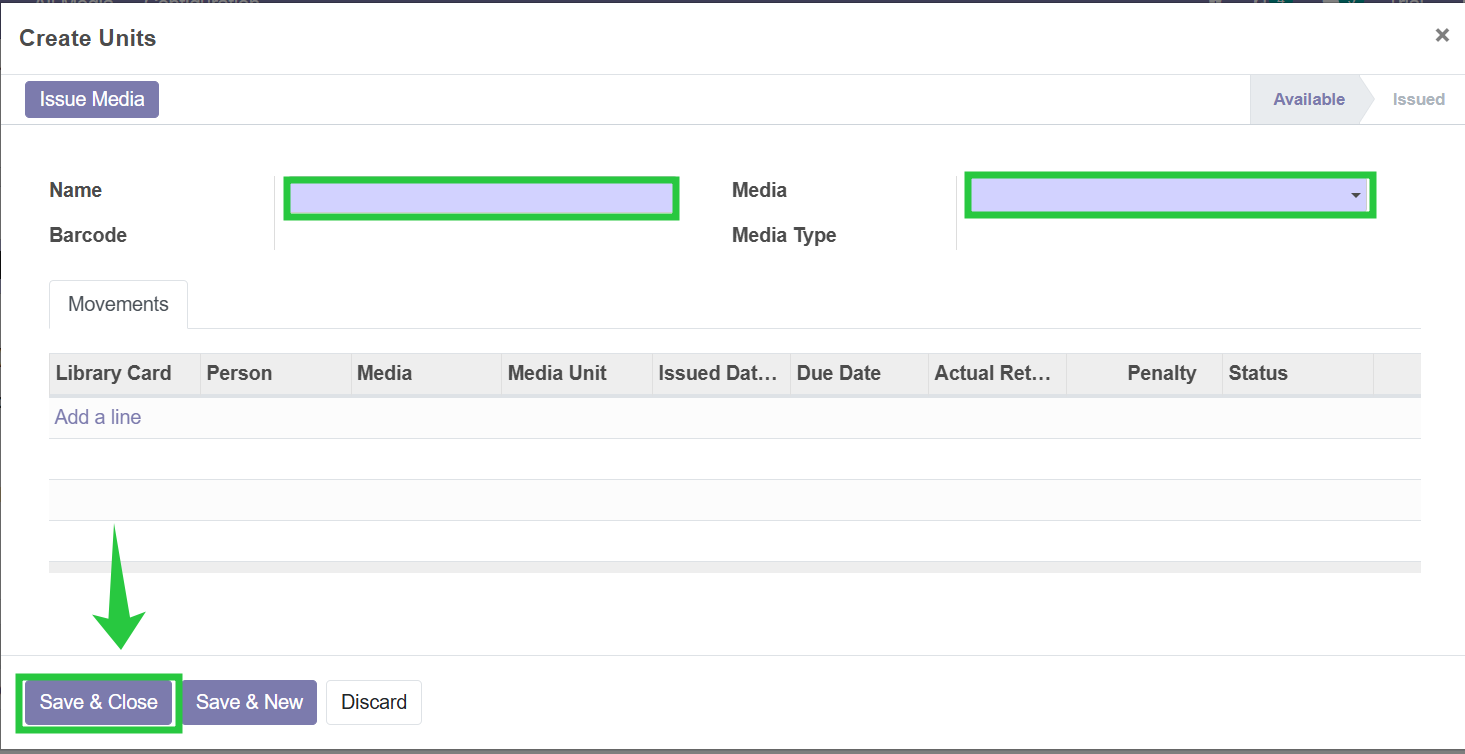 The system will now track the availability of each unit automatically.
 Issue a Book
Go to Library → All Media
Open the desired book
Click Edit
Go to the Movements tab
Click Add a Line
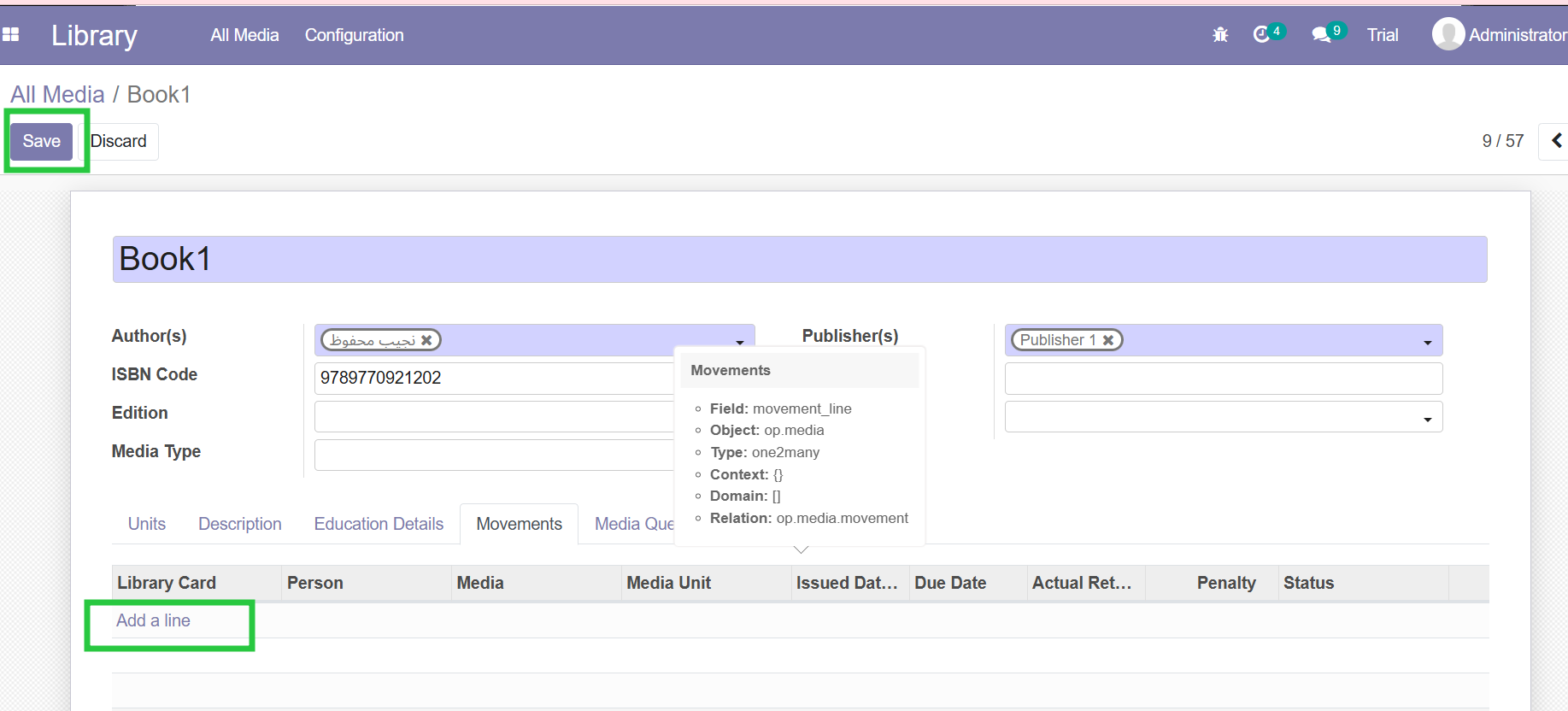
Fill in the following:
Media: Automatically selected
Media Unit: Select the specific copy
Library Card: Select the borrower
Issued Date: Auto-filled (current date)
Due Date: Set return deadline
Actual Return Date: Leave empty until returned
Click Save and Close
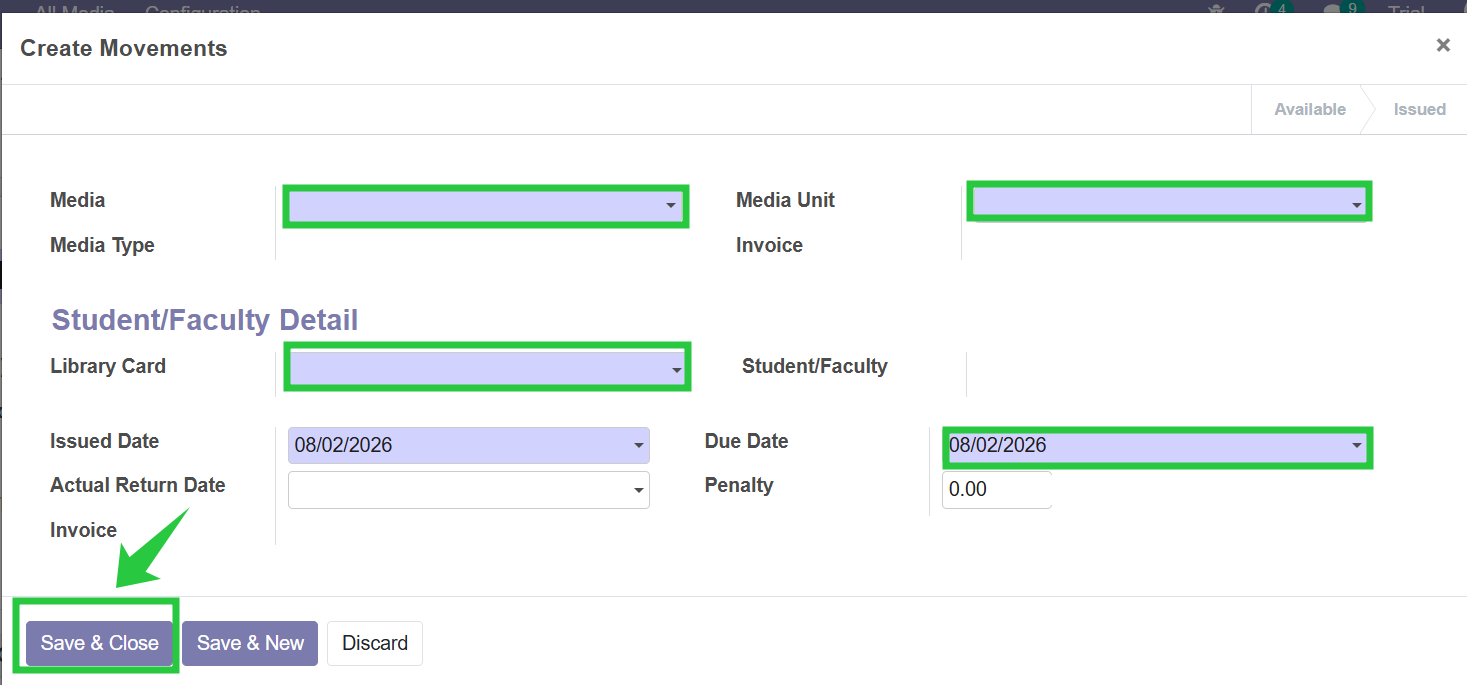
The borrowing record will be created.
Return a Book
Search for the borrowing record
Open the movement line
Click Return
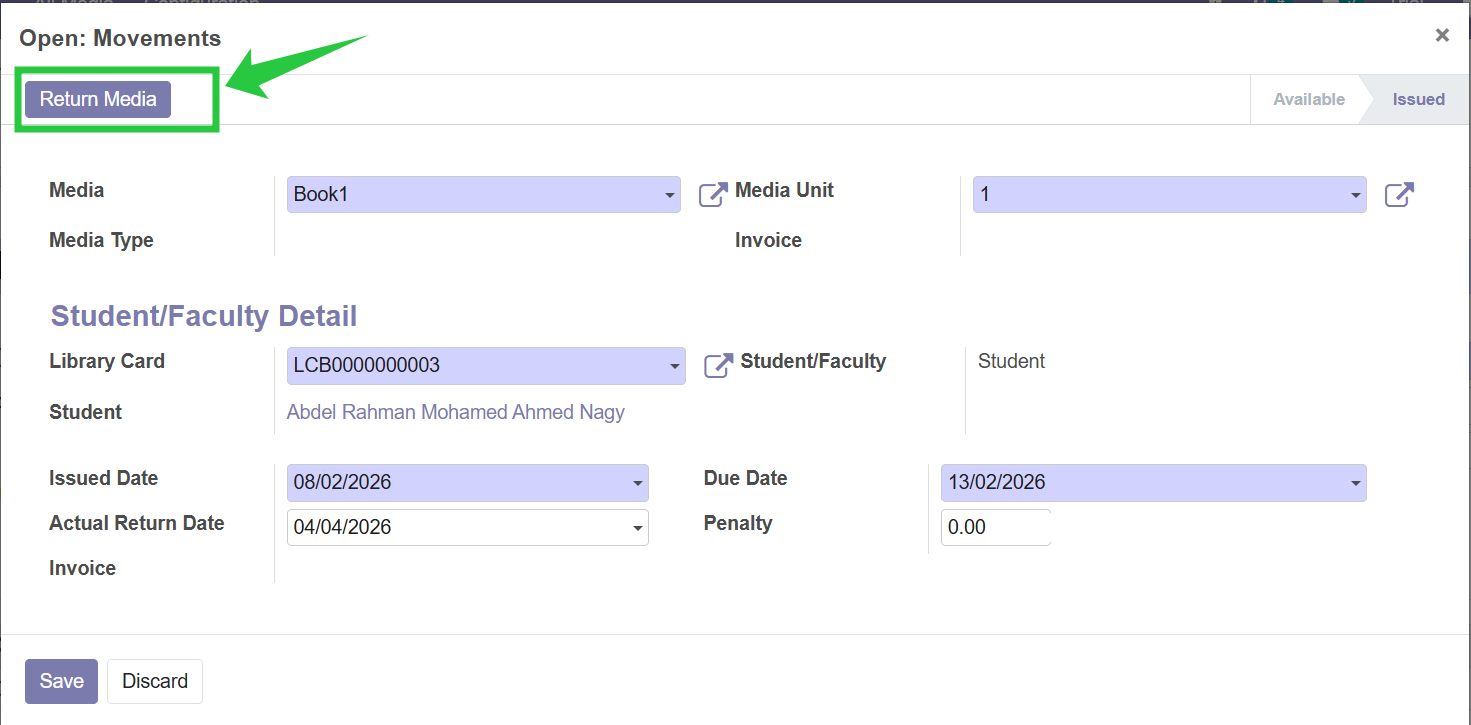
The system will:
Update book availability
Mark the transaction as Returned