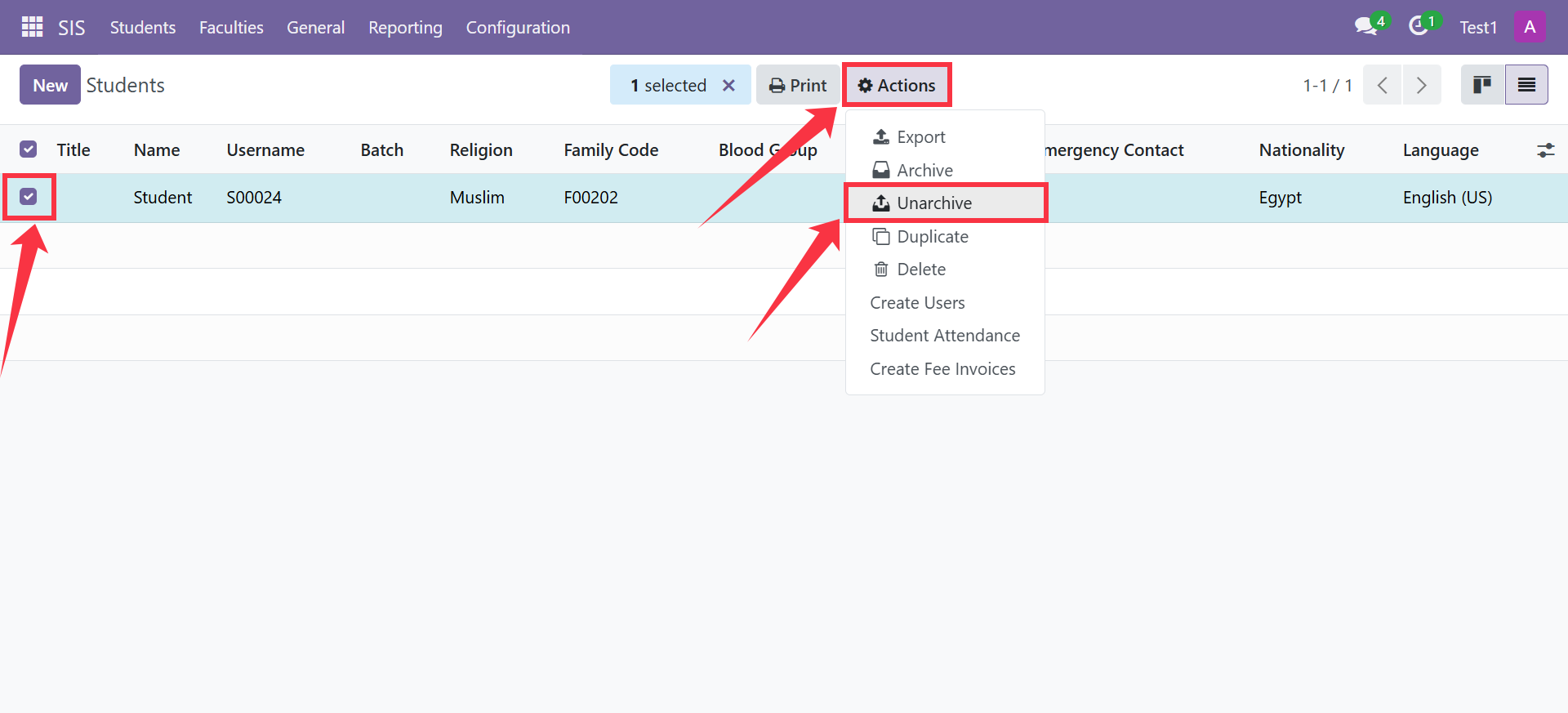
Archiving students allows you to keep records of graduated, transferred, or inactive students without deleting their data. Archived students remain accessible for administrative purposes but will not appear in active student lists or reports.
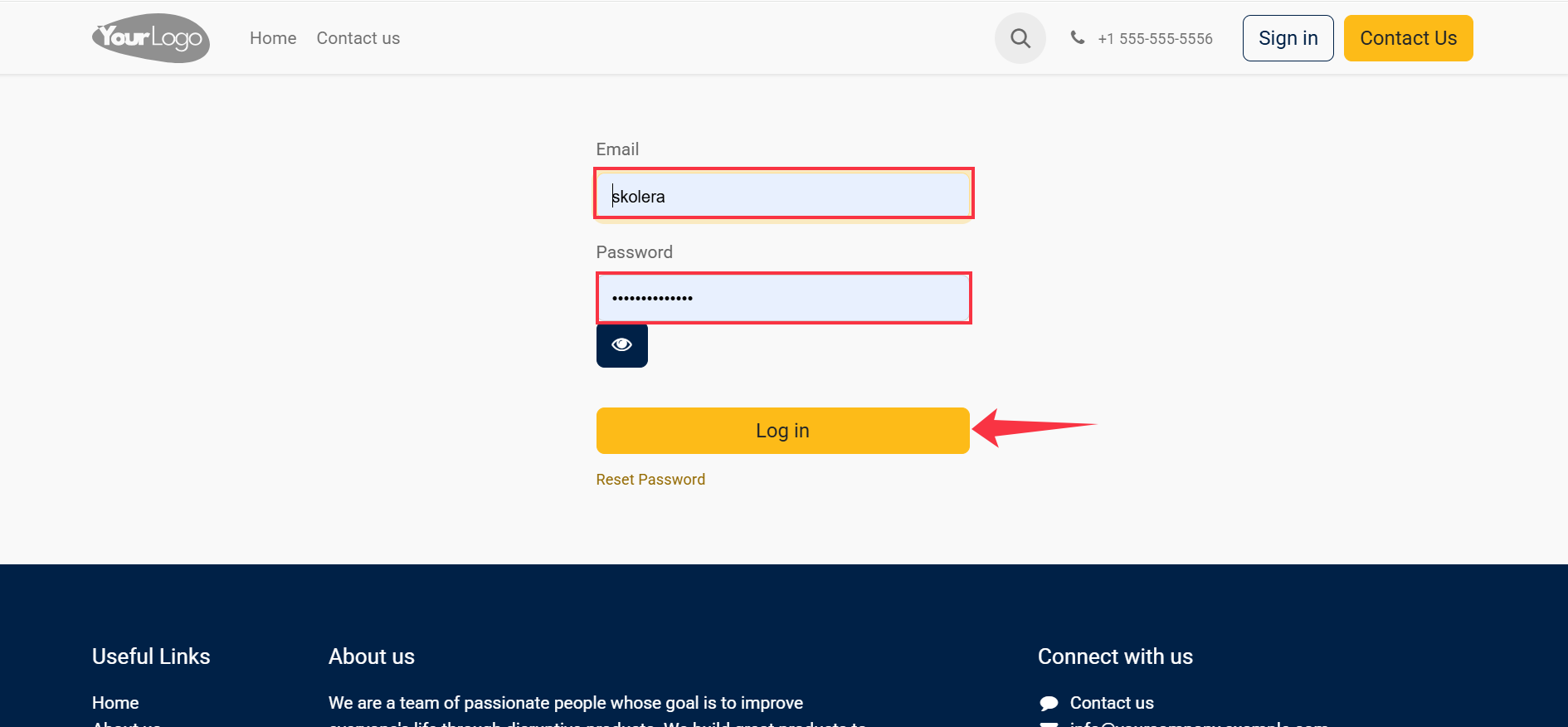
Step 1: Log in to Your ERP Account
Sign in using your ERP administrator credentials.
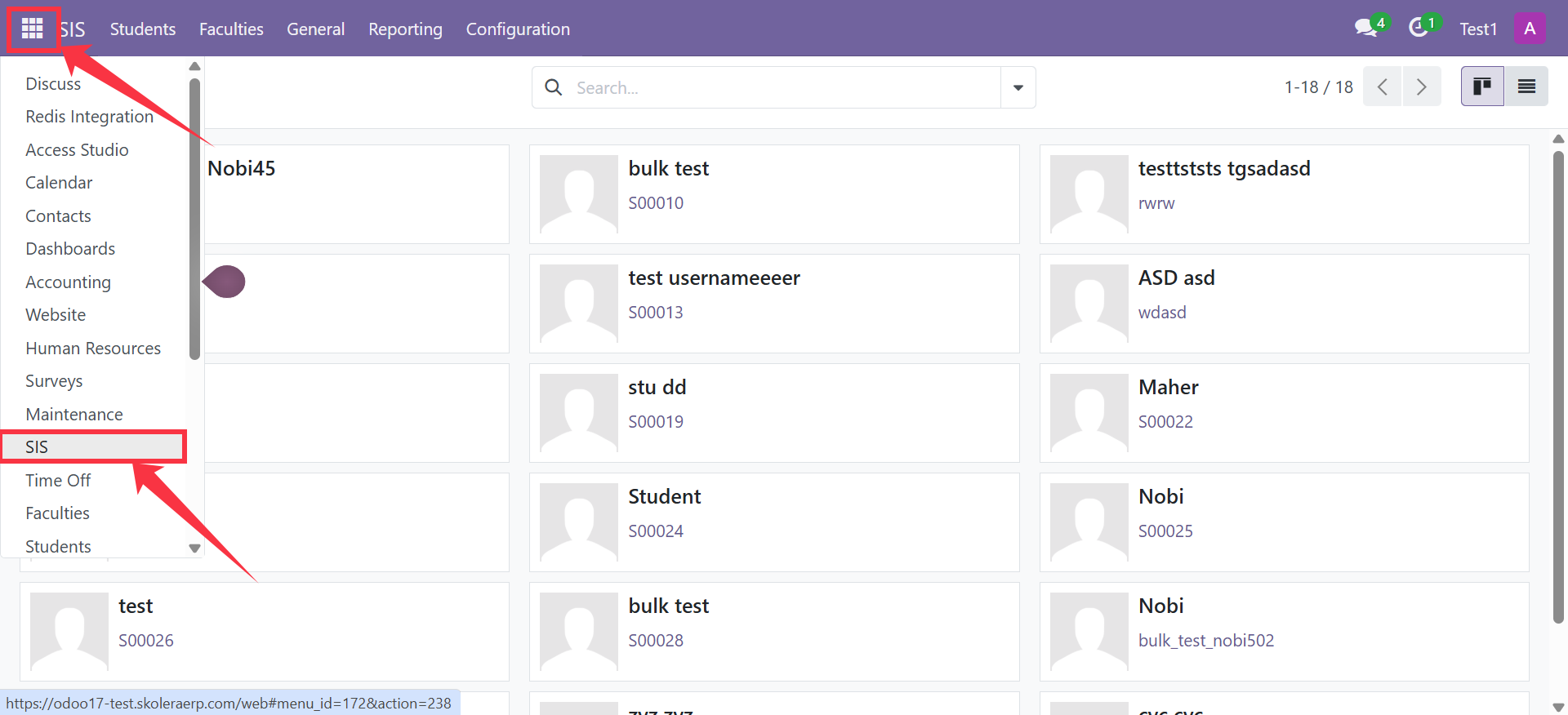
Step 2: Open the SIS Module
From the main dashboard, click on SIS.
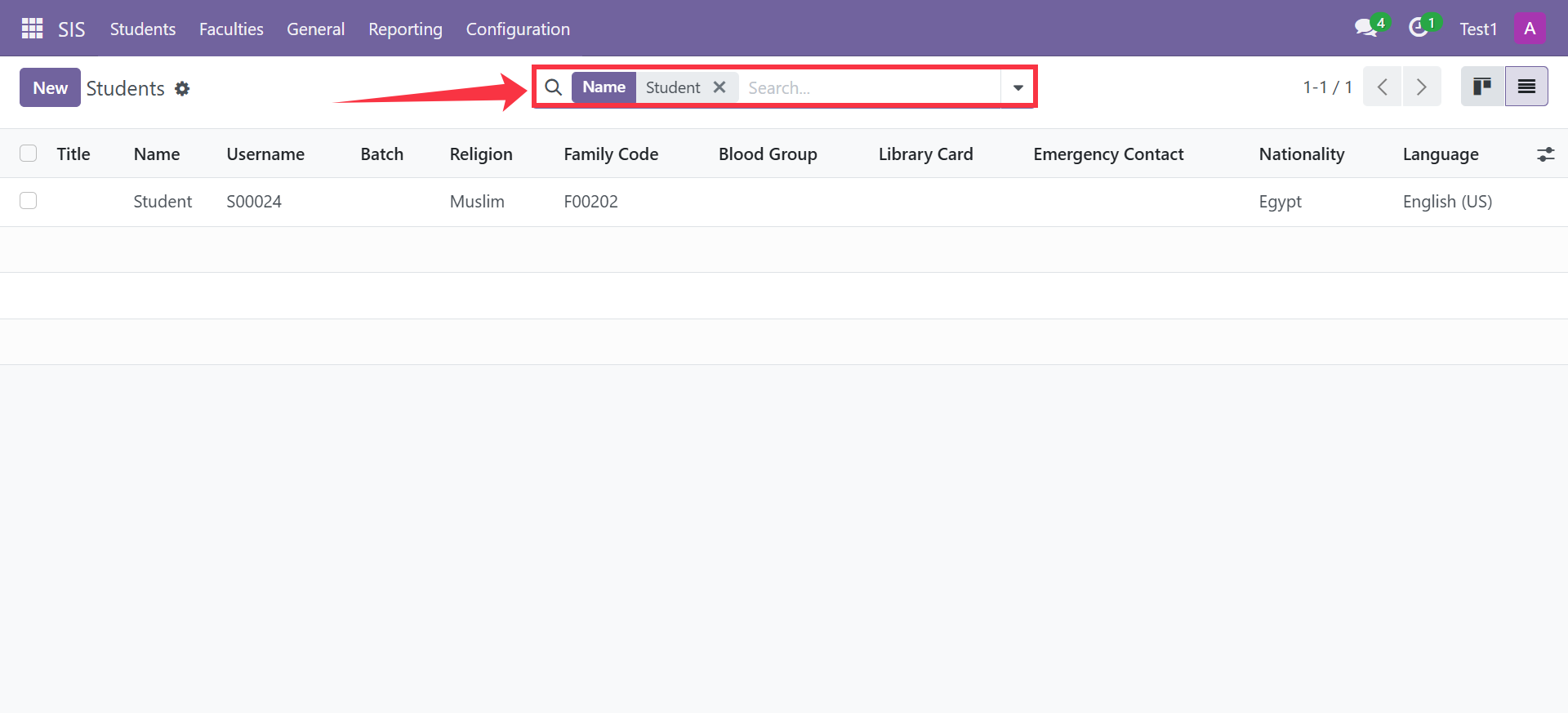
Step 3: Search for the Student(s)
Use the Search bar at the top to find the student by:
- Name
- Batch
- Family Code
- Username
- Or any available filter
You may also use Filters or Group By options if needed.
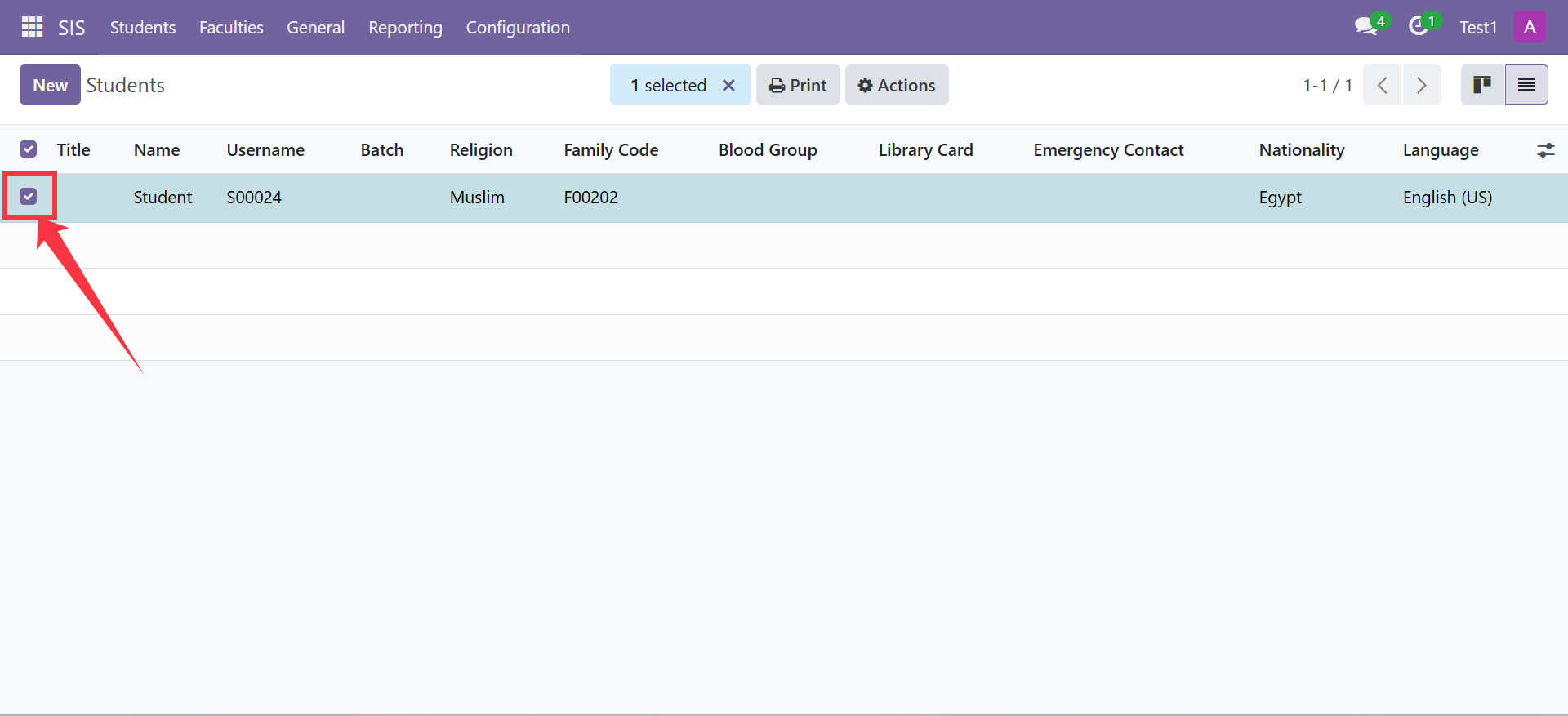
Step 4: Select the Student(s)
From the List View:
- Check the box next to the student’s name.
- To archive multiple students, select multiple checkboxes.
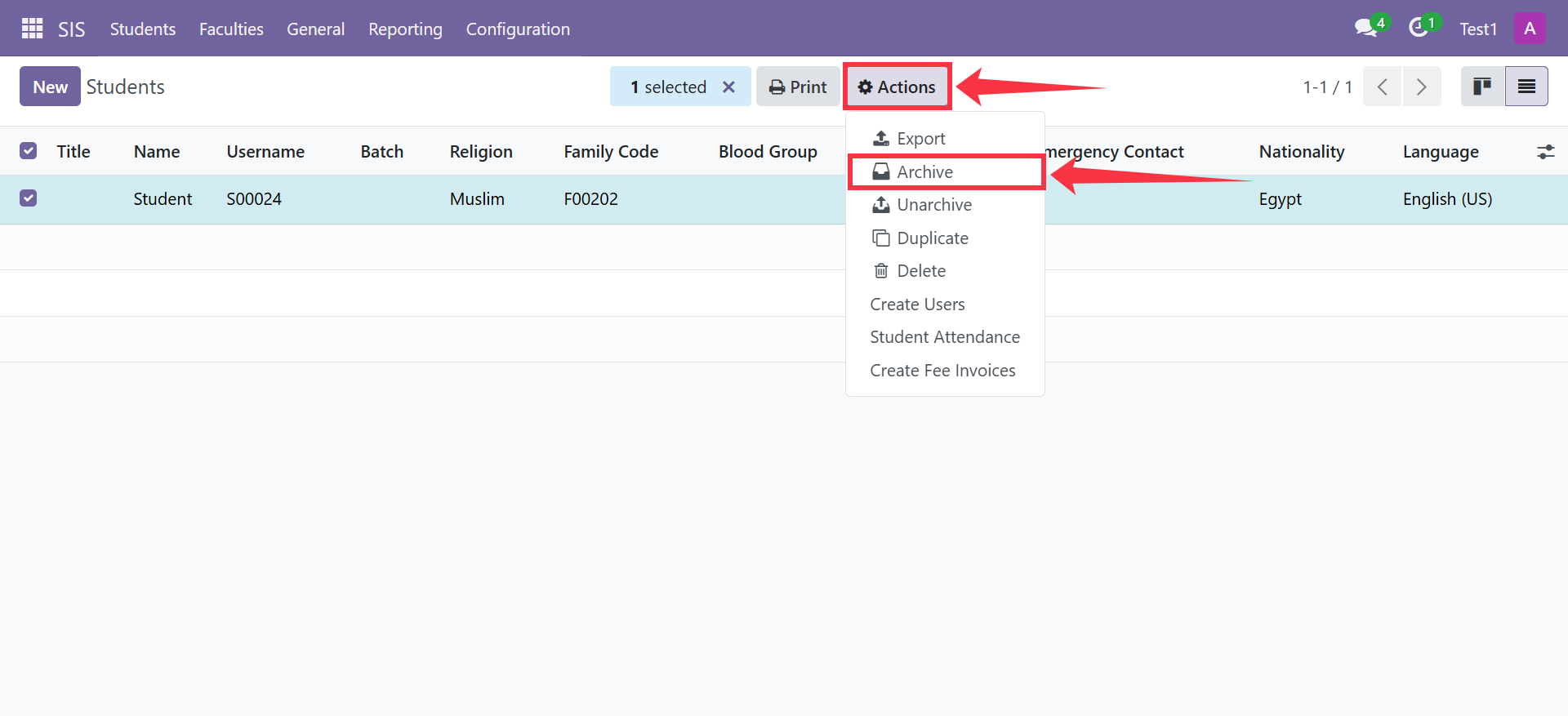
Step 5: Click on Action → Archive
After selecting the student(s):
- Click on the Action button at the top.
- Choose Archive from the dropdown menu.
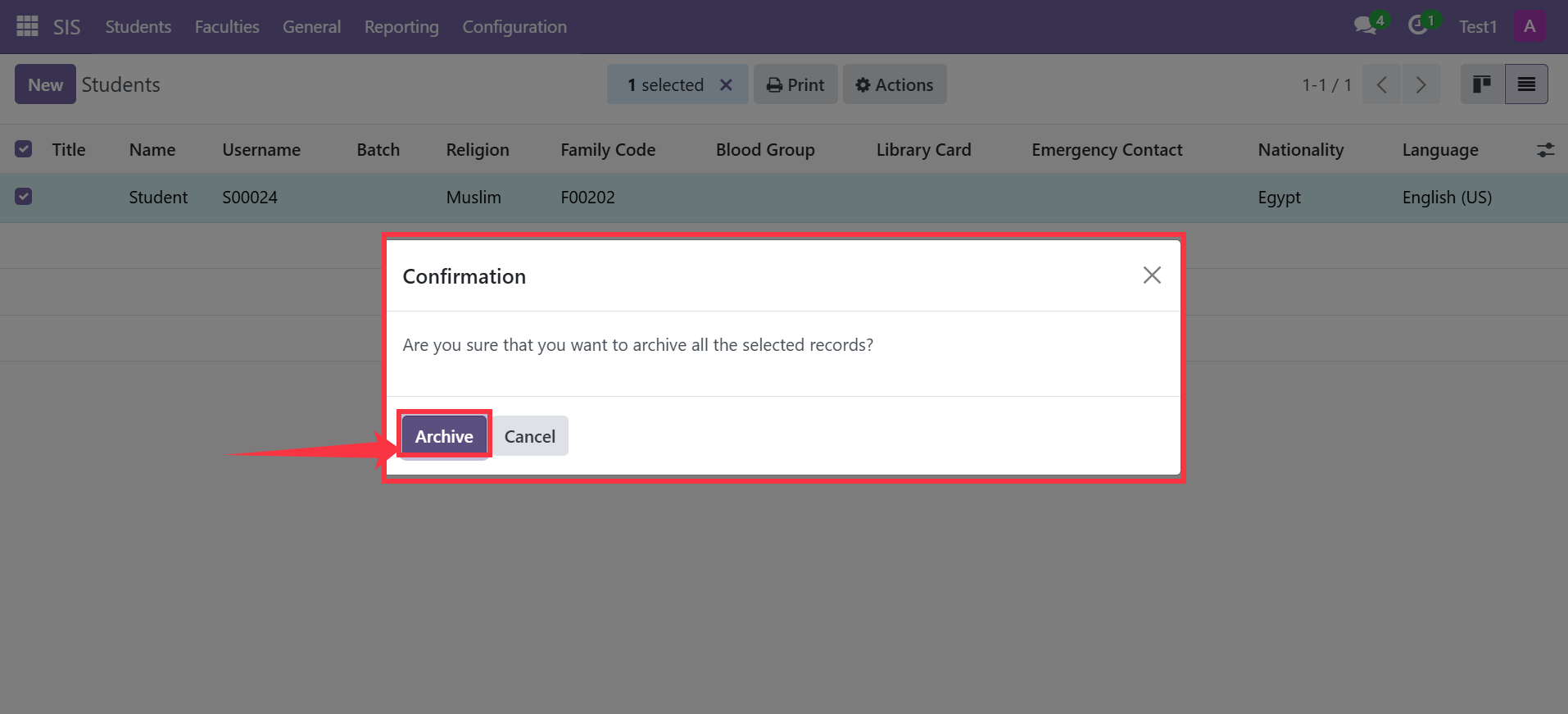
- Confirm the action if prompted.
The selected students will now be archived.
How to View Archived Students
To view archived students:
- Click on the Filters option.
- Add the filter: Archived
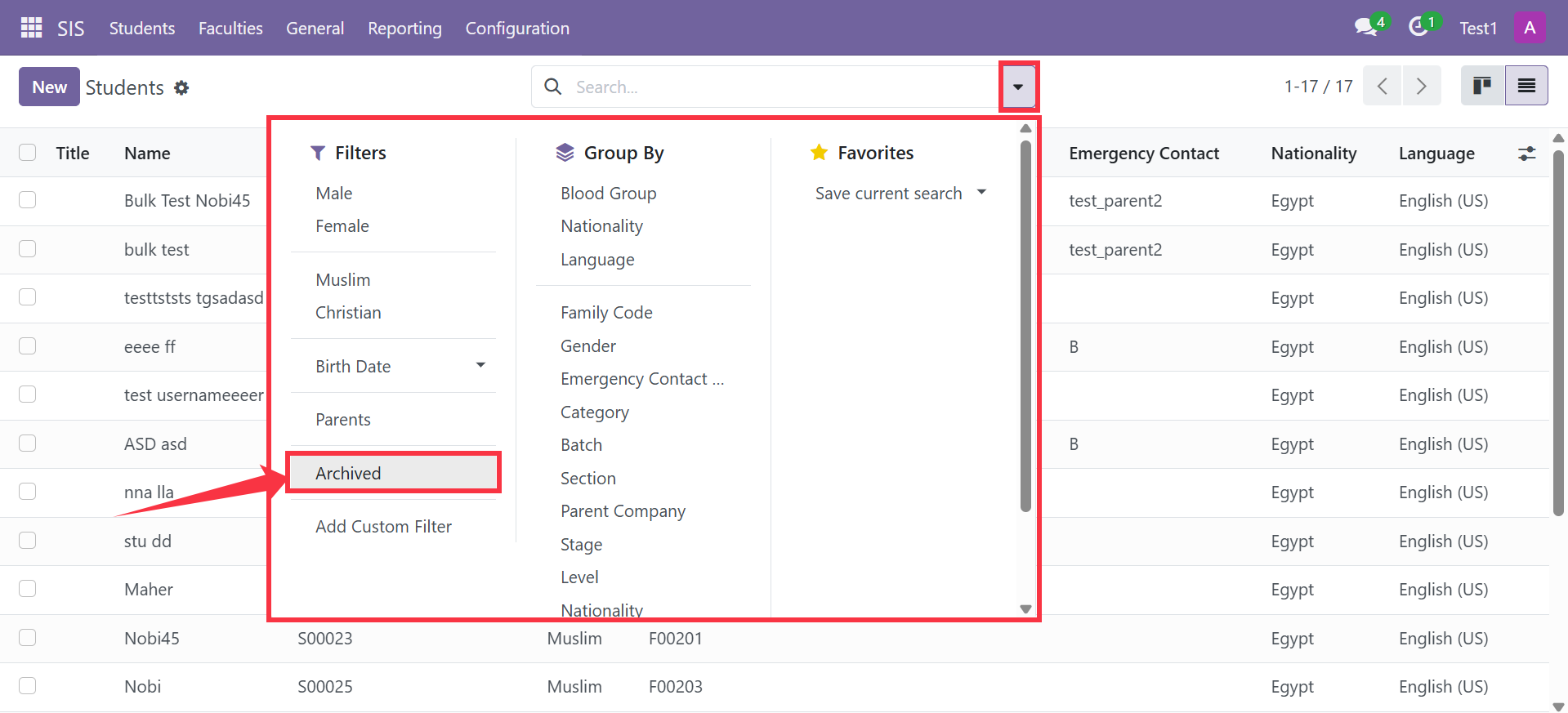
Archived students will appear in the list with an inactive status.
How to Unarchive a Student
To restore an archived student:
- Search for the archived student.
- Select the student from the list.
- Click Action.
- Choose Unarchive.
The student will return to the active students list.