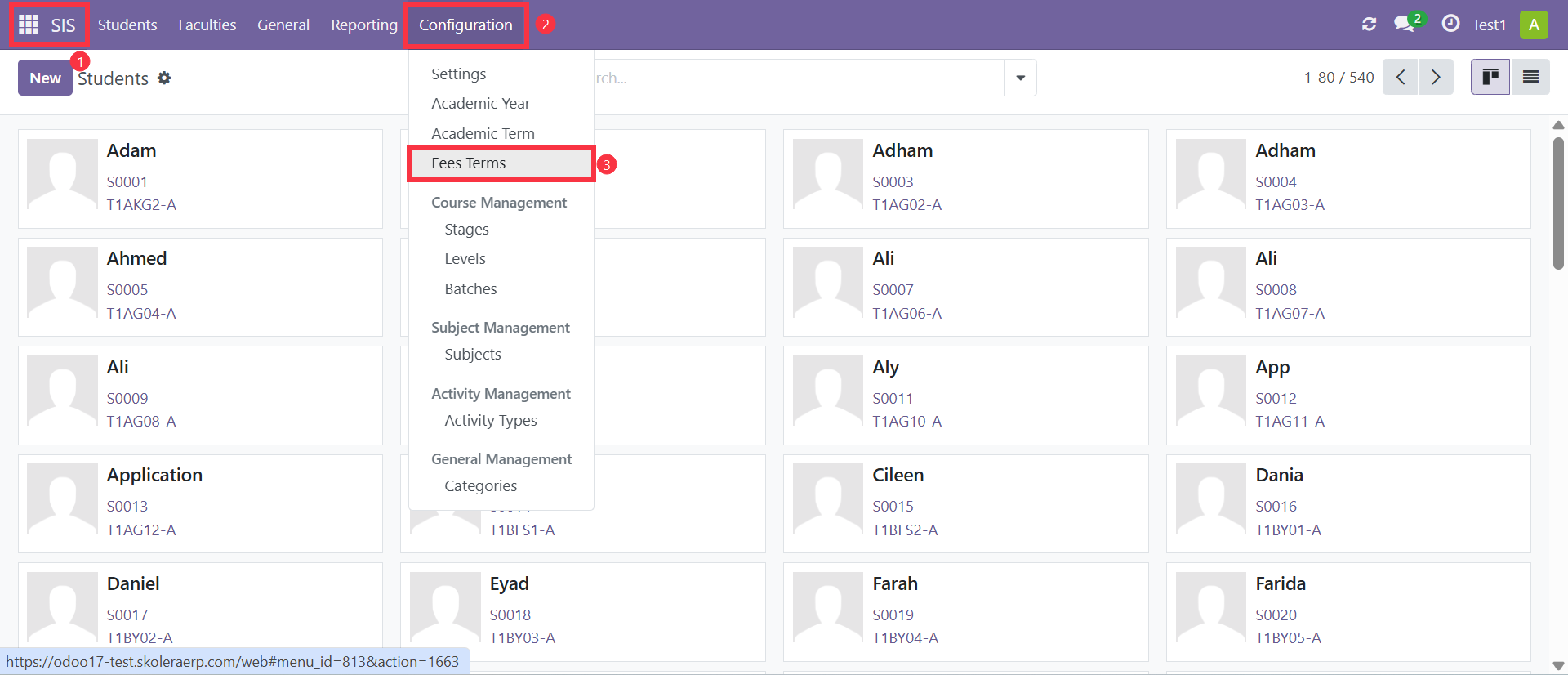
Step 1: Open the Fee Terms Menu
Navigate to:
SIS → Configuration → Fees Terms
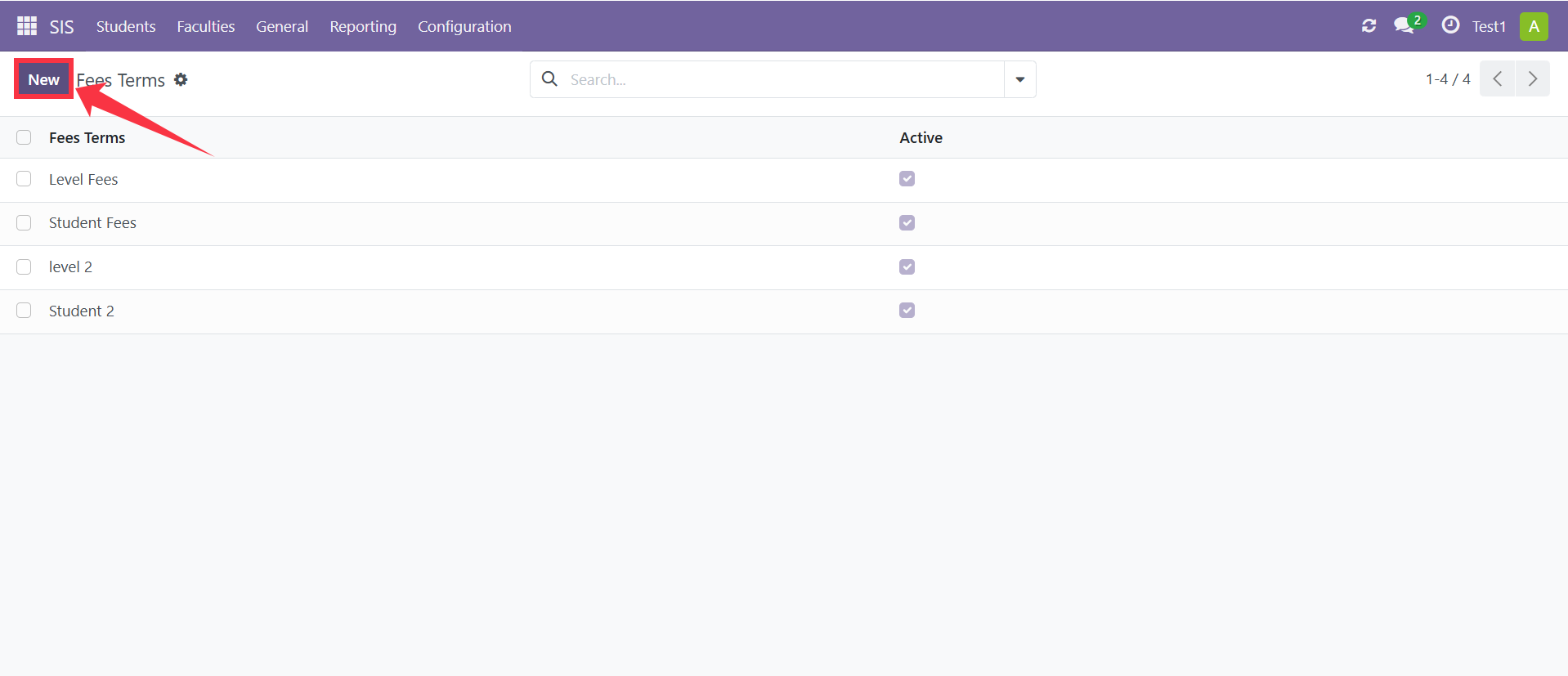
Click New to create a new fee term.
Fee Terms are used to define the payment schedule for student fees, including installment dates and payment deadlines.
Step 2: Enter Fee Term Information
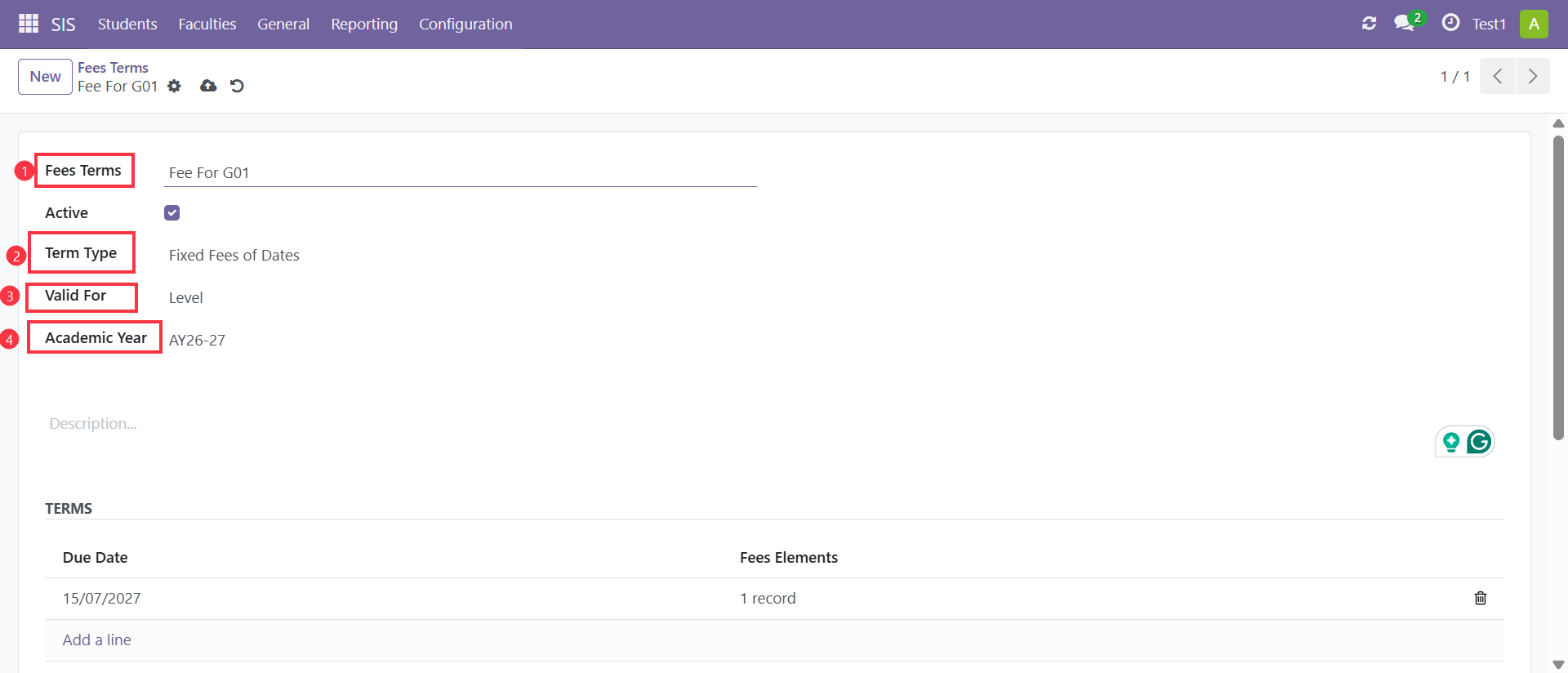
Fill in the basic information:
Fee Term Name
Term Type
Valid For
Academic Year
Example:
Fee Term Name: Fee For G01
Fixed Fees of Days
Valid for Level
Academic Year: 2026-2027
Configure Fee Term Installments
In the Terms section, click Add a Line to define an installment for the fee term.
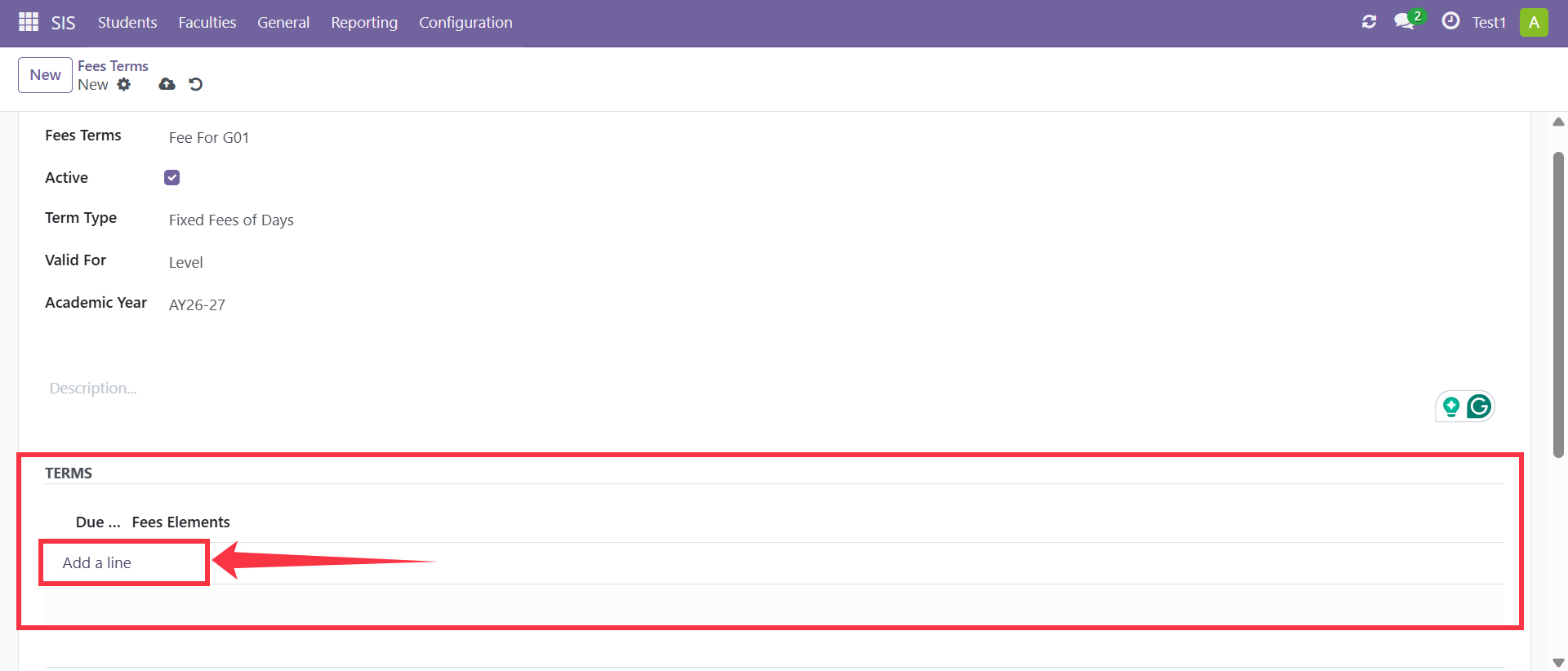
For each installment:
Enter the number of Due Days, which determines when the installment becomes due.
Select the applicable Fee Product(s).
Enter the corresponding Value for each fee product.
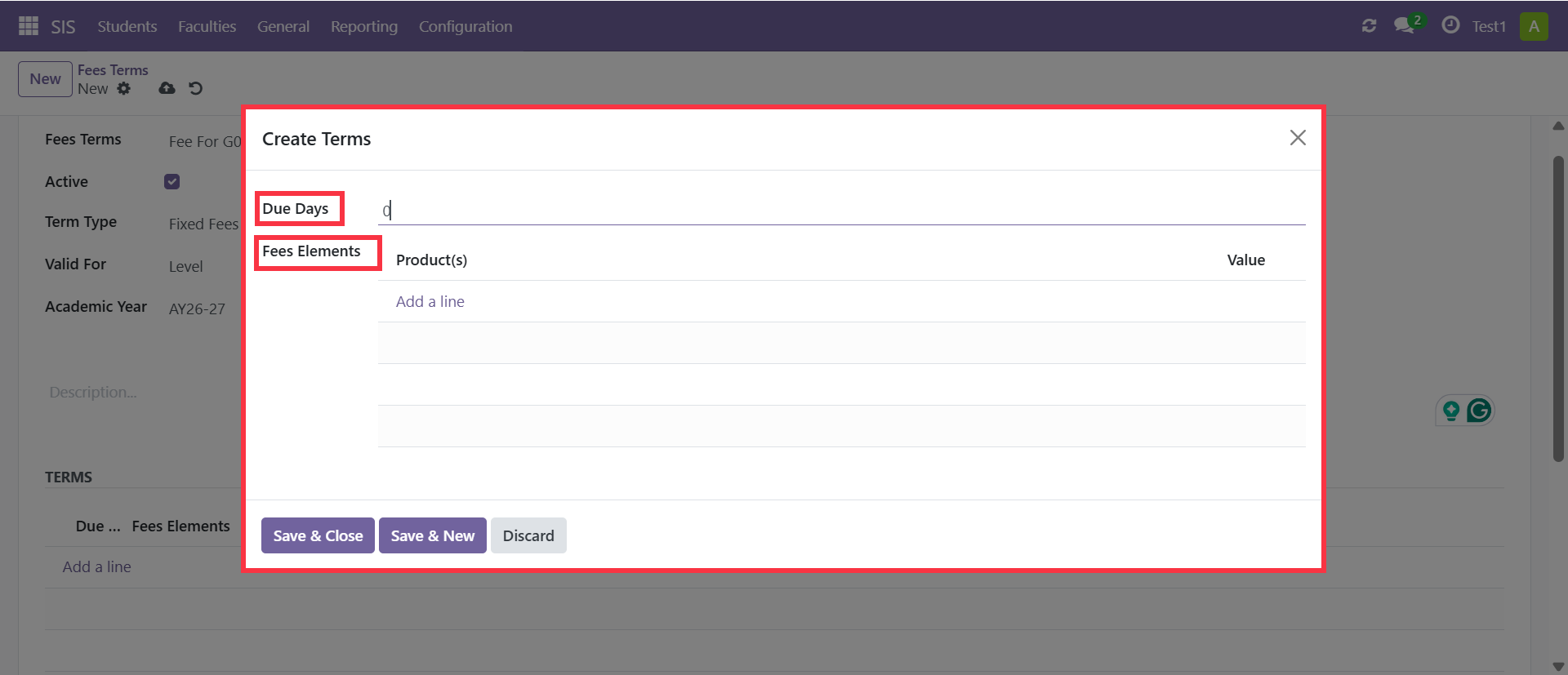
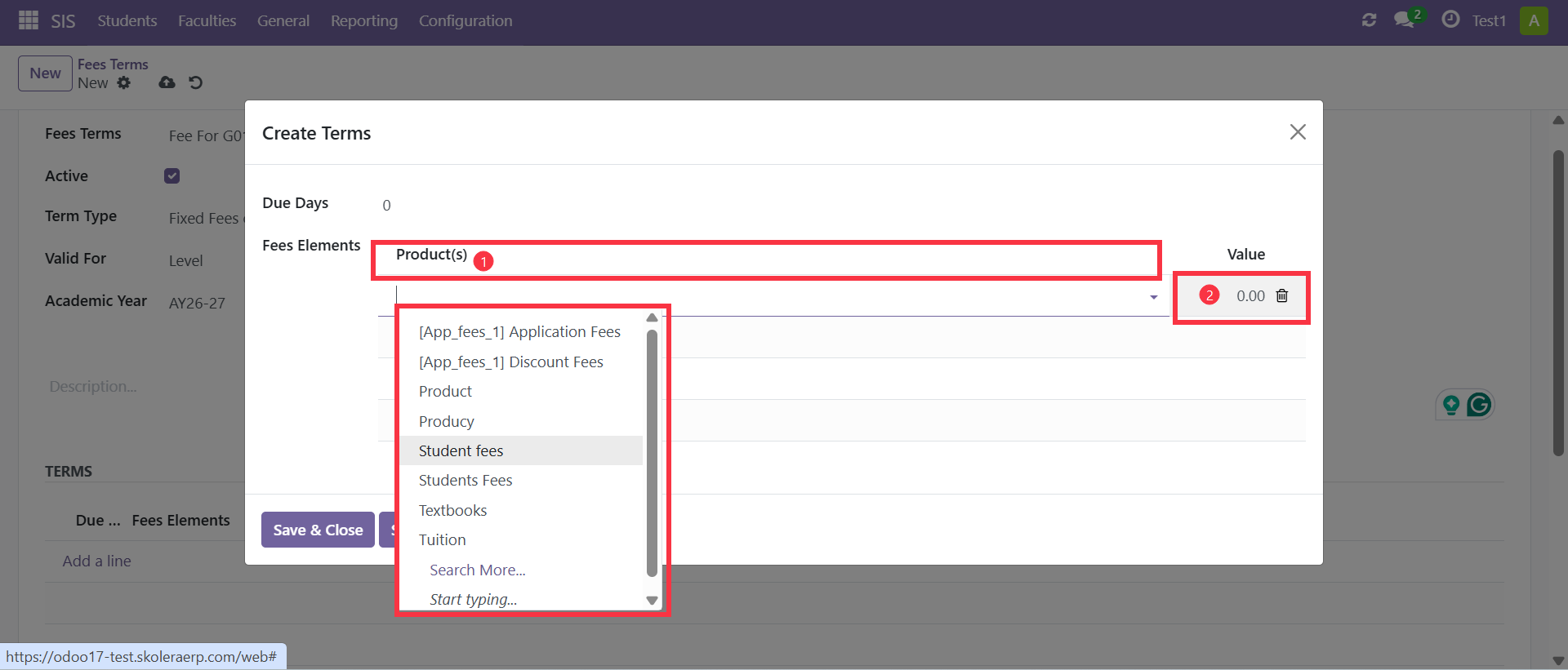
Multiple installments can be added to create a complete payment schedule for the academic year.
Once all installments are configured, click Save & Close to save the fee term.
Assigning Fee Terms
Fee Terms can be assigned either to a level or to an individual student.
Fee Term Assignment Options
The assignment method depends on how the fee term was originally configured.
Assigning a Fee Term to a Level
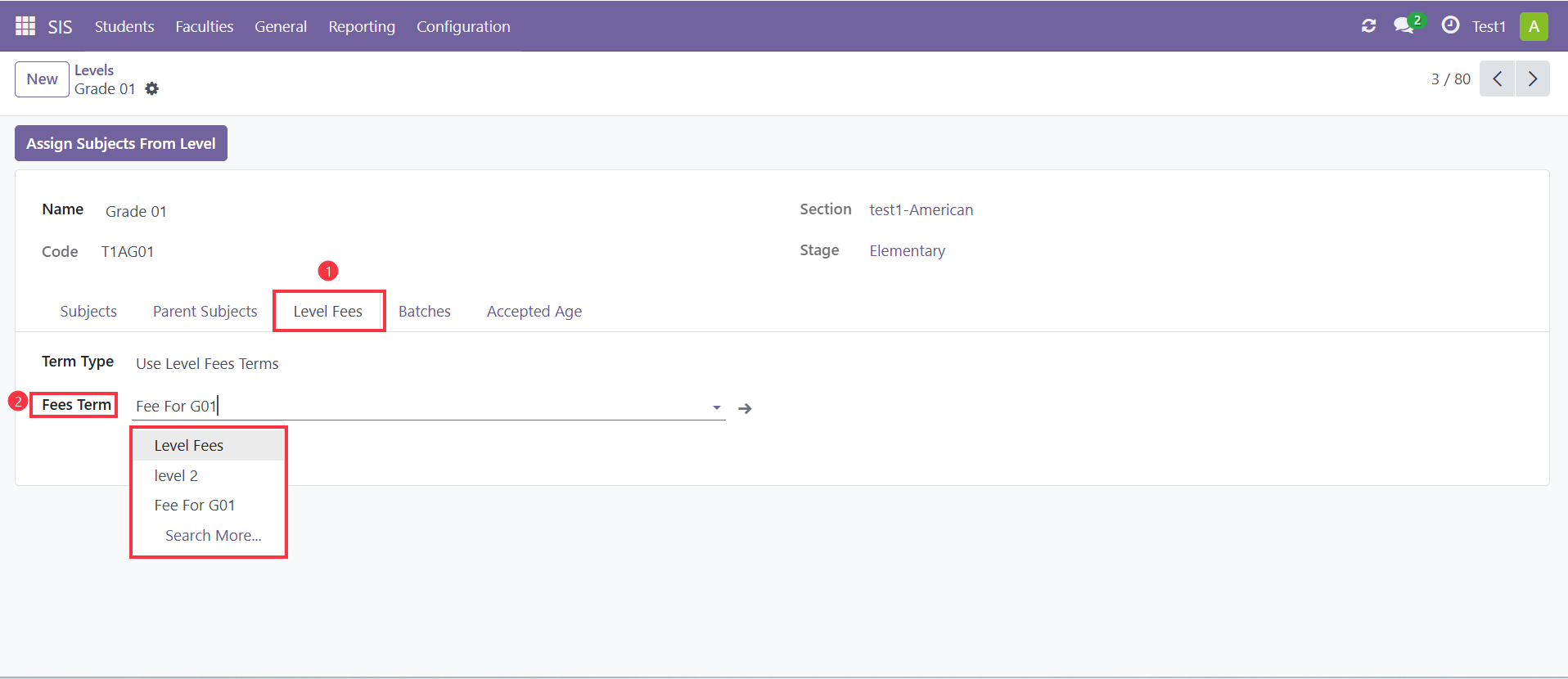
If the fee term was created for a level, it should be assigned through the level configuration.
Navigate to:
SIS → Configuration → Levels
Open the required level, select the Level Fees tab, choose the appropriate Fee Term, then click Save.
Once saved, the fee term will be applied to all students within that level.
Assigning a Fee Term to a Student
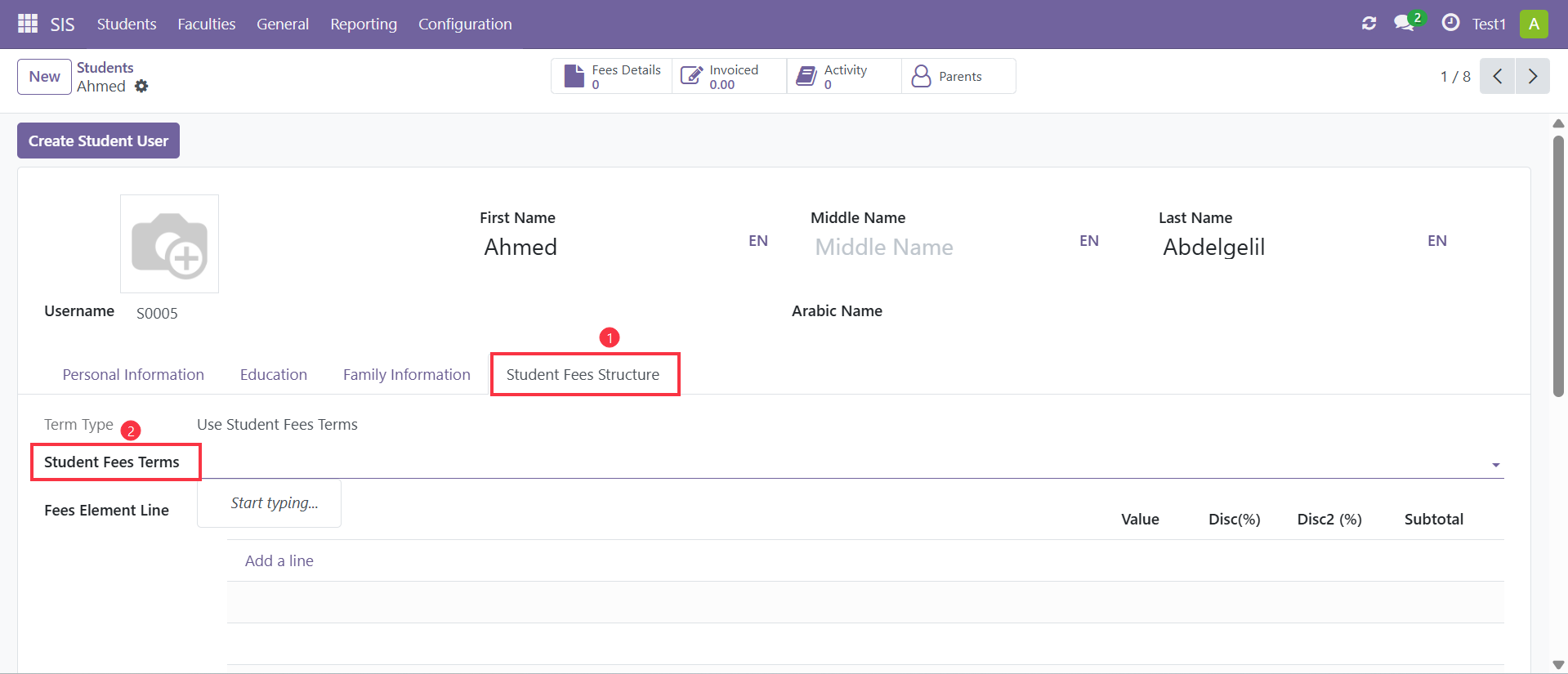
If the fee term was created specifically for individual students, it should be assigned directly to the student record.
Navigate to the student's profile, select the appropriate Fee Term, then click Save.
This assignment will affect only the selected student and will not impact other students in the same level.