
Introduction
Student discounts can be applied to reduce the total fees charged to a student. Discounts may be configured as percentages or fixed amounts depending on the school's fee policy.
Step 1: Open the Student Record
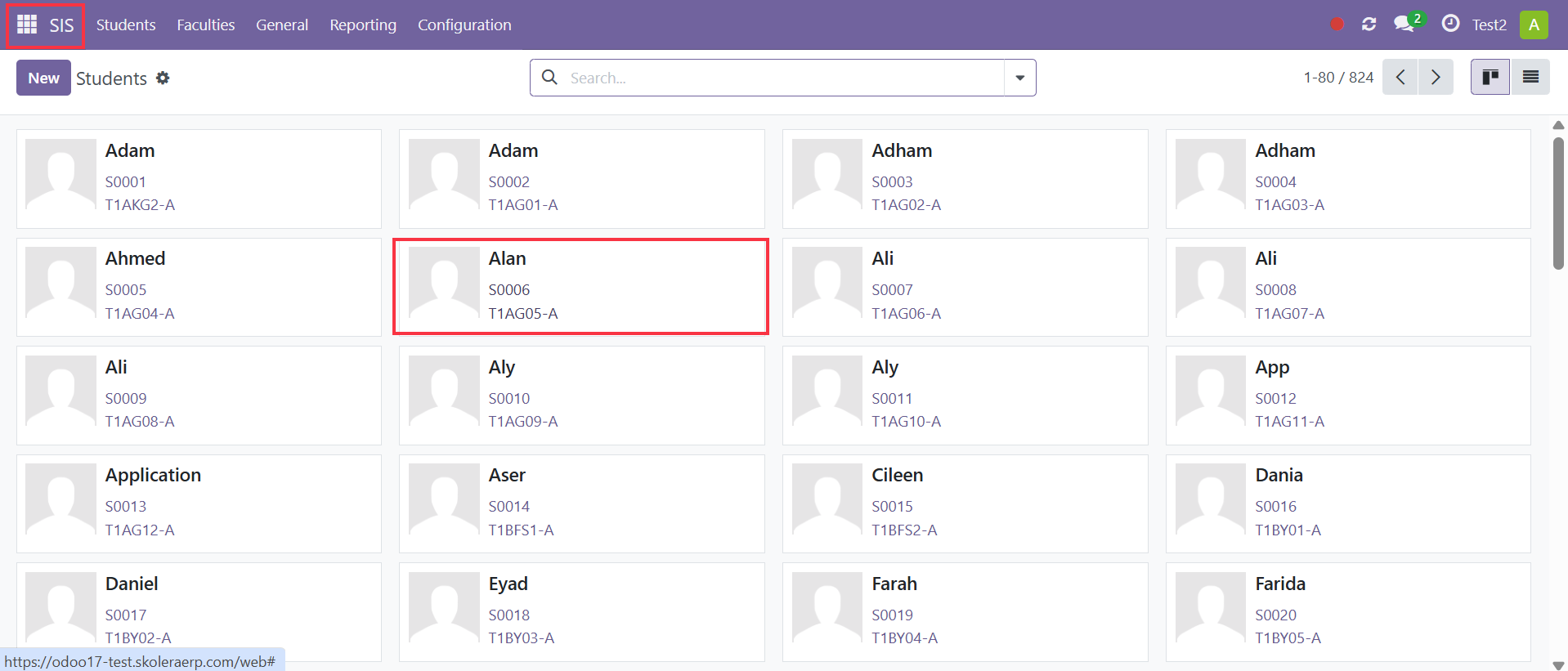
Navigate to:
SIS → Students
Open the required student record.
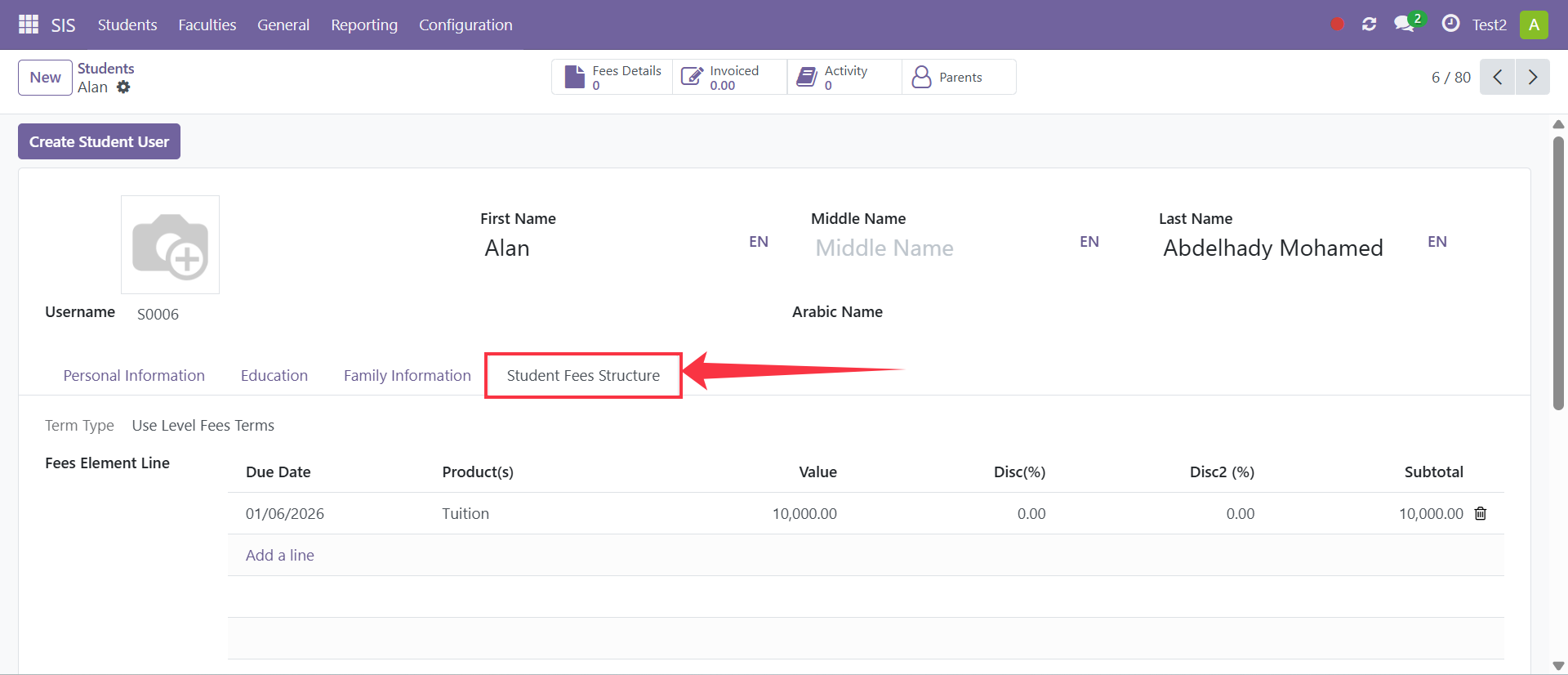
Step 2: Open the Student Fees Structure
Navigate to the section where student fee discounts are configured.
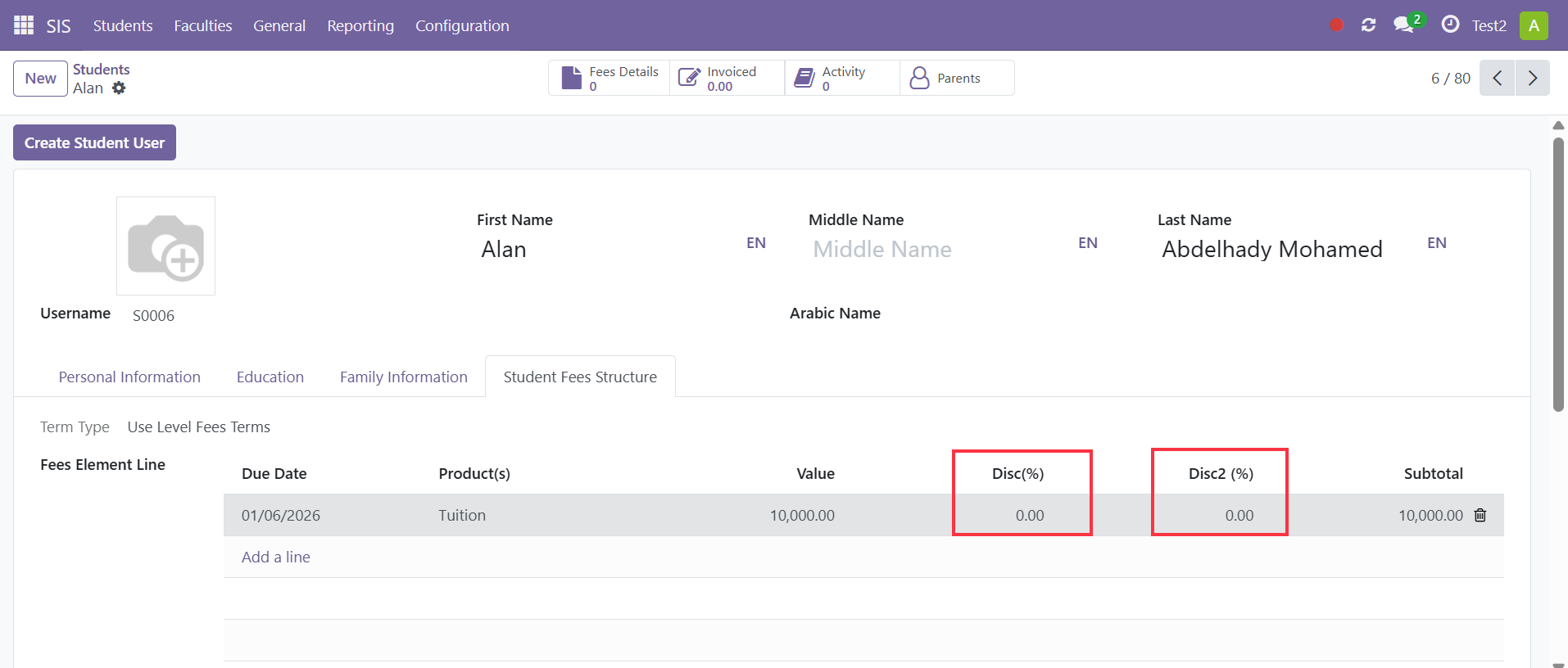
Step 3: Configure Percentage Discounts
The system allows multiple percentage-based discounts to be applied.
Discount 1
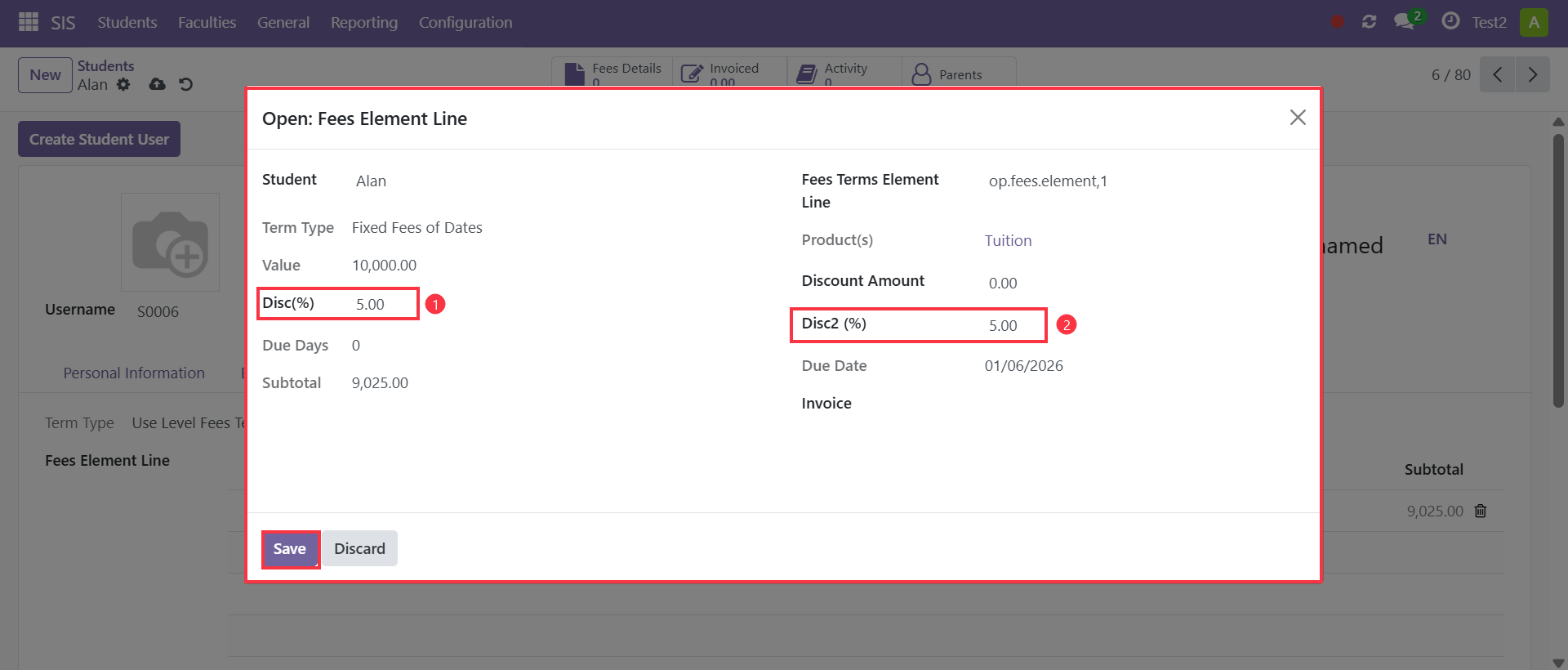
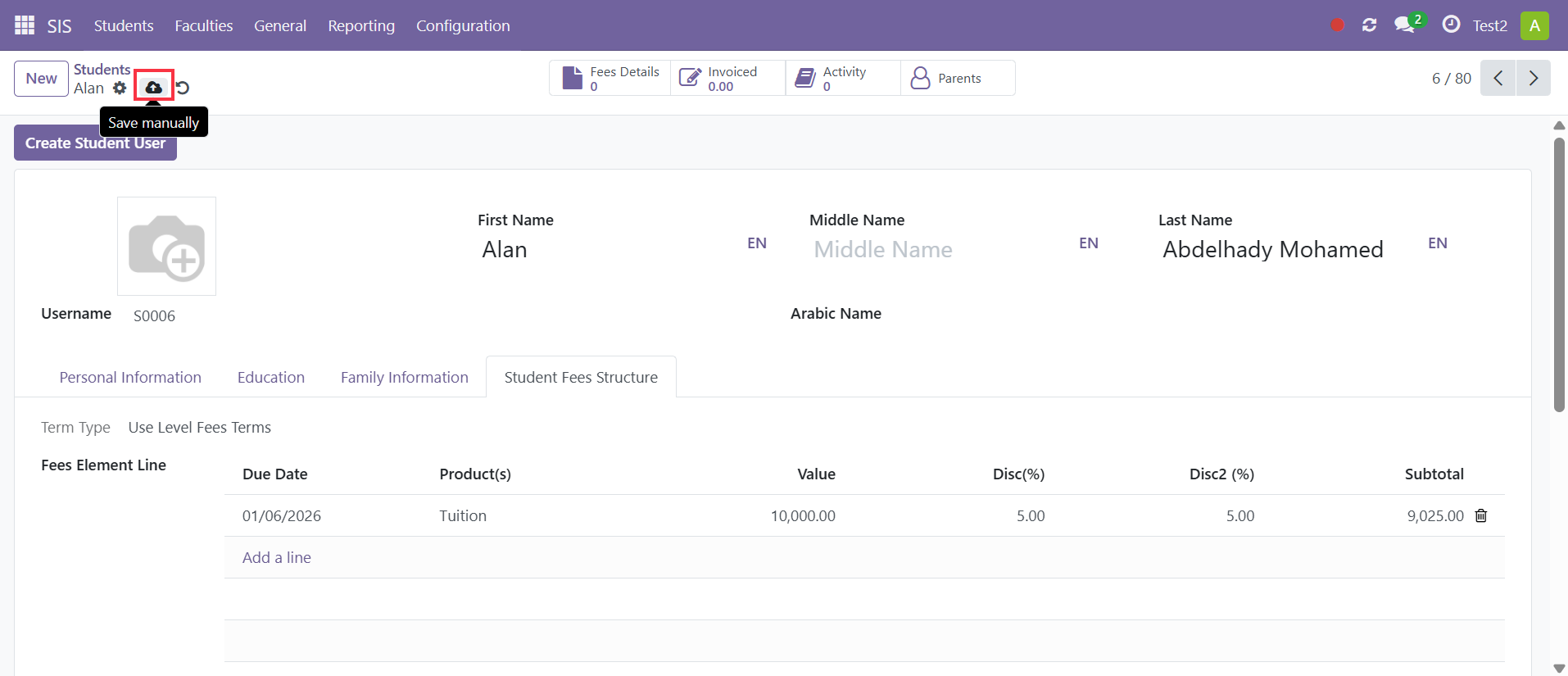
Enter the discount percentage in the Discount 1 field.
Example:
Discount 1 = 10%
Discount 2
Enter the discount percentage in the Discount 2 field.
Example:
Discount 2 = 5%
Step 4: Configure Fixed Amount Discounts
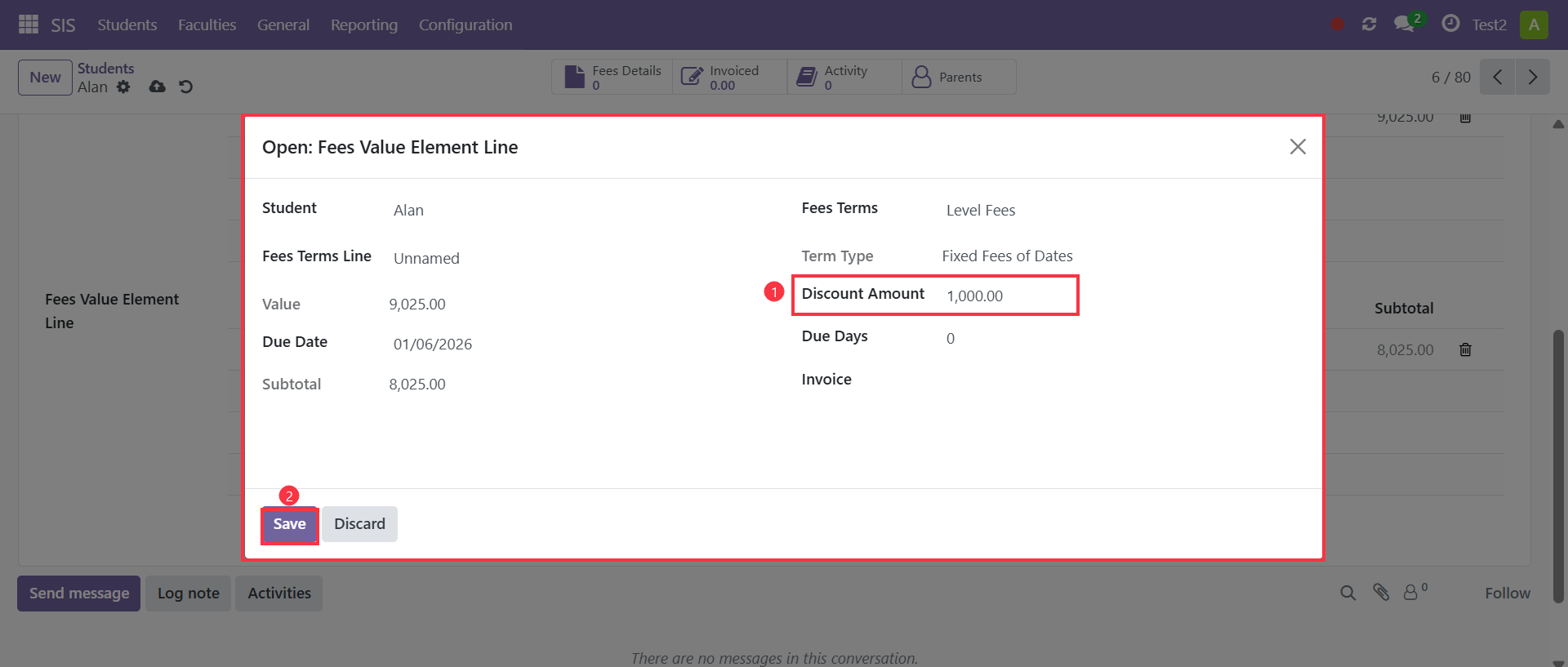
If a fixed deduction is required, enter the value in the Discount Amount field.
Example:
Discount Amount = 1,000 EGP
The entered amount will be deducted from the student's total fees.

Step 5: Save Changes
Click Save to apply the discount settings.
Result
The configured discounts will be automatically applied when student fee invoices are generated.