
Introduction
Student fee invoices may need to be updated after creation to reflect changes in fees, discounts, due dates, or other billing information.
This article explains how to update an existing student fee invoice.
Step 1: Open the Student Fee Invoice
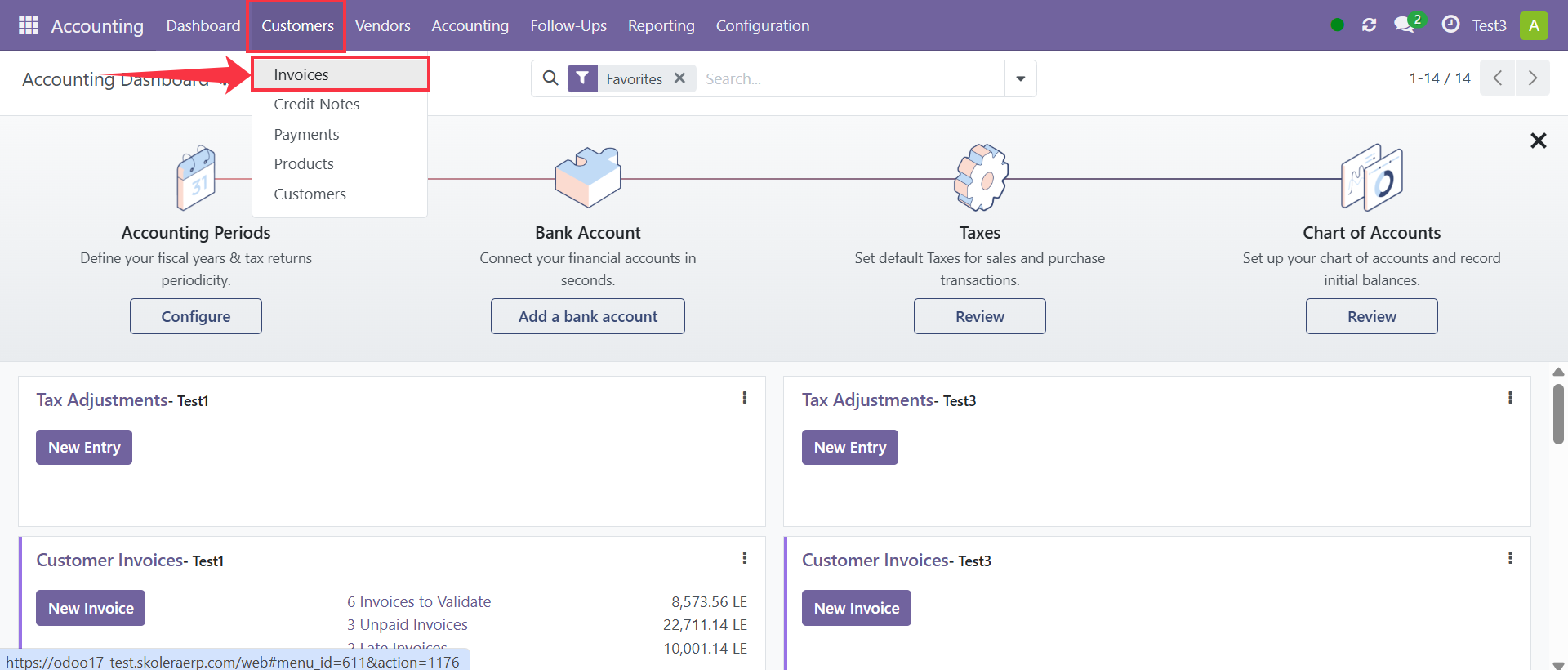
Navigate to:
Accounting → Customers → Invoices
Open the invoice that needs to be updated.
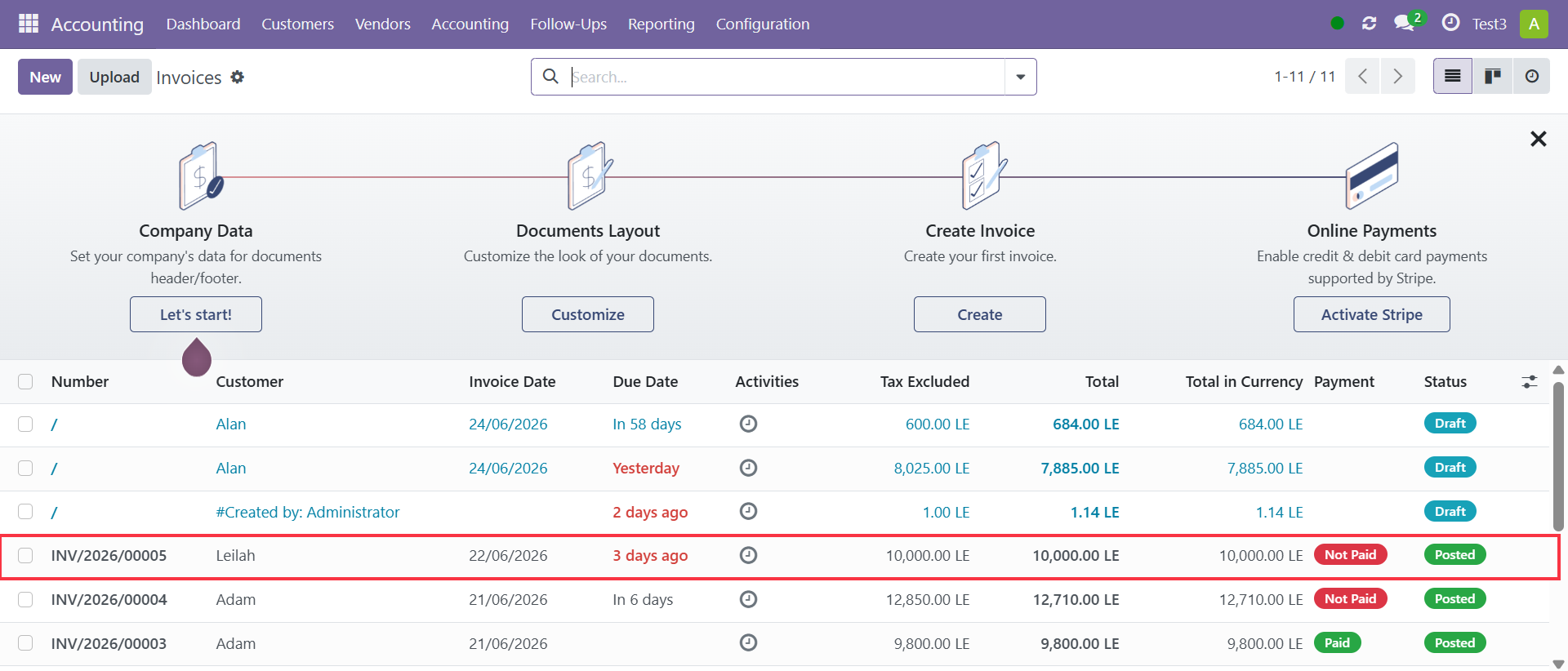
Step 2: Review the Invoice Details
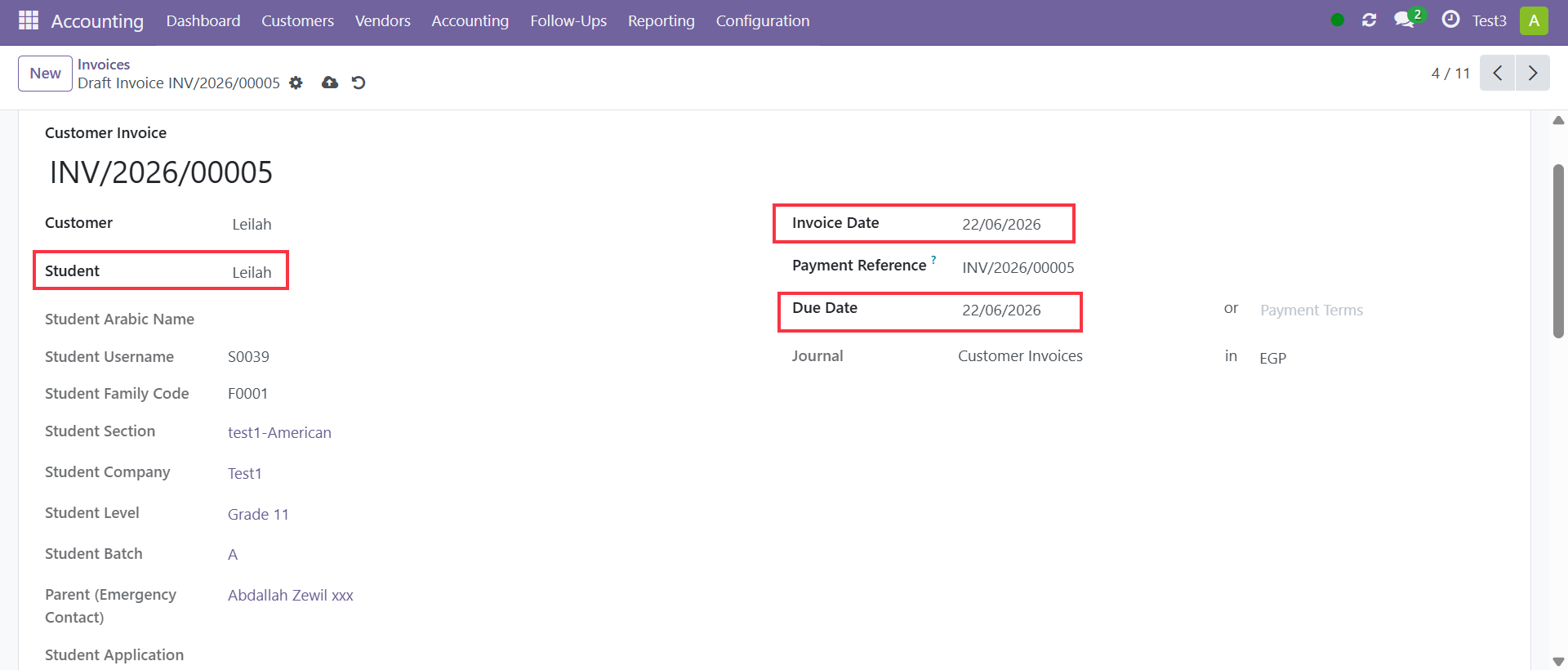
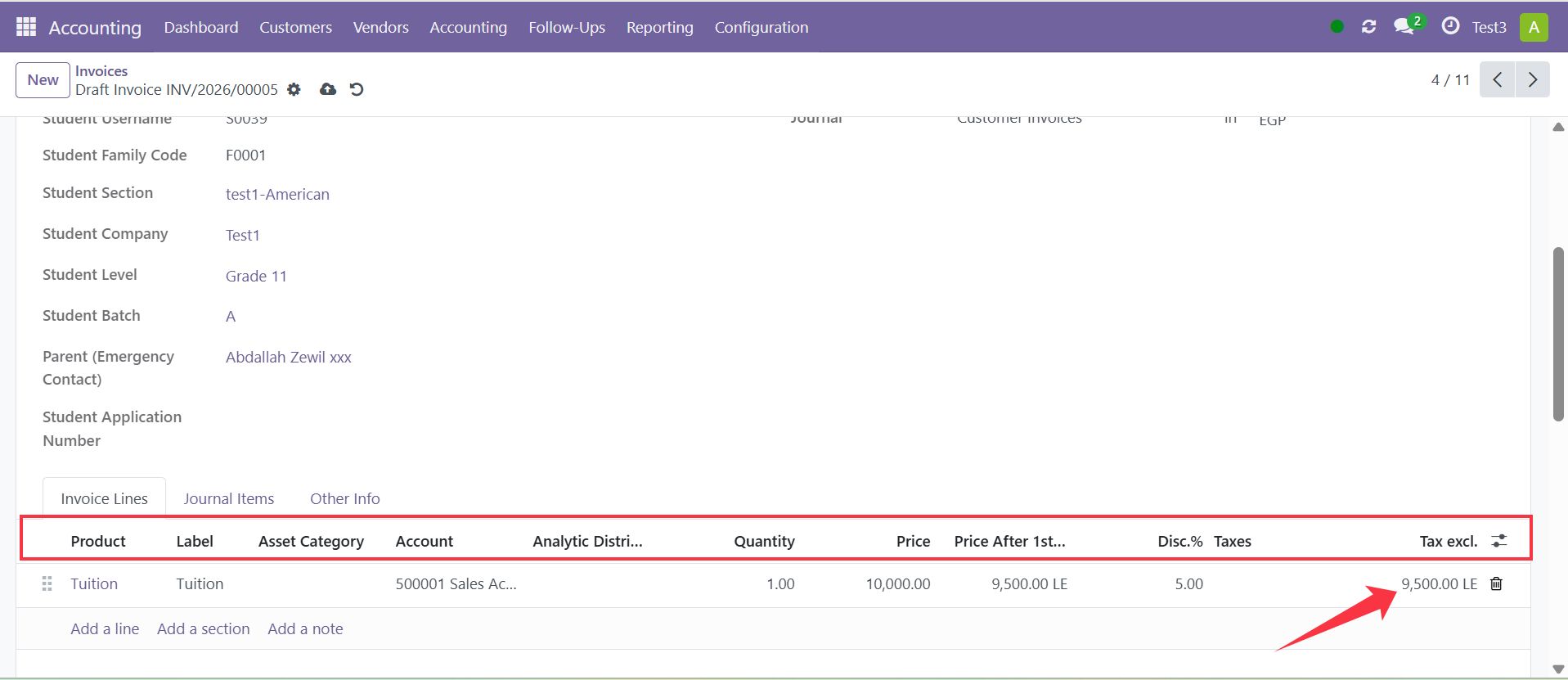
Verify the current invoice information, including:
Student Name
Invoice Date
Due Date
Products
Amounts
Applied Discounts
Step 3: Edit the Required Information
Update the necessary fields based on your requirements.
Common updates include:
Adding or removing fee products
Updating fee amounts
Modifying due dates
Applying or adjusting discounts
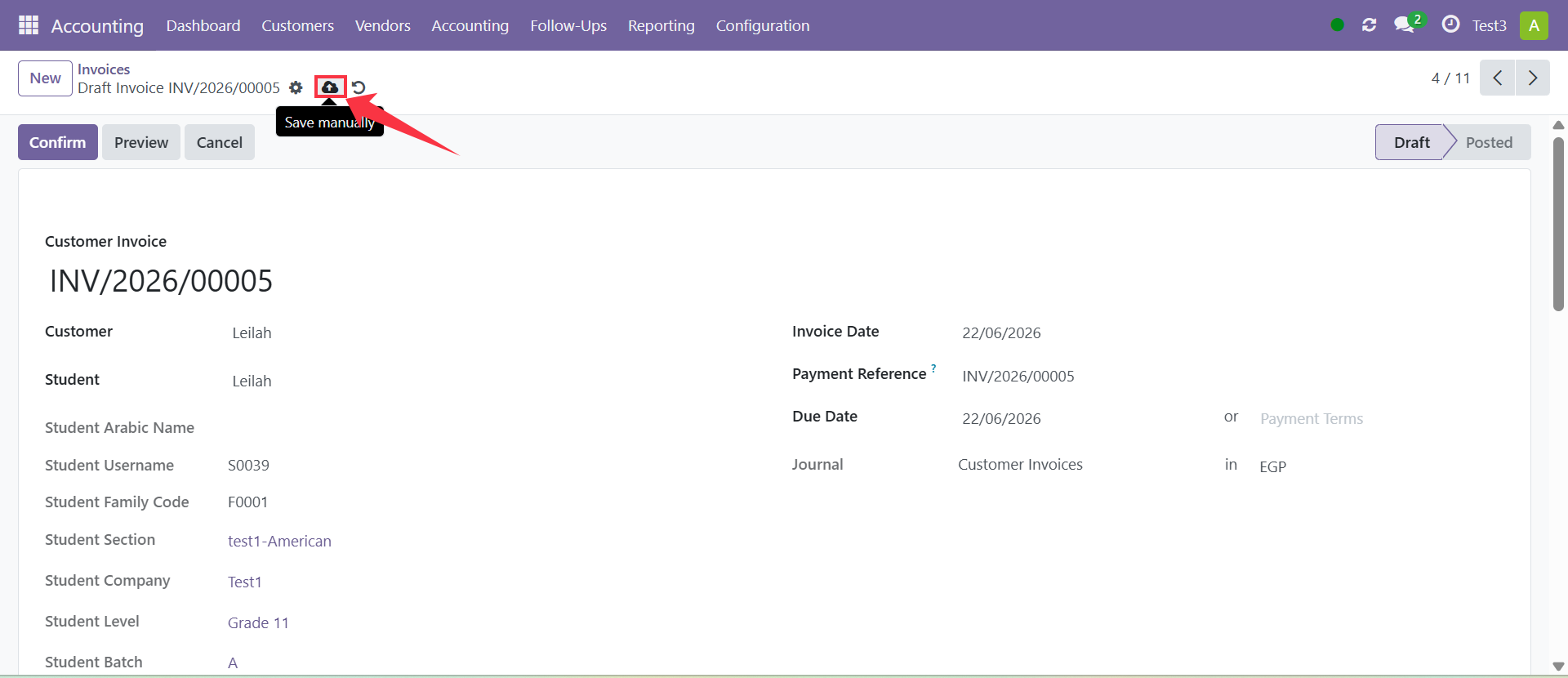
Step 4: Save the Changes
After completing the required updates, click Save.
The invoice will be updated with the new information.
Result
The student fee invoice has been successfully updated and will reflect the latest fee information.
Notes
Only draft invoices can be edited directly.
Posted invoices require to be converted to draft
Always verify the invoice details before saving changes.
Updating an invoice may affect the student's outstanding balance and payment status.